
This guide is not translated into Italiano yet, so it is shown in English.
Workspace Start
Create the first workspace
Prepare repository access, choose the right template and backup, create the workspace, and launch Browser IDE.
Last updated
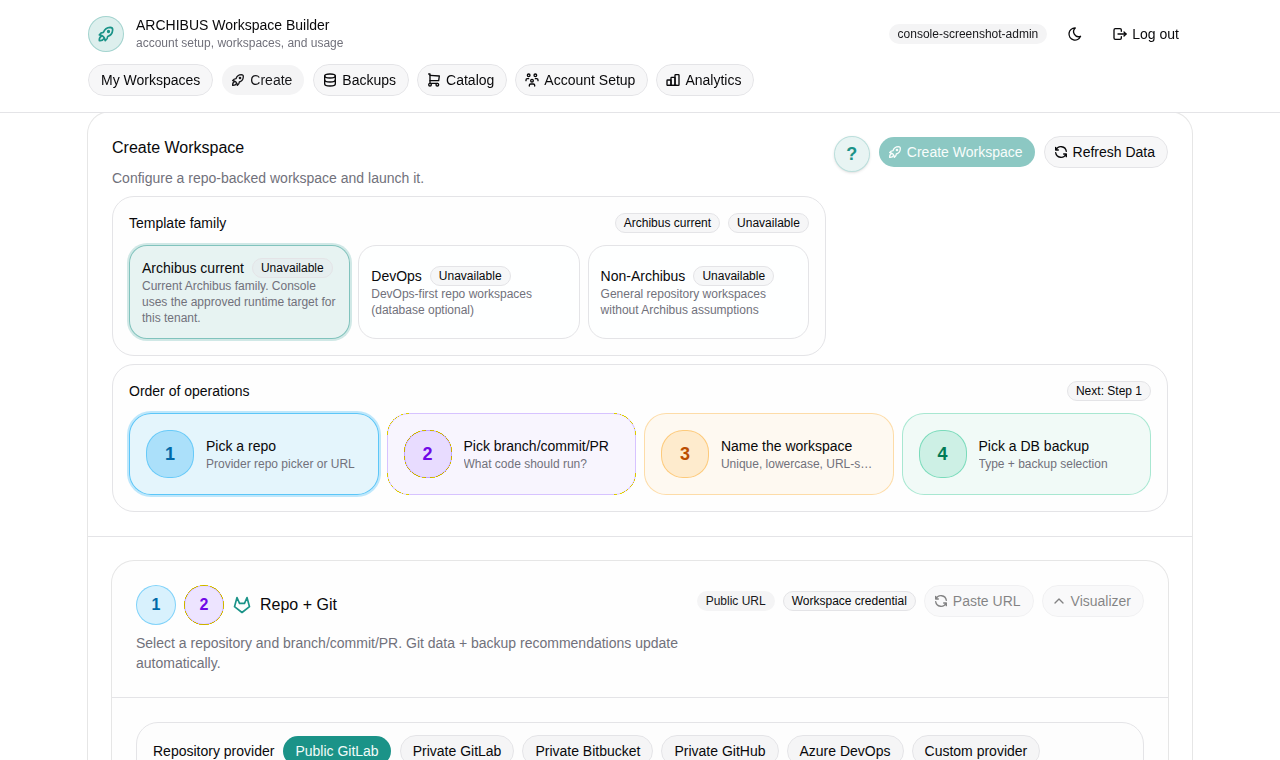
Pre-flight checklist
Before you click Create, confirm:
- Account setup is not blocked.
- Billing or trial access is approved.
- Prepaid workspace time and managed-AI credit are funded when your account uses prepaid access.
- Account Setup > Targets shows the operator-managed shared-hosted target as ready.
- The template you selected is approved for your account.
- The repository URL and branch are correct.
- The database backup or seed choice is correct.
- Private Git credentials show valid clone access when needed.
For most shared-hosted customers, the target is operator-managed and read-only
in Account Setup > Targets. If Console exposes multiple targets later, use
only the target approved for your tenant.
Choose repository access
For public repositories, paste the clone URL and branch.
For private repositories, use the Console credential flow for your provider. Console may validate the credential and show health information, but it does not show saved token, app-password, or private-key values after storage. Platform-managed storage credentials are supplied through the platform’s secret configuration, not as workspace parameter overrides. Do not paste them into the Create form.
| Provider | Typical safe input | Do not paste |
|---|---|---|
| GitLab | Project URL, branch, saved PAT health state. | Raw PAT in tickets or docs. |
| GitHub | Repository URL, branch, saved PAT health state. | Raw PAT in screenshots. |
| Bitbucket | Repository URL, branch, saved app-password health state. | App-password values. |
| Azure DevOps | Organization/project/repo URL and branch. | PAT value outside the credential flow. |
Check the branch selection
Search for the branch by name before selecting it. You can clear the search and choose again after making a selection. Check the selected branch, not just the number of branches shown. A notice that only loaded branches are shown means the list is not yet a complete inventory.
For multiple repositories, check the summary for both added repositories and any repository still being configured. Review each repository’s selected branch before creating the workspace.
Read toolchain readiness
Check the Java, Gradle and Tomcat versions against your WebCentral version. A template-provided value is not automatically a compatible value. An unknown version is not a successful compatibility check, and a settled unknown result is not an ongoing check. Read any field-specific refusal before continuing.
Create the workspace
- Open Create.
- Choose the approved template.
- Confirm the target shown for your account and the repository settings.
- Select a backup or seed when the template needs one.
- Review credential and readiness messages.
- Click Create Workspace.
- Watch build status until the workspace is ready.
If Console shows a validation error, fix that exact field before retrying. For a repository refusal, include the displayed safe refusal category in your support handoff; never include the credential value. If Coder accepts the workspace and startup later fails, keep the workspace available for inspection unless an operator tells you cleanup is safe.
Launch Browser IDE
- Open My Workspaces.
- Wait for the workspace status to be ready or running.
- Click Browser IDE.
- If the browser asks you to sign in again, complete SSO and return to the launch link.
The Browser IDE link should use the public workspace URL. If it opens an internal service address or redirects to a place your browser cannot reach, stop and report the issue.
Create blocked troubleshooting
| Blocker | What it usually means | Next action |
|---|---|---|
| Billing or prepaid balance | The account is not approved or funded for creates. | Ask a customer admin or operator to review Catalog and billing state. |
| Target unavailable | ISM has not yet attached a ready workspace target or template aliases for this account. | Ask ISM support to review target readiness. |
| Template unavailable | The visible template alias cannot resolve to an active template. | Choose another approved template or ask support. |
| Git validation failed | Repo URL, branch, or credential is wrong. | Update the repository or credential health state. |
| Workspace user provisioning failed | Identity or Coder user mapping needs review. | Escalate with visible error and user email. |
Done When
- Billing or trial access is approved.
- Account Setup > Targets shows the operator-managed shared-hosted target as ready.
- Template choice is available for your account.
- Repository and branch are correct.
- Backup or database seed choice is correct.
- Browser IDE opens after the workspace is ready.