


Workspace Start
Create the first workspace
Review the launch summary, complete the current required step, and create a workspace from an approved Design packet, repository, or WAR source.
Last updated
The Create page keeps the next decision in the first screen. A compact launch summary shows the selected Design packet, template, source, runtime target, database, and current blocker. A step rail links to Repo + Git, Runtime target, Database, and Integrations. The form opens the section that needs your attention instead of placing a second progress model above it.
Open Create from the left navigation, or use Implement in workspace from an approved Design project. Console starts no workspace until you review the launch summary and select Create Workspace.
Before you start
Confirm these account-level items first:
- Billing or trial access is approved.
- Your account can use an approved template family and workspace target.
- Git access is connected in Console settings when the repository is private.
- Linear or Jira is connected in Settings > ArchiBot account > Connections when a Design project will publish or link an implementation issue.
- The WebCentral version profile matches the repository or WAR source.
For most shared-hosted customers, an operator manages the workspace target. Console shows the targets and operating systems your account can use. You do not need to enter infrastructure identifiers.
Read the launch summary
The launch summary stays visible while you work. It shows the values that will shape the workspace and names the next required input. Select any item in the step rail to open its section.
| Section | What you decide |
|---|---|
| Repo + Git | Repository or WAR source, provider, and exact branch, commit, or pull request. |
| Runtime target | Workspace name, template, size, operating system, target, toolchain, and schedule. |
| Database | Database type and approved restore source, when required. |
| Integrations | Per-workspace AI, Shared Drive, and startup choices. |
A completed section stays available as a compact summary. A blocked section shows the missing input and a direct action to resolve it. Use the small information control when you need definitions or setup guidance.
Prepare the Design packet
The Design workbench turns a conversation into durable implementation intent. Use it to define the outcome, explore an approach with ArchiBot, select an artifact revision, and publish a traceable issue before a workspace or bot starts.
Design keeps the current project, objective, checkpoint, selected output, and next lifecycle action in the workbench. Search the Work lookup to change projects. Open work details for the product, host, repository stack, constraints, definition of done, and resolved context.
To prepare a packet:
- Select New design, name the work, and choose the product context from the lookup.
- State the desired outcome, boundaries, and measurable definition of done.
- Use the conversation to explore states, edge cases, accessibility behavior, and QA expectations.
- Review the generated output and select the artifact revision that represents the intended direction.
- Select Review issue.
The issue review offers Description and Preview modes. Edit the issue and acceptance criteria in Description, then use Preview to read the exact formatted packet. Review the configured handoff destination. The current Design publication path uses Linear; Jira can supply optional work-item context for an ad hoc workspace. If a tracker is disconnected, follow the Settings link and connect it in Settings > ArchiBot account > Connections.
Save changes before approval. Unsaved edits block approval and publication so the description, approved snapshot, and published issue stay aligned. Resolve any item named by the readiness summary, approve the current snapshot, then publish it to the selected tracker.
After publication, choose Implement in workspace to open Create or Delegate to bot to open Bots. Both paths carry the pinned Design project, context revision, artifact revision, approved snapshot, repository stack, linked issue, and QA intent. Design itself does not merge code, start a workspace, or change a runtime.
Implementation results continue through Console review and QA. A route linked to a persistent environment also runs its destination check before merge or promotion. See Persistent environments and CI Review for that lifecycle.
When authenticated runtime evidence returns, Design marks the named target and revision as verified. The original artifact remains historical Design intent. Open Runtime evidence for the target, time, result, and linked review or QA run. Rendered means the Design output exists; it does not prove runtime behavior.
Start Create from an approved packet
When you open Create from Design, the launch summary identifies the approved issue and provides a link back to the Design project. Console loads the pinned objective, repository stack, QA intent, and Design origin into the form.
Review every resolved value before launch. The packet supplies intent and safe defaults, but it does not create the workspace for you. If the packet is stale or blocked, return to Design, publish a current approved snapshot, then reopen Create. Return to Prepare the Design packet when the packet needs another revision.
Choose a source and code revision
Use Repo + Git for a repository or switch the source to WebCentral WAR for a managed artifact.
For a Git source:
- Open the provider lookup and choose the connected provider.
- Search the repository lookup. Paste a clone URL only when the repository is unavailable from the connected provider or your enterprise flow requires manual entry.
- Search for the branch, commit, or pull request that the workspace should run.
- Review any dependent repositories supplied by the Design packet.
The provider control shows connection health beside the selected provider. Use the Settings link to connect, replace, or remove credentials. Keep personal access tokens, app passwords, and SSH private keys out of issue descriptions, workspace names, screenshots, and documentation.
For a WAR source, search the managed artifact catalog. Paste a path only for a managed object-store artifact that Console can reach. A WAR-backed workspace skips repository cloning and expands the artifact into the applications directory.
Configure the runtime
Open Runtime target and complete the values that vary for this workspace:
- Enter a unique, lowercase, URL-safe workspace name. Generate name can suggest one.
- Confirm the template family. Use the lookup to change it only when the work needs a different runtime shape.
- Confirm the workspace size, operating system, and target offered for your account.
- Choose the WebCentral version profile. The profile applies the matching Java, Gradle, Tomcat, and license defaults.
- Review the schedule. Autostart is off by default, and autostop defaults to eight hours after start unless your account policy supplies another value.
Use a custom toolchain only when an operator or project lead has given you a specific override. The version profile is the safer choice for routine work.
Choose the database and restore source
Open Database and choose SQL Server, Oracle, or None. Database type is remembered per repository URL.
When the template requires data, search the approved backup catalog and select the restore source. The lookup supports the managed backups and repository associations available to your account. Paste a custom URL only for an approved managed object-store backup.
Database sidecars and restores require a compatible Linux target. If the selected target cannot run the chosen database, pick a compatible target or use None for repository-only work. See Backups and restore sources for catalog and upload guidance.
Set per-workspace integrations
The Integrations section contains choices that can differ by workspace, such as managed AI access, Shared Drive attachment, and the startup experience. It summarizes each current choice and expands only the integration you edit.
Long-lived account connections belong in Settings. Connect or rotate Linear, Jira, Git, and other provider credentials there. Design owns implementation issue selection and publication, so Create shows the linked issue from an approved packet instead of repeating tracker setup.
Create the workspace
The page has one primary Create Workspace action. It stays beside the launch summary and current blocker.
- Confirm the Design packet or source, code revision, runtime, and database in the launch summary.
- Resolve the named blocker, if one remains.
- Select Create Workspace.
- Watch the build and startup status until the workspace is ready.
Console first shows provisioning output. After the build reaches a terminal state, it switches to the maintained runtime startup log and waits for the startup checklist to finish. It then opens My Workspaces with the new workspace selected and its details available.
If validation rejects the request, fix the named field before retrying. If the workspace is accepted but startup later fails, keep it available for inspection unless an operator confirms that cleanup is safe.
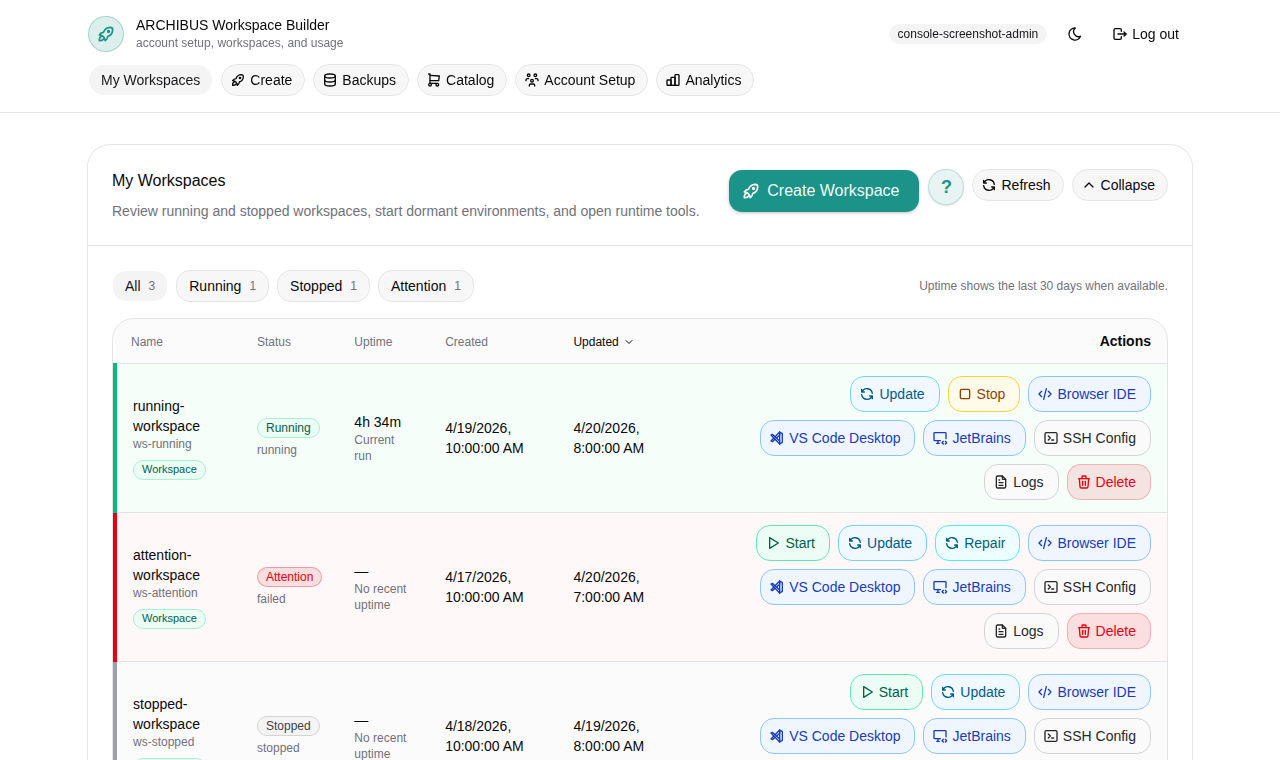
Open the workspace
- Go to My Workspaces.
- Wait for the workspace status to become ready or running.
- Open the workspace and choose the browser editor or another available connection.
If a connection opens an internal service address or redirects somewhere your browser cannot reach, stop and report the visible state. See Manage your workspaces for start, stop, update, rebuild, schedule, and delete actions.
Create blocked troubleshooting
| Blocker | What it usually means | Next action |
|---|---|---|
| Billing or prepaid balance | The account cannot start a billable workspace. | Ask a customer admin or operator to review Catalog and billing state. |
| Template unavailable | No approved template resolves for the selected target. | Choose an available template or review Catalog and readiness. |
| Design packet blocked | The approved snapshot is stale, incomplete, or no longer matches its issue. | Return to Design and publish a current approved packet. |
| Provider disconnected | The selected private repository cannot use a healthy saved connection. | Open Settings, repair the connection, then refresh the lookup. |
| Repository or revision missing | Console has no exact source to clone. | Search for the repository and branch, commit, or pull request. |
| Target without database support | The target cannot run the chosen database. | Choose a compatible target or set the database to None. |
| WAR artifact required | WAR mode has no managed artifact. | Search the WAR catalog or enter an approved managed path. |
Related guides
- Prepare the Design packet for the approved intent that can feed Create.
- Console settings for Git and tracker connections.
- Catalog and readiness for approved templates and account readiness.
- Backups and restore sources for database and WAR artifacts.
- Persistent environments and CI Review for review, QA, and target-environment checks.
- Manage your workspaces for day-to-day workspace actions.
Done When
- Billing or trial access is approved.
- An approved template family is available for your account.
- Repository or WAR source, code revision, runtime target, and database choices are correct.
- The launch summary shows no unresolved blockers.
- The single Create Workspace action is enabled before you start the build.