
This guide is not translated into Norsk yet, so it is shown in English.
Daily Work
Manage workspaces
Use My Workspaces to start, stop, update, launch, inspect, and delete workspaces without leaving Console.
Last updated
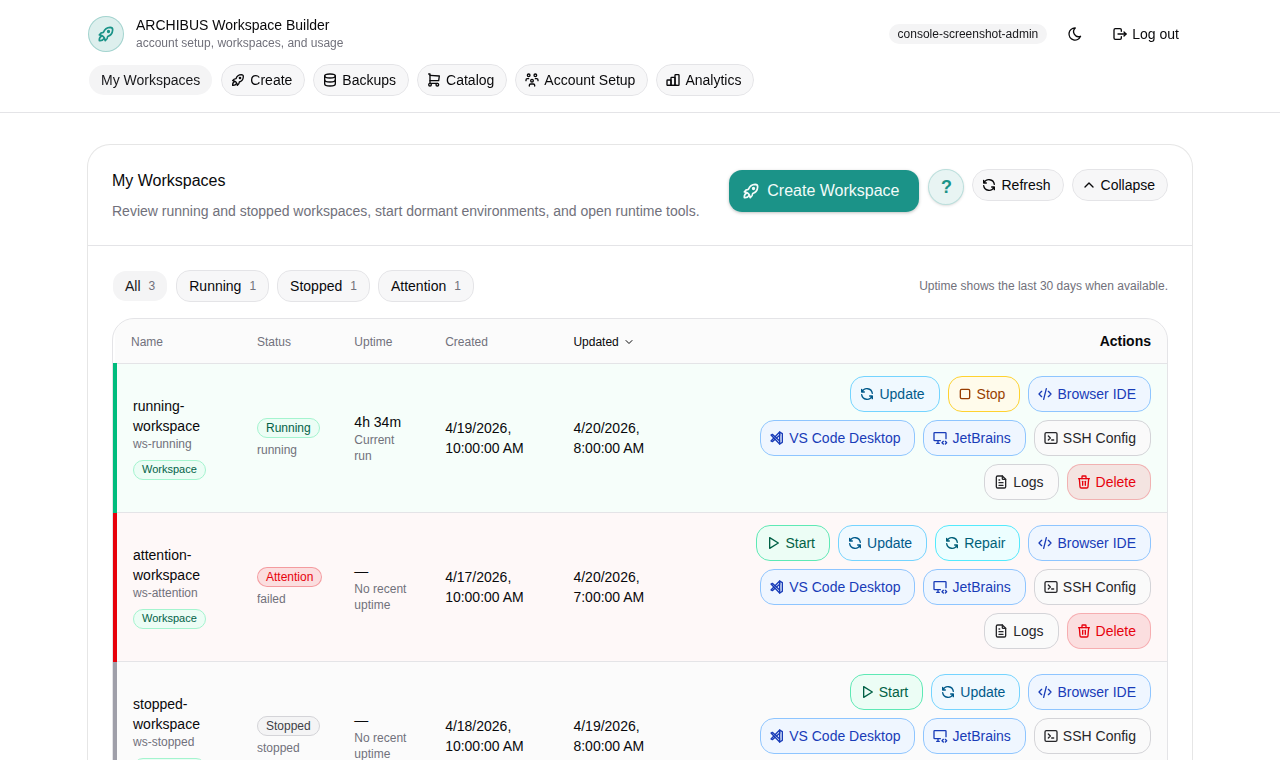
Read workspace status
My Workspaces shows running, stopped, starting, updating, failed, and attention states. Stopped workspaces remain visible so they can be restarted, updated, inspected, or deleted.
| Status | Meaning | Common action |
|---|---|---|
| Running | Runtime is active. | Launch Browser IDE or stop when done. |
| Stopped | Runtime is not active. | Start before working or delete if no longer needed. |
| Starting or updating | A build is active. | Wait for the build result. |
| Failed or attention | Build or runtime needs review. | Open logs or ask support before deleting storage. |
Start a stopped workspace
- Open My Workspaces.
- Find the stopped workspace.
- Click Start.
- Wait for status to become ready or running.
- Launch Browser IDE.
Starting does not recreate the workspace from scratch. It brings the existing workspace runtime back online.
Stop a running workspace
- Open My Workspaces.
- Find the running workspace.
- Click Stop.
- Confirm the status changes to stopped.
Stopping helps control runtime usage. It is different from delete. Storage and workspace records remain available according to the platform policy.
Restart only Tomcat after a WebCentral build
A managed agent’s application filesystem access does not grant control over the workspace’s Tomcat process. If the agent reports that a view deployment needs a restart, the workspace owner can use the existing Console control instead of giving the agent a shell outside its boundary.
- Finish the application’s required build and deployment first. Restarting does not compile or deploy your changes.
- In My Workspaces, select your own running workspace and open its Runtime menu.
- Choose Restart Tomcat. On supported Coder workspaces this opens the owner-only command app, which restarts the Tomcat service and reports its status. It does not restart, rebuild, or update the workspace.
- Read the command result. The supported controller writes its restart output to
~/logs/tomcat-restart.login the owner runtime. A managed agent may not have access to that path; do not broaden its filesystem grant to read it. - Open WebCentral normally, sign in through the supported flow, and revisit the affected view. Confirm the expected change and action, not just that the login page responds. A successful service status alone does not prove the application or a previously failing JSP is fixed.
The control is hidden when the workspace does not declare the supported command app. It is disabled while a build is active, the workspace is not running and ready, or the launch is already pending. A native workspace is not a Coder command-app target: do not construct an app URL or reuse a Coder workspace ID to reach it. If the action is missing or fails, record the workspace target kind, workspace name, action and non-secret error in a Console support request. Do not use Stop, Update, a workspace restart, or raw process-killing commands as a substitute for this service-only action.
There is no Tomcat-only Stop action in this documented Console flow. Stop on the workspace row stops the workspace, not just Tomcat. If service-only shutdown is needed for maintenance, use the target’s supported owner/operator maintenance procedure; do not attempt it from a managed agent or stop another person’s workspace.
If a restart times out or its outcome is uncertain, inspect the existing command result and service/application status before requesting another restart. Never delete runtime state or application data to force a retry. Share only a redacted error excerpt, not credentials, session cookies, or customer records.
Update safely
- Click Update or Review update.
- Read the planned template and parameter changes.
- Confirm credential refresh status.
- Check that secret values remain hidden.
- Click Run update only when the plan is correct.
Update shows non-secret parameter changes before a build starts. Platform-managed storage credentials remain hidden and are not workspace parameter overrides. Console records the update’s registry audit before dispatching the build; if it cannot record the audit, the update is not started. If a field fails validation, fix it in the review instead of starting the build repeatedly. If the audit cannot be recorded, report the non-secret error through Console.
A published template does not automatically update every existing workspace. Use the normal Update review to adopt it. After an update, confirm the installed Java and Gradle versions before building a product that requires them; selecting a WebCentral version alone is not proof that its toolchain is installed.
Delete a workspace
Delete only when you intentionally want the managed workspace removed. Use the Console delete action so cleanup can follow the supported path.
Do not manually delete PVCs, pods, Kubernetes Secrets, or Coder objects for a normal customer delete. If cleanup appears stuck, include the workspace name, status, and last action in the support handoff.
Editor launch options
Open in VS Code is the first action in the Connect menu and the primary editor action in workspace details. Needs VS Code and the Archibot extension.
- Install Visual Studio Code on your computer.
- Install Archibot from Visual Studio Marketplace.
- In Console, select your running workspace and choose Connect → Open in VS Code, or Open in VS Code in its details.
- Allow your browser to open VS Code when prompted. The action uses the Archibot extension’s
vscode://archibot.archibot-vscode/openhandler; it does not install VS Code or the extension for you. - Complete the extension’s normal sign-in or pairing flow if requested, then verify the intended workspace opens. Never share pairing codes, credentials, or session links.
| Action | Use when |
|---|---|
| Open in VS Code | You want to open the workspace in local VS Code with the Archibot extension. |
| Browser IDE | You want an in-browser editor without a local VS Code installation. |
| Coder Remote (legacy) | You need the older Coder remote client for a Coder-backed workspace; this remains secondary, not the native workspace path. |
| JetBrains | Your team uses JetBrains remote workflows. |
| SSH Config | You need an advanced terminal or editor connection. |
If the action does nothing, confirm VS Code and the Archibot extension are installed locally and that your browser permits vscode:// links. Use Browser IDE when available if you cannot install a local editor. Report the selected workspace target kind and failing action through Console; do not substitute another target’s workspace ID or credentials.
Editor launch does not start, stop, update, or delete a workspace. Those lifecycle actions remain in Console.
Done When
- The workspace row shows the expected status.
- Start is available for stopped workspaces.
- Stop is available for running or starting workspaces.
- Update review finishes before a build starts.
- Delete confirmation matches the workspace you intend to remove.