
This guide is not translated into Español yet, so it is shown in English.
Account Setup
Customer admin setup
Complete the first account setup pass, submit SSO details safely, invite users, and hand off operator-reviewed items.
Last updated
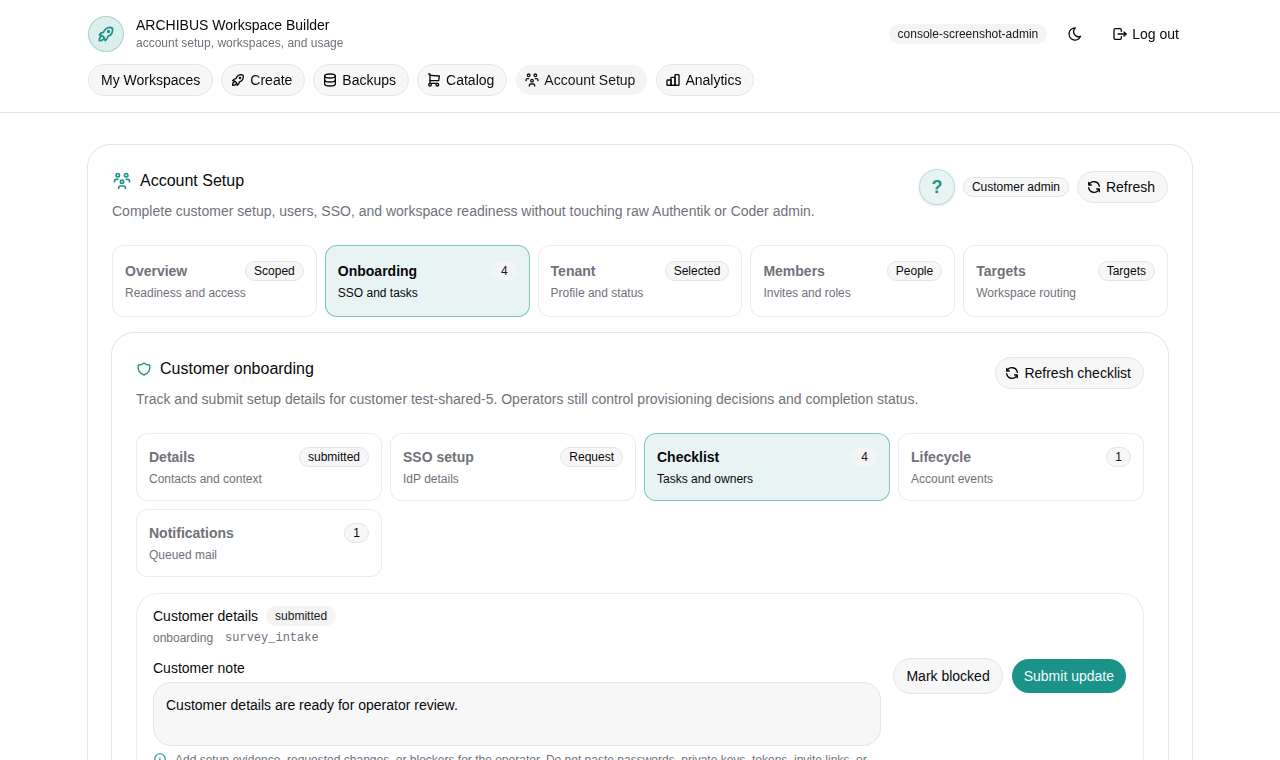
First ten minutes
- Open Account Setup.
- Confirm the customer name, support contact, billing contact, and technical contact.
- Open the onboarding checklist and note any blocked items.
- Submit SSO setup details if your team uses an external identity provider.
- Invite the first customer members.
- Confirm billing or trial approval is visible.
- Open Targets and confirm the operator-managed shared-hosted target does not still show Waiting on ISM.
The goal is not to finish every enterprise integration immediately. The goal is to leave enough accurate setup information for the first workspace to be created without repeated back-and-forth.
Submit customer details
Use the customer-owned details form for information your team is comfortable making customer-visible:
- Legal or operating name.
- Billing and technical contacts.
- Repository or artifact notes.
- AI or workspace preferences.
- Target launch timing.
Do not put private credentials, payment card details, invite links, or internal-only negotiation notes in this form.
Submit SSO setup details
For OIDC or SAML, provide non-secret metadata:
- Provider type.
- Discovery URL or metadata URL.
- Expected email domains.
- Username, email, and groups claims.
- Admin and member groups.
- Test users for validation.
Do not paste OIDC client secrets, SAML private keys, signing material, passwords, cookies, raw tokens, or one-time links. ISM will use the approved secret exchange path when secret-backed activation is needed.
Invite users
- Open the members or invites section.
- Enter the user email.
- Choose customer admin only for people who should manage setup, invites, and usage.
- Choose customer member for ordinary workspace users.
- Send or reissue the invite.
If a user opens an invite while already signed into an older or different identity-provider account, they may land on access denied. Ask them to sign out of the identity provider, reopen the invite, and then open Console after acceptance.
Review target readiness
For shared-hosted tenants, open Targets in Account Setup to review the
operator-managed workspace target for your tenant. This screen should explain
that ISM manages the target attachment and credentials. Customer admins use it
to confirm readiness, not to register control-plane endpoints.
A ready shared-hosted target should make it clear that:
- ISM has attached the target for your tenant.
- The target can host workspaces for your account.
- Template aliases are available for Create.
- Any remaining operator-owned launch task is visible.
If the page still shows Waiting on ISM, the customer side is done for now.
Send support the tenant name, visible target status, and any template-alias
warning.
Operator-reviewed fields
Some items require ISM review before they become active:
| Item | Why review is needed |
|---|---|
| Billing state | Workspace creation may depend on verified, trial-approved, or prepaid status. |
| External SSO source | Secret-backed IdP activation must not happen through public notes. |
| Workspace target | For shared-hosted tenants, ISM attaches the target, template aliases, and routing. Customer admins review readiness here but do not edit target credentials. |
| Provider setup | Managed AI and customer provider accounts need billing and safety checks. |
What to do when setup is blocked
Read the blocker text first. If it mentions billing, prepaid balance, SSO, operator-managed target readiness, or template availability, retrying Create will not help until that setup gate is fixed.
Send support the customer name, blocked checklist item, visible message, and last action attempted. Do not send secret values or one-time links.
Done When
- Company and support contacts are current.
- At least one customer admin can sign in.
- First customer members are invited or active.
- SSO details are submitted or marked not required.
- Billing or trial access is approved.
- Targets shows the operator-managed shared-hosted target as ready, or the remaining blocker is clear.