
This guide is not translated into Français yet, so it is shown in English.
API
ArchibotChat API keys
Create, store, rotate, and revoke user-generated endpoint keys for OpenAI-compatible clients.
Last updated
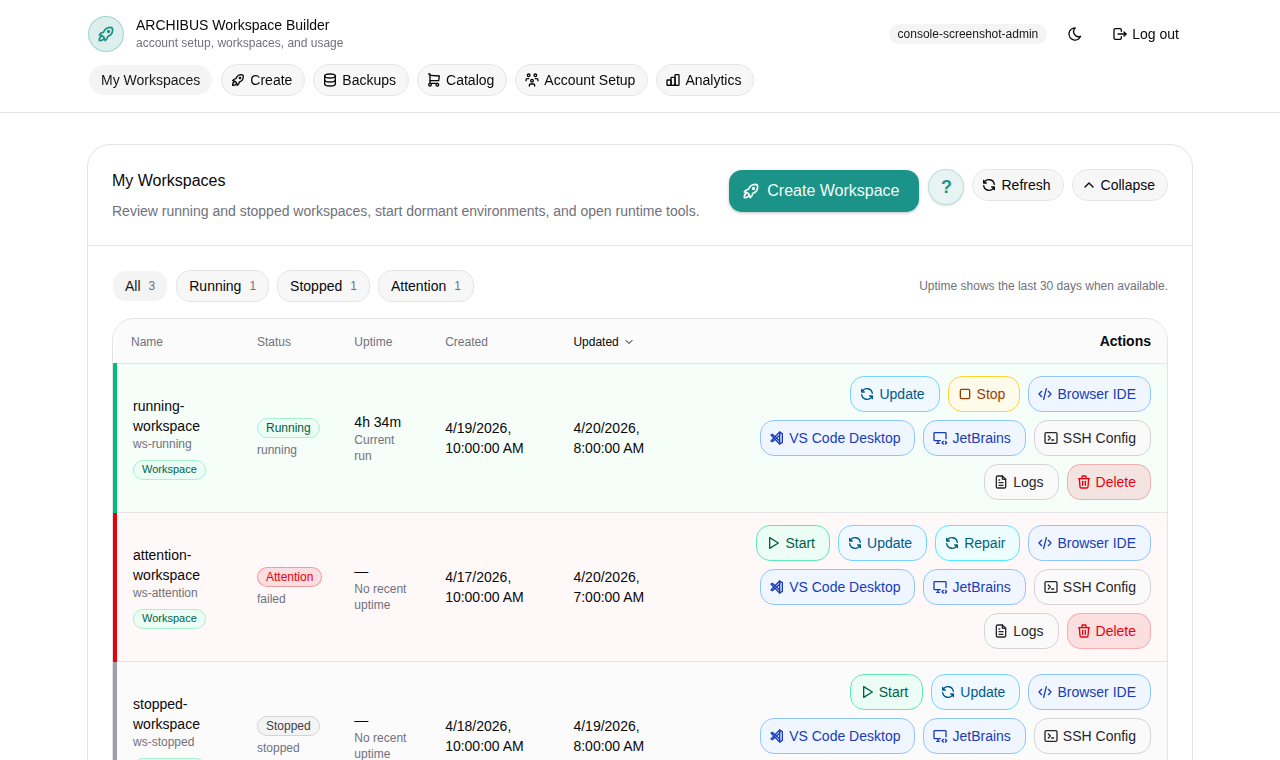
API keys let you call the public Archibot endpoint from scripts, integrations, and development tools. API keys are separate from the hidden browser chat credential.
When To Use API Keys
Use API keys when you need to:
- Call Archibot from a script.
- Integrate Archibot into an internal tool.
- Run endpoint smoke tests.
- Use an OpenAI-compatible client against the Archibot endpoint.
Use the browser Chat screen for interactive questions.
Create A Key
- Open
API Keys. - Choose
Generate key. - Enter a clear name if prompted.
- Copy the new key immediately.
- Store it in your approved secret manager or runtime environment.
The full key is shown only once. After you leave the confirmation, ArchibotChat shows only the key prefix and metadata.
Key Names
Use names that explain purpose and owner.
Good examples:
Facilities nightly report.Endpoint smoke test runner.Integration dev laptop.
Avoid vague names like test, key, or new.
Use A Key
Use the key as a bearer token with the Archibot OpenAI-compatible endpoint.
Example shape:
curl https://chat.example.archibot.cloud/v1/responses \
  -H "Authorization: Bearer $ARCHIBOT_API_KEY" \
  -H "Content-Type: application/json" \
  --data '{
    "model": "archibot",
    "input": "Summarize this Archibus request queue export."
  }'
Use the production URL provided by ISM for your account. Do not infer production endpoints from local examples.
The endpoint forwards OpenAI-compatible Responses API fields such as tools, tool_choice, reasoning, metadata, and structured input content to the server-side Archibot endpoint after API-key and credit checks pass.
For streamed responses, send stream: true:
curl -N https://chat.example.archibot.cloud/v1/responses \
  -H "Authorization: Bearer $ARCHIBOT_API_KEY" \
  -H "Content-Type: application/json" \
  --data '{
    "model": "archibot",
    "input": "Draft a short work plan for this Archibus data cleanup.",
    "stream": true
  }'
Streamed responses return billing evidence in X-Archibot-* response headers instead of rewriting every event chunk.
OpenAI-compatible model discovery is available with the same bearer key:
curl https://chat.example.archibot.cloud/v1/models \
  -H "Authorization: Bearer $ARCHIBOT_API_KEY"
Model discovery does not consume a turn.
Rate Limits
Generated API keys have a per-key request limit. Responses include X-RateLimit-Limit, X-RateLimit-Remaining, and X-RateLimit-Reset headers. When the limit is exceeded, the endpoint returns 429 with Retry-After.
Expiry
Generated API keys expire one year after creation.
Expired keys remain visible by name, prefix, and metadata so you can audit old integrations, but they cannot call model discovery or /v1/responses. Expired-key rejections happen before any turn-credit debit.
Rotate an expired key to issue a replacement under the same name and scope, or revoke it if the integration is no longer used.
Billing
One completed endpoint request counts as one API turn-equivalent.
API turn-equivalents draw from the same shared chat/API turn allowance shown in Billing.
Failed preflight checks and upstream request rejections should not consume credits. A streamed request becomes billable after the upstream Archibot endpoint accepts the stream.
Revoke A Key
Revoke a key when:
- It is no longer used.
- It was pasted into chat, email, a ticket, a repository, or a shared document.
- The owner leaves the team.
- The integration is replaced.
To revoke:
- Open
API Keys. - Find the key by name or prefix.
- Choose the revoke action.
- Update the affected script or integration with a new key if needed.
Rotate A Key
Rotate a key when the integration should keep running under the same key name and scope, but the secret value needs to change.
To rotate:
- Open
API Keys. - Find the active key by name or prefix.
- Choose the rotate action.
- Copy the replacement key immediately.
- Update the affected script, secret manager entry, or runtime environment.
Rotation revokes the prior key and creates a replacement with the same name and scope. The replacement secret is shown only once.
Security Rules
- Never commit API keys to source control.
- Never paste API keys into support tickets or shared docs.
- Use environment variables or a secret manager.
- Use one key per integration when possible.
- Rotate keys regularly for long-running integrations.
- Revoke keys immediately if exposure is suspected.
Chat Credential Versus API Key
| Credential | Visible to user | Used for |
|---|---|---|
| Hidden chat credential | No | Browser Chat screen |
| User API key | Yes, once | Scripts and endpoint integrations |
Do not ask ISM support to reveal the hidden chat credential. It is intentionally not user-visible.
Done When
- The API product gate is enabled.
- The generated key is stored securely after creation.
- Integrations use the ArchibotChat endpoint URL.