


API
ArchiBot Chat API keys
Create, copy, rotate, and revoke generated API keys, and wire an external coworker tool to the public ArchiBot endpoint.
Last updated
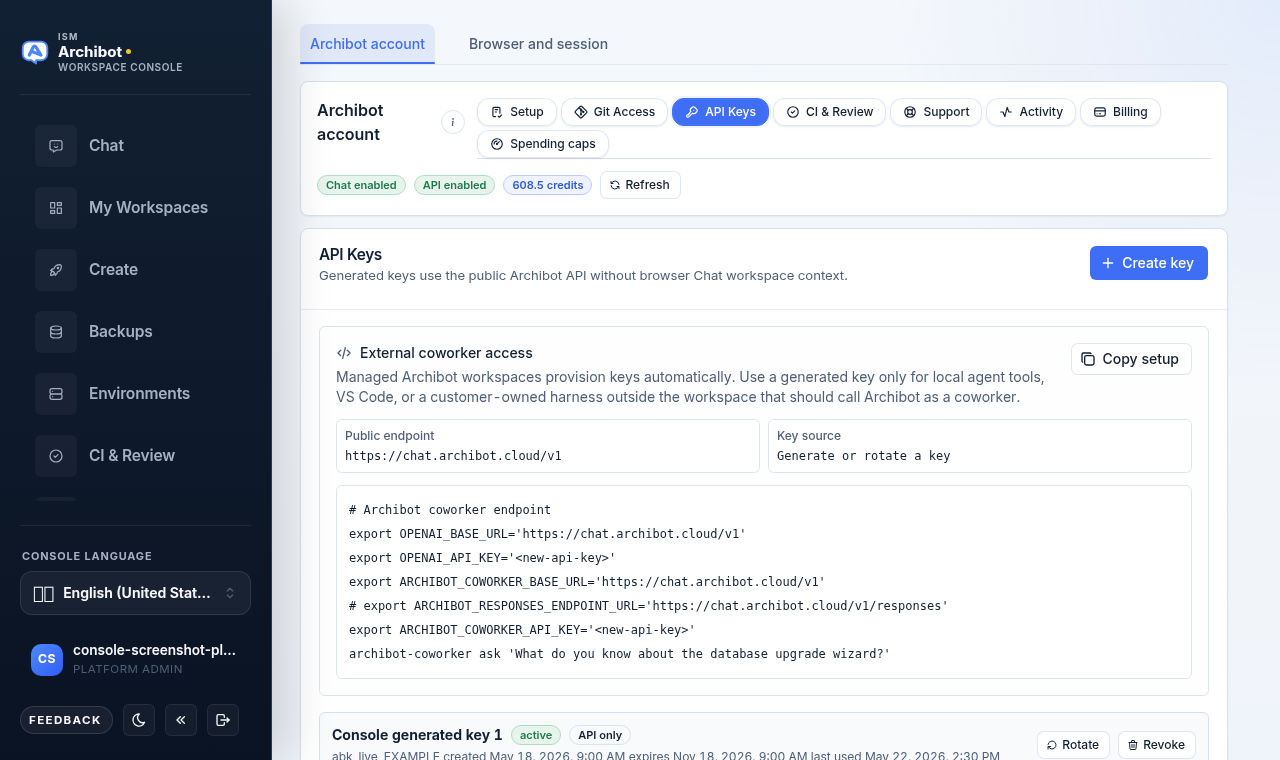
API keys let you call the public ArchiBot endpoint from scripts, local agent tools, and integrations that run outside a managed workspace. They are separate from the hidden credential that powers the browser Chat screen, which is never shown to users.
Managed ArchiBot workspaces already provision their own keys automatically. Use a generated API key only for local agent tools, an editor extension, or a customer-owned harness that should call ArchiBot as an external coworker.
When to use API keys
Create a generated key when you need to:
- Call ArchiBot from a script or scheduled job.
- Connect a local agent tool or editor extension to the endpoint.
- Run an OpenAI-compatible client against the ArchiBot endpoint.
- Wire a customer-owned harness outside the workspace to ArchiBot.
For interactive questions, use the browser Chat screen instead. See Using ArchiBot Chat.
Open the API Keys tab
- Open Settings from the left navigation.
- Select the
ArchiBot accountview. - Open the
API Keystab.
The tab sits in the same row as Setup, Git access, CI & Review, Support, Activity, and Billing. If API access is not enabled for the account, the tab shows the message API access is not enabled for this account. and the Create key button is disabled. Ask a customer admin or ISM to enable the API product gate first. See ArchiBot Chat setup.
Create a key
- On the
API Keystab, chooseCreate key. - The new key appears at the top of the list, and its full value is shown once in a highlighted callout that reads
Copy this key now. It will not be shown again. - Choose
Copynext to the key value. - Store it in your approved secret manager or runtime environment.
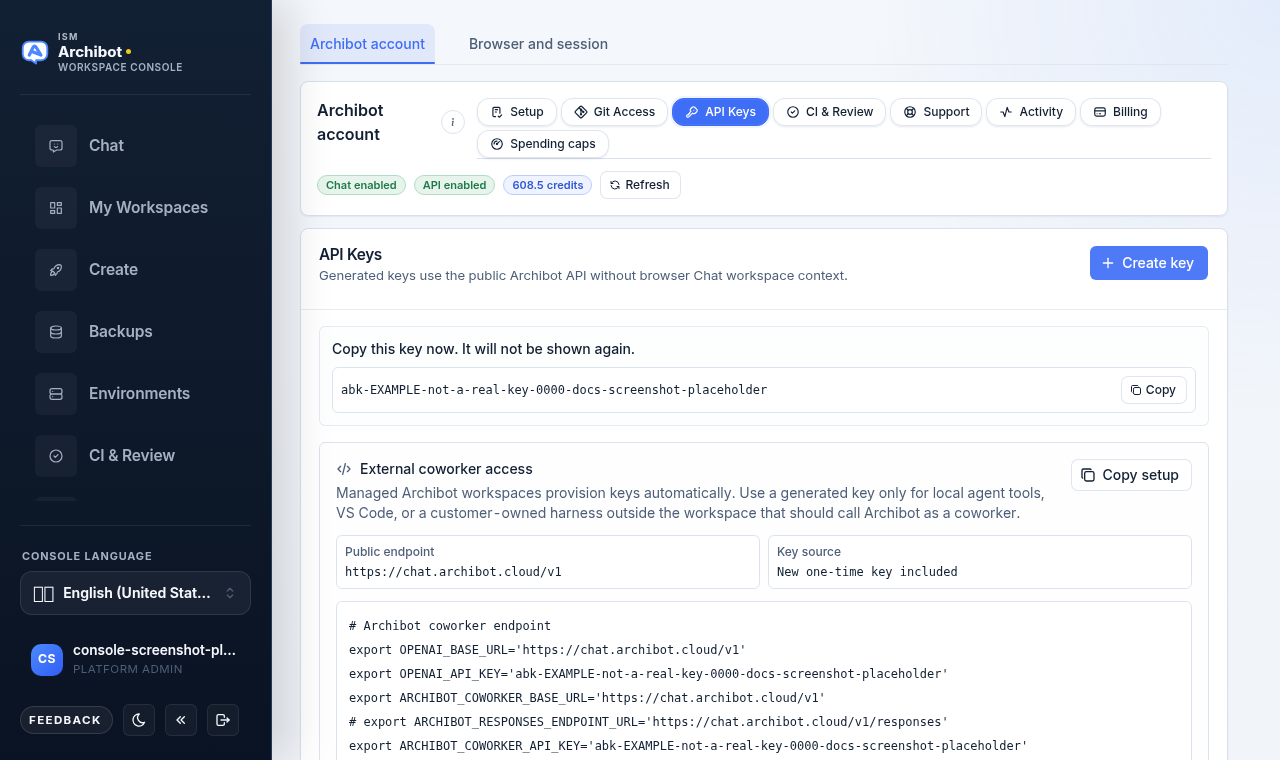
Keys are named automatically (for example, Console generated key 1) and given the api scope. The raw value is shown only in this callout. Once you leave the tab or create another key, only the key prefix and metadata remain visible.
If the copy button cannot reach your clipboard, the tab shows Clipboard copy unavailable. Select the key text manually and copy it before navigating away.
Wire an external coworker tool
The External coworker access card builds a ready-to-run setup script so you do not have to assemble environment variables by hand.
The card shows two reference fields:
| Field | What it shows |
|---|---|
| Public endpoint | The base URL your integration should call, for example https://chat.archibot.cloud/v1. |
| Key source | New one-time key included right after you create or rotate a key, otherwise Generate or rotate a key. |
Below those fields, a preview shows a shell script that exports the endpoint and key environment variables and runs a sample coworker command. When you have just created or rotated a key, the script includes that one-time key value; otherwise it uses a <new-api-key> placeholder.
- Create or rotate a key so the
Key sourcefield readsNew one-time key included. - Choose
Copy setupon theExternal coworker accesscard. - Paste the script into your local shell, secret manager, or tool configuration.
The script sets standard OpenAI-compatible variables (OPENAI_BASE_URL, OPENAI_API_KEY) alongside ArchiBot coworker variables so OpenAI-compatible clients and the ArchiBot coworker tooling both pick up the same endpoint and key. Use the production endpoint URL provided by ISM for your account rather than inferring it from a local example.
Use a key
Use the key as a bearer token against the ArchiBot OpenAI-compatible endpoint.
curl https://chat.example.archibot.cloud/v1/responses \
  -H "Authorization: Bearer $ARCHIBOT_API_KEY" \
  -H "Content-Type: application/json" \
  --data '{
    "model": "archibot",
    "input": "Summarize this Archibus request queue export."
  }'
The endpoint forwards OpenAI-compatible Responses API fields such as tools, tool_choice, reasoning, metadata, and structured input content to the ArchiBot endpoint after API-key and credit checks pass.
For streamed responses, send stream: true:
curl -N https://chat.example.archibot.cloud/v1/responses \
  -H "Authorization: Bearer $ARCHIBOT_API_KEY" \
  -H "Content-Type: application/json" \
  --data '{
    "model": "archibot",
    "input": "Draft a short work plan for this Archibus data cleanup.",
    "stream": true
  }'
Streamed responses return billing evidence in X-ArchiBot-* response headers rather than rewriting every event chunk.
OpenAI-compatible model discovery uses the same bearer key:
curl https://chat.example.archibot.cloud/v1/models \
  -H "Authorization: Bearer $ARCHIBOT_API_KEY"
Model discovery does not draw from your usage allowance.
Rate limits
Generated API keys have a per-key request limit. Responses include X-RateLimit-Limit, X-RateLimit-Remaining, and X-RateLimit-Reset headers. When the limit is exceeded, the endpoint returns 429 with a Retry-After header.
Expiry
Generated API keys expire one year after creation. Each key row shows its created, expires, and last-used dates next to the key prefix.
Expired keys stay visible by name, prefix, and metadata so you can audit old integrations, but they can no longer call model discovery or the responses endpoint. Expired-key rejections happen before any usage is counted. Rotate an expired key to issue a replacement under the same name and scope, or revoke it if the integration is retired.
Rotate a key
Rotate a key when an integration should keep running under the same name and scope but the secret value must change.
- On the
API Keystab, find the active key by name or prefix. - Choose
Rotateon that key row. - Copy the replacement value from the one-time callout.
- Update the affected script, secret manager entry, or runtime environment.
Rotation revokes the prior key and creates a replacement with the same name and scope. The replacement value is shown only once, in the same callout used for new keys. Rotate acts immediately; there is no separate confirmation dialog, so be ready to update the integration before old traffic fails.
Revoke a key
Revoke a key when:
- It is no longer used.
- It was pasted into chat, email, a ticket, a repository, or a shared document.
- The owner leaves the team.
- The integration is replaced.
- On the
API Keystab, find the key by name or prefix. - Choose
Revokeon that key row. - Update or remove any script or integration that relied on it.
Revoke takes effect immediately and there is no separate confirmation dialog, so confirm the key is the right one before you choose Revoke.
Billing
Generated API keys draw from the same shared chat and API usage allowance shown in Billing. Failed preflight checks and rejected upstream requests should not consume credits; a streamed request becomes billable once the ArchiBot endpoint accepts the stream. See ArchiBot Chat billing and credits.
Security rules
- Never commit API keys to source control.
- Never paste API keys into support tickets or shared documents.
- Use environment variables or a secret manager, not inline values.
- Use one key per integration when you can.
- Rotate keys regularly for long-running integrations.
- Revoke a key immediately if exposure is suspected.
Chat credential versus API key
| Credential | Visible to user | Used for |
|---|---|---|
| Hidden chat credential | No | Browser Chat screen |
| Generated API key | Yes, once | Scripts, local agent tools, and endpoint integrations |
Do not ask ISM support to reveal the hidden chat credential. It is intentionally not user-visible.
Related guides
- ArchiBot Chat setup
- Using ArchiBot Chat
- ArchiBot Chat billing and credits
- ArchiBot Chat security overview
- ArchiBot Chat approved data use
Done When
- API access is enabled for the account.
- The generated key value is copied and stored before you leave the tab.
- Integrations point at the ArchiBot Chat endpoint URL provided for the account.