
This guide is not translated into Français yet, so it is shown in English.
Archibot for VS Code
Use the Archibot VS Code extension
Install Archibot for VS Code 1.0.2 from the Visual Studio Marketplace, connect it to Archibot, and find its settings.
Last updated
Archibot for VS Code helps you build and check Archibus and WebCentral projects. It understands AXVW views, companion JavaScript and AFM metadata, runs validation and runtime checks, and adds an Archibot Chat panel that can work with the project you have open.
Version 1.0.2 is available on the Visual Studio Marketplace as Archibot (archibot.archibot-vscode).
Install from the Marketplace
- In VS Code 1.105 or newer, open Extensions.
- Search for Archibot and install the extension published by Archibot (
archibot.archibot-vscode). - Confirm that version 1.0.2 is shown in the extension details.
VS Code also installs Microsoft Remote SSH and the Archibot workspace connection. On Windows x64, the Java 11 with Tomcat 9, Java 21 with Tomcat 10 and Git for Windows runtime packs are installed automatically, so Git Bash and the matching Java and Gradle profiles are ready for local WebCentral work.
No Marketplace access? Ask your administrator for the offline VSIX for your platform. Open Extensions, choose … → Install from VSIX… and select the file. The Windows offline bundle includes the runtime and Git packs. Install packages only from Marketplace or from your administrator.
Windows users should follow Windows setup for Archibot for VS Code 1.0.2 for the walkthrough, WebCentral version selection, licence import and Git Bash checks.
Choose how you work
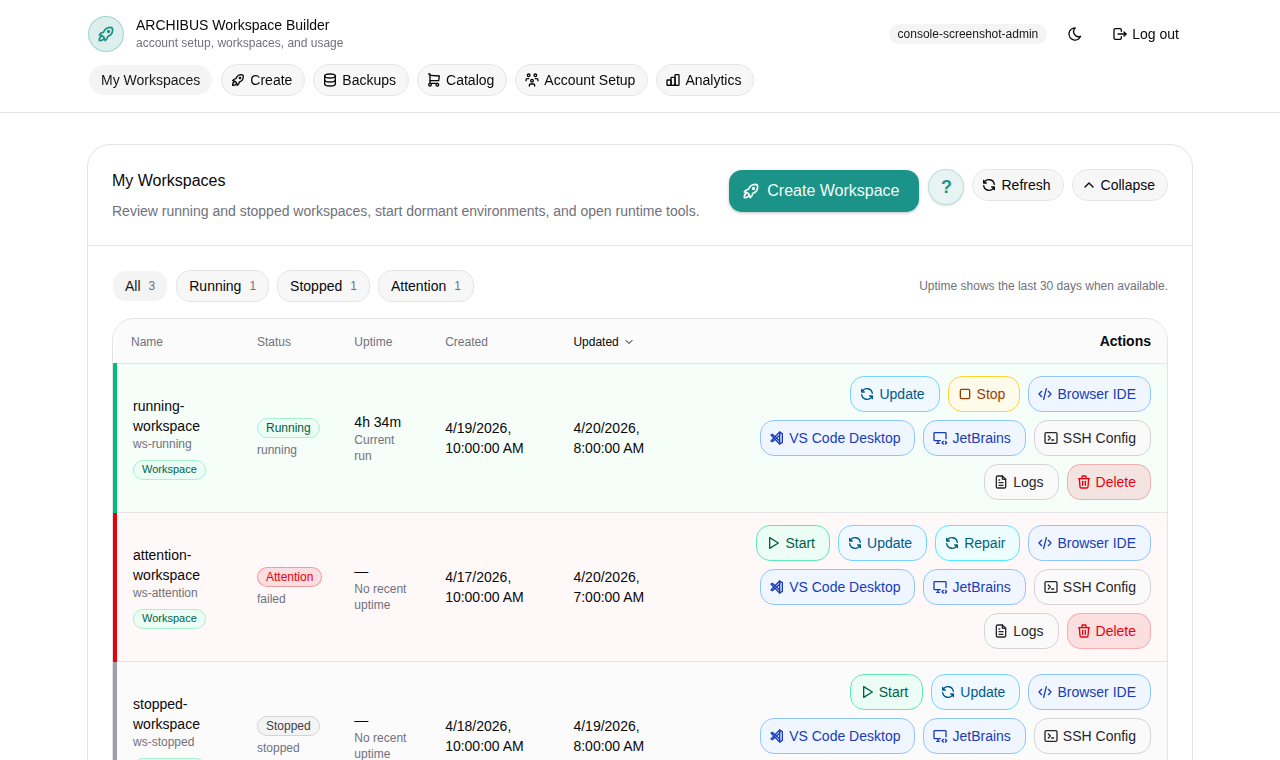
- Managed Archibot workspace: the full experience. Start a workspace from My Workspaces in Console and open it in Browser or VS Code Desktop. The application, database, runtime logs and credentials are provided for you; you do not need an API key.
- Local folder: open your Archibus or WebCentral project folder and trust it if you trust its contents. You get AXVW language features, validation when
afm-projects.xmlis present, Gradle shortcuts and, on Windows, the bundled local runtime. - No folder open: account setup, extension health and Chat only.
Connect Chat
- Run Archibot: Sign In to Archibot to connect with your Archibot account, or Archibot: Use ArchiBot API Key to paste a key from Console. The key is kept in VS Code Secret Storage. The default endpoint is
https://chat.archibot.cloud/v1. - With a signed offline licence from your administrator, run Archibot: Import Offline Skill License, then Archibot: Configure Custom Endpoint (Bring Your Own Model)… and Archibot: Test Custom Endpoint to use your organization’s own model service.
- Inside a managed workspace, Chat is already connected. Do not paste a separate key there.
Run Archibot: Get Started at any time to reopen the setup steps.
Settings reference
Most users can keep the defaults. Open Preferences: Open User Settings (JSON) to change a setting. Never put licence contents, keys, tokens or private certificates in settings; enter them through the extension’s prompts.
| Setting | Use it to |
|---|---|
archibot.chatConnectionMode | Choose archibot (default) or licensed custom mode for a private model endpoint. |
archibot.chatEndpointBaseUrl | Set the Chat endpoint for a permitted custom endpoint. |
archibot.customEndpoint.wireApi | Match the API format of your custom endpoint. |
archibot.portableRuntime.enabled | Turn the bundled local runtime tools on or off. |
archibot.webcentral.version | Set the exact WebCentral release when it cannot be detected. |
archibot.webcentral.toolchainProfile | Pick the Java, Gradle and Tomcat profile; keep auto normally. |
archibot.javaHome | Use a specific compatible Java installation. |
archibot.locale | Choose the language of Archibot panels. |
The complete settings reference in the Windows guide lists every setting with its default, when to change it and an example.
Related
- Windows setup for Archibot for VS Code 1.0.2
- Archibot for VS Code privacy policy
- Archibot for VS Code end-user licence agreement
- Support handoff
Done When
- Archibot 1.0.2 appears in the VS Code Extensions view.
- You know whether you are working in a managed Archibot workspace or a local folder.
- You can sign in to Archibot or, with a licence, configure a custom endpoint.