


Files
ArchiBot Chat artifacts
Browse the files you upload and the files ArchiBot generates, preview details, attach to chat, and download or delete without touching raw storage paths.
Last updated
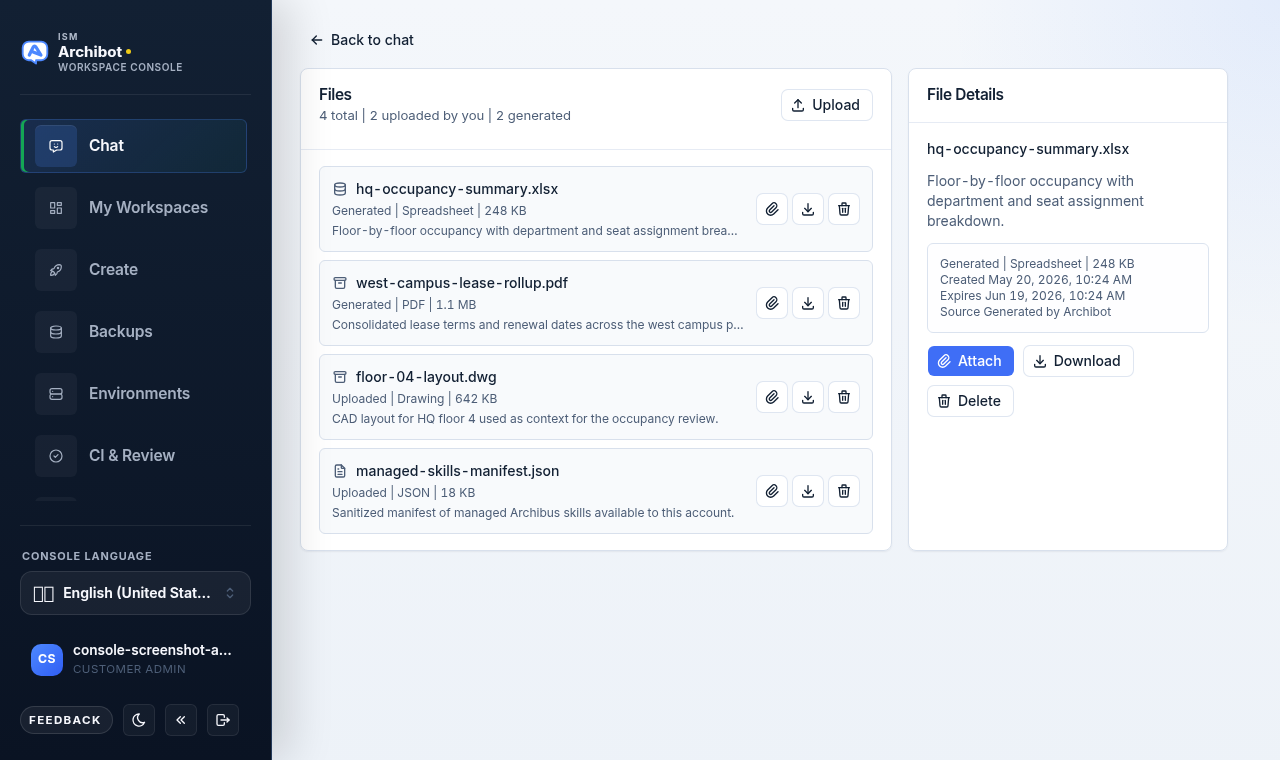
Files are the documents tied to your conversations. They include files you upload into a chat and files ArchiBot generates as a response or tool result. The Files screen lets you review both kinds in one place, scoped to your account, without exposing raw object-store paths.
This guide covers the dedicated Files screen, the in-chat Files panel, uploads, downloads, and deletion. For sending messages and choosing a context source, see Using ArchiBot Chat.
Open Files
There are two ways to reach your files.
- Open the conversation menu (the kebab control labeled
Chat menuin the chat header). - Choose
Files.
The Files screen opens with a two-pane layout. Use Back to chat in the top-left to return to your conversation.
You can also open files without leaving the chat. Open the Context & tools dialog from the chat header and select the Files pill, which sits alongside Context and Trace.
Read the Files screen
The Files screen has two panes.
The left pane is the file list. Its header reads Files with a count summary in the form 4 total | 2 uploaded by you | 2 generated, plus an Upload button. Each row shows the file name, an icon, a meta line, and a short summary. The meta line combines the direction, kind, and size, for example Generated | Spreadsheet | 248 KB or Uploaded | Drawing | 642 KB. Each row also carries quick actions: attach (paperclip), download, and delete.
The right pane is File Details. Select a row to populate it. If no row is selected it reads Select a file.
File Details
Selecting a file shows its details on the right.
The details pane shows the file name, a summary (or No summary available.), and a metadata block with:
- The direction, kind, and size meta line.
Createddate.Expiresdate.Source, for exampleGenerated by ArchiBot.
Below the metadata are three buttons: Attach, Download, and Delete.
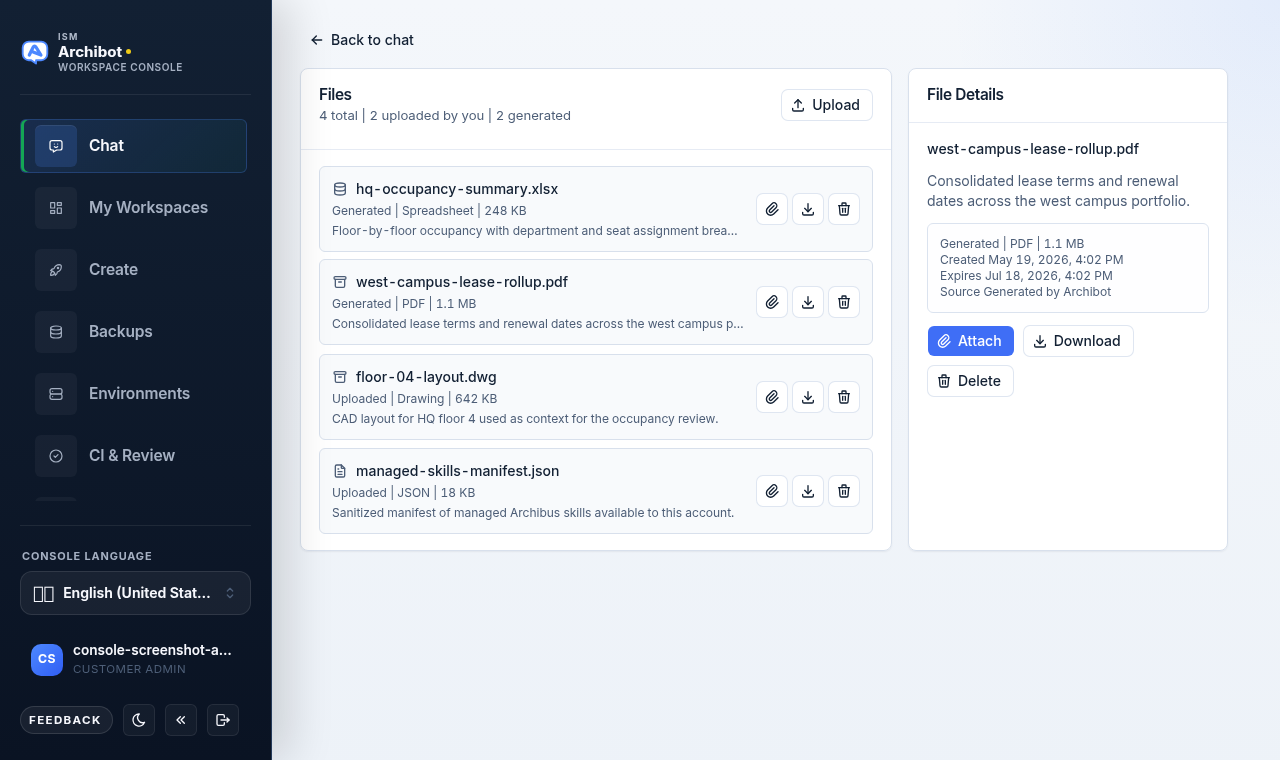
Uploaded and generated
The count summary and each row’s meta line tell you where a file came from.
Uploadedfiles are inputs. You added them to a conversation withUploador withAttach filein the composer.Generatedfiles are outputs. ArchiBot produced them as a response or through a tool result.
There is no separate filter control; the list shows everything for the account, and the direction label on each row distinguishes the two. Use it to separate evidence you provided from generated work product.
Upload a file
You can upload from the Files screen or from the chat composer.
- On the Files screen, select
Upload. In the composer, selectAttach file. - Choose a file from the picker.
- The file is stored, appears in your file list as an
Uploadedfile, and is attached to the current conversation.
While the upload runs, the screen shows an Uploading indicator. After a successful upload the app returns you to the chat with the file attached to the active conversation.
Supported uploads are limited to 25 MB and currently include PDF, spreadsheet (XLSX/XLS), CSV, DWG/DXF drawing, Markdown, text, JSON, PNG, JPEG, GIF, and WebP files. Executables, scripts, archives, disk images, and SVG files are rejected before storage.
ArchiBot Chat also scans upload bytes for known unsafe signatures before storage. Files that look like renamed executables, archives, scripts, SVG documents, or antivirus test payloads are blocked even if the filename looks supported.
For text-like uploads, spreadsheets, and PDFs with readable text, ArchiBot Chat creates a derived Markdown file with extracted text. Scanned PDFs can also produce a Markdown OCR file when the account environment has OCR enabled. Drawings and images are retained as uploaded until a dedicated extraction pipeline supports them.
Uploads do not count toward your billing on their own. The message that uses the uploaded file counts as the billable request. For how usage is measured, see ArchiBot Chat billing and credits.
Uploads, extracted-text files, and blocked upload attempts are recorded in Activity so support can distinguish files you provided from files ArchiBot created. See ArchiBot Chat activity and audit.
ArchiBot Chat file storage is part of the hosted commercial service. Do not upload files, metadata, or filenames unless your organization has approved that data for this processing path. See ArchiBot Chat approved data use.
Attach to chat
Attach an existing file when a follow-up question depends on it. Use Attach from File Details, or the paperclip action on a row.
Examples:
- Ask ArchiBot to revise a generated memo.
- Compare a new export with an earlier generated JSON file.
- Use a floorplan drawing as context for another facilities question.
Attached files appear under the Attached files summary in the conversation. You can detach a file you no longer need before sending.
Download a file
Downloads go through ArchiBot Chat. The app does not expose raw storage paths as public links.
Use Download from File Details, or the download action on a row. When you download a file:
- The file is checked against your account access.
- The download is served through the app.
- Storage details stay hidden.
- Activity records that the file was downloaded through the app.
Do not forward downloaded files outside your organization unless your organization permits it.
Delete a file
Use Delete from File Details, or the delete action on a row.
Deletion is immediate. There is no separate confirmation dialog, so be sure you have the right file selected before you delete it. The deleted file is removed from your file list and detached from any conversation it was attached to.
Deleting a file removes the customer-visible file row and, when object storage is configured, asks the file store to remove the file bytes. It may not remove billing, audit, or support metadata.
Retention and expiry
File retention is account-scoped. The expiry date for each file appears in File Details next to Expires.
The Setup screen lets you choose a retention posture:
- Standard: keep files under the normal account retention policy.
- Minimal: remove files as early as policy allows while retaining required metadata.
See ArchiBot Chat setup to set this posture. Some files may expire sooner or later depending on account policy, legal holds, support cases, or contractual terms.
Expired files are removed by ArchiBot Chat retention cleanup, which removes customer-visible file rows and configured object bytes while keeping required billing, audit, or support metadata.
Good practice
- Use descriptive filenames before uploading.
- Avoid uploading unrelated files into a conversation.
- Do not rename unsupported files to bypass upload checks.
- Download important generated work before its expiry date.
- Confirm the selected file before deleting, since deletion is immediate.
- Keep unapproved regulated or customer-sensitive work out of hosted commercial ArchiBot Chat until your organization approves the processing path.
Done When
- Uploads use supported file types.
- Unsafe files are blocked before storage.
- Downloads happen through the app.