


Support
ArchiBot Chat troubleshooting
Diagnose common Chat, API key, billing, file upload, SSO, and Activity problems, then gather the right detail before you open a case.
Last updated
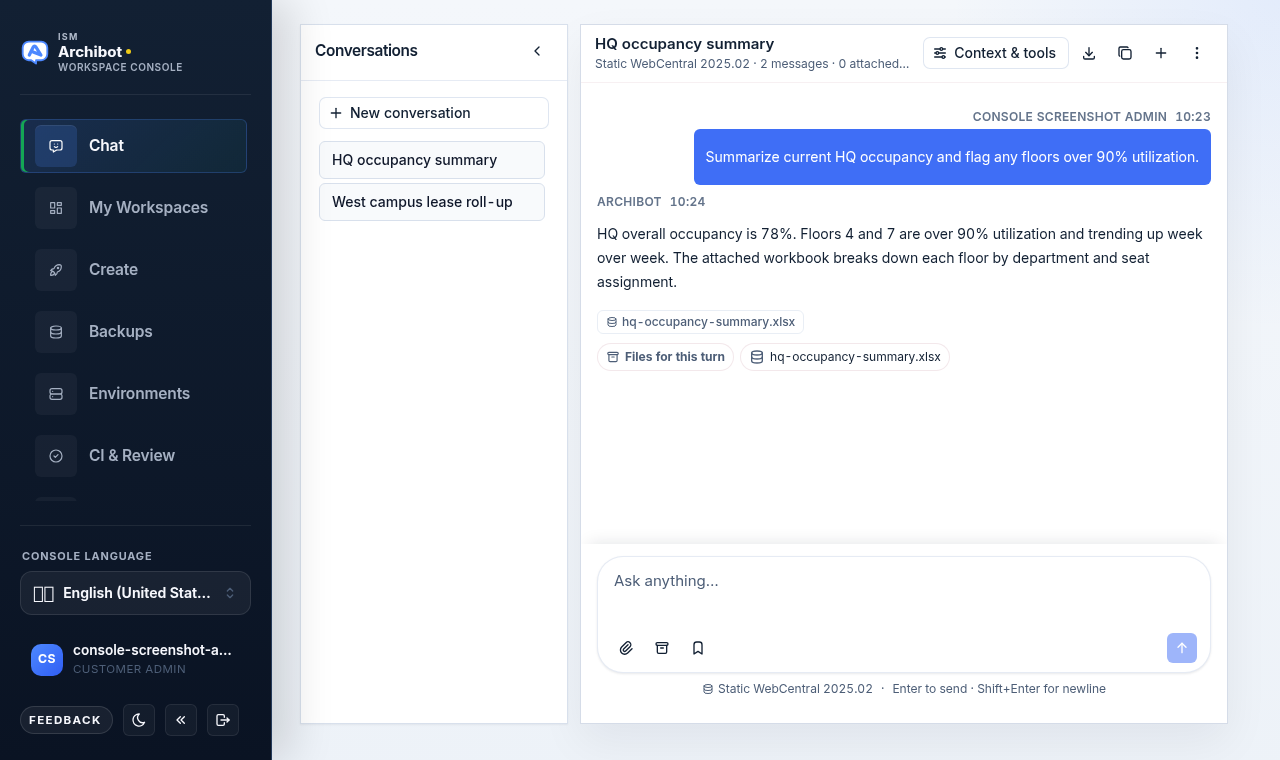
Use this guide when something in ArchiBot Chat does not behave the way you expect. Start by reproducing the problem on the /chat screen, then work down to the section that matches the surface that failed. Most issues come down to access, billing credits, or sending the wrong evidence to support.
Before you dig in, capture two things from the chat header: use the download control to Export chat as Markdown, and the copy control to Copy session ID. Both live next to the Context & tools button. The kebab menu (the three-dot menu at the far right of the header) opens the Files, API keys, Activity, Billing, Support, and Setup screens, so you do not need to leave the workbench to gather detail.
Where the controls live
The chat header is the same on every account:
| Control | What it does |
|---|---|
| Context & tools | Opens the dialog with the Context, Files, and Trace tabs |
| Export chat (download icon) | Saves the current conversation as a Markdown file |
| Copy session ID (copy icon) | Copies the conversation ID to your clipboard |
| New conversation (plus icon) | Starts a fresh conversation |
| Kebab menu (three dots) | Shows your status and links to Files, API keys, Activity, Billing, Support, Setup, and Refresh session |
If you need the underlying mechanics first, read Using ArchiBot Chat and ArchiBot Chat getting started.
I can sign in but cannot use Chat
If the workbench loads but every turn is blocked, check the status badges in the kebab menu. They show whether chat is enabled and how many credits remain.
Confirm:
- Chat access is enabled for your account. The kebab status shows Chat enabled or Chat pending.
- Billing is active, trial-approved, or operator-approved.
- Credits remain. The status badge shows the remaining credit count.
- The problem is not a temporary endpoint outage. Use Refresh session in the kebab menu and try again.
If access should be enabled but is not, ask your customer admin or ISM support to review your product access. See ArchiBot Chat access and SSO for who controls this.
I can use Chat but cannot create API keys
Open the kebab menu and choose API keys. If the panel says API access is not enabled for this account, you do not have the API product, and the Create key button is disabled.
Ask your customer admin or ISM support to review your API product access. Full setup is covered in ArchiBot Chat API keys.
I created an API key but lost it
The full key is shown only once, right after you create it, in a copy-once callout. There is no way to display it again.
Create a new key with Create key, copy it immediately, and update the affected script or integration. Revoke the old key if it may still exist somewhere unsafe.
My API key stopped working
Open API keys from the kebab menu and check the key’s badge and dates.
Confirm:
- The key still shows an active status and has not been revoked.
- The key has not passed its expiry date.
- Your request sends the key as a bearer token.
- Billing is active and credits remain.
- The request uses the correct endpoint URL for your account.
- The model name is valid for the ArchiBot endpoint.
If the key was active and recently used, Rotate it to issue a new secret while keeping the same key record, then update your integration. If the key may have been exposed, Revoke it and create a replacement instead.
A chat turn failed
If the failure happened before the turn started real model work, it should not consume credits.
If the turn failed after work began, open a case from the Support screen (kebab menu) and include:
- The conversation title and the session ID (use Copy session ID).
- The approximate time of the failed turn.
- The error text shown in the transcript.
- Whether files were attached for that turn.
To help support trace the failure, you can also open Context & tools, switch to the Trace tab, and note what the last turn recorded. The Trace tab shows the tool and context activity for the most recent turn; if it shows no events, say so in the case.
Do not paste private files into a case. Ask for the approved secure exchange path first. See ArchiBot Chat approved data use.
Files are missing
Files you upload or that ArchiBot generates appear under the Files screen (kebab menu) and in the Files tab of the Context & tools dialog. The strip labeled Files for this turn in the transcript shows what was attached to a specific turn.
Possible reasons a file is not where you expect:
- You are looking in the per-turn strip instead of the full Files screen, or the other way around.
- The file expired or was removed under your account’s retention policy.
- You do not have Chat access for this account.
- The file belongs to another account or a conversation you cannot open.
If a file should still exist, open a Support case with the conversation title, the approximate creation date, and the file name. More detail is in ArchiBot Chat files.
A download does not work
When a file will not download:
- Confirm you still have access to the file under your account.
- Check that your browser is not blocking downloads.
- Confirm the file has not expired.
- Make sure you are signed in with the correct account.
Always download through ArchiBot Chat. Do not reuse copied storage URLs from a browser or a script.
Billing looks wrong
Open Billing and Activity from the kebab menu and compare them.
Check:
- The active plan.
- Remaining credits.
- Expiry dates on any credit lots.
- Recent API usage.
- Recent in-browser chat usage.
If a balance still looks wrong, capture sanitized screenshots of the Billing and Activity screens and the approximate times of the usage in question, then open a Support case. Support can reconcile your account audit feed against request activity, key changes, chat turns, billing events, and billing state.
For how credits are spent and topped up, see ArchiBot Chat billing and credits.
Setup keeps appearing
The Setup screen appears when onboarding has not been recorded for your browser session or account state. It is reachable any time from the kebab menu.
Walk through Setup again and save it. If Setup returns unexpectedly across different browsers or devices, open a Support case. Setup steps are documented in ArchiBot Chat setup.
What to include in a Support case
Open the Support screen from the kebab menu, fill in a short Title, pick a Category (Chat, API, Billing, Access, Files, Account, or Other) and a Severity (Low, Normal, High, or Urgent), describe what happened, and choose Create case. Your open cases are listed beside the form with their status.
Include:
- Your sign-in email.
- Your account or organization name.
- The screen that failed.
- The exact error message.
- The approximate time.
- The conversation title and session ID, or an API key prefix, when relevant.
Never include:
- Full API keys.
- Passwords or cookies.
- Private keys.
- One-time invite links.
- Raw customer secrets.
- Data that needs special contractual, regulatory, or customer-approved handling.
For a worked example of filing and tracking a case, see ArchiBot Chat support cases. For the rules on what data may be shared in the first place, see ArchiBot Chat approved data use.
Done When
- You reproduced the problem and noted which screen failed.
- You copied the session ID with the copy control in the chat header.
- You did not paste secrets, full API keys, or private files into a case.