


Chat
Using ArchiBot Chat
Start threads, combine context sources, attach files, save prompts, and read responses on the Chat screen.
Last updated
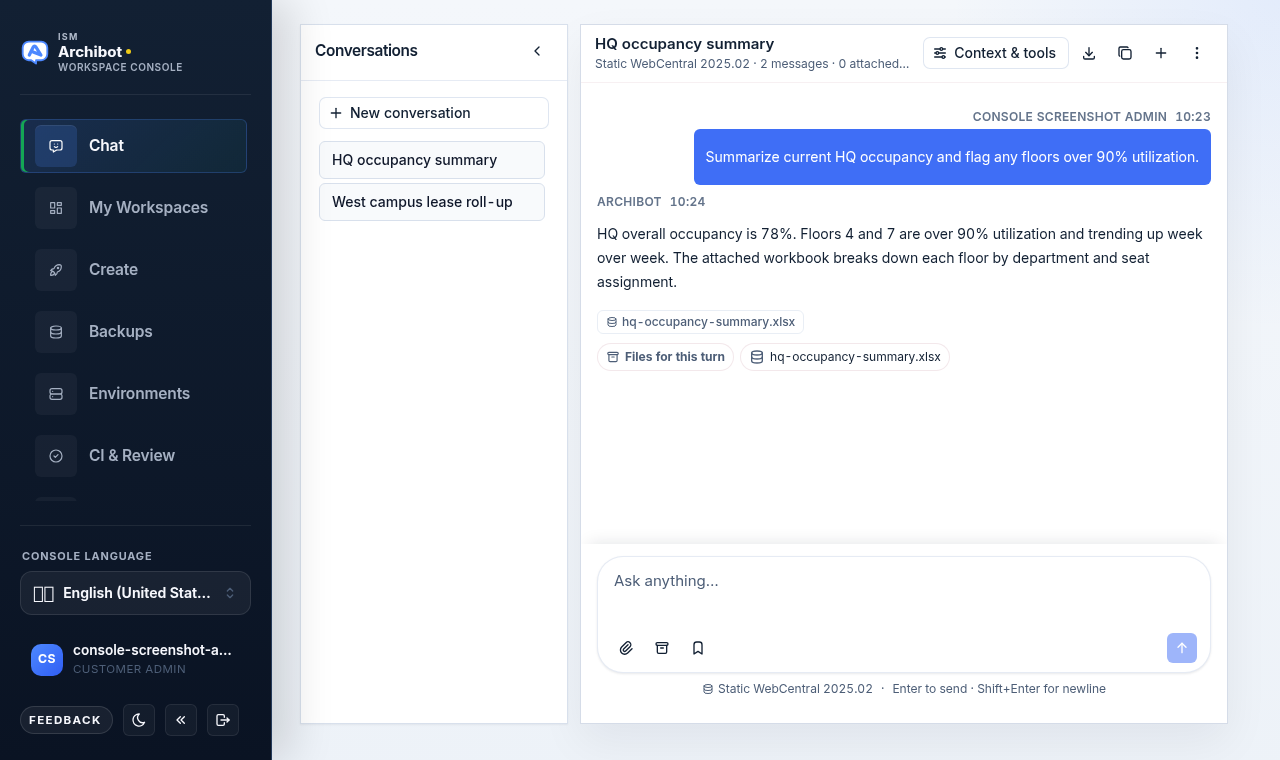
The Chat screen lets you ask ArchiBot questions from the Console. The browser uses a hidden first-party credential, so you do not need an API key to chat. You only need an API key for scripts and integrations, which are covered in API keys.
If you are opening Chat for the first time, start with ArchiBot Chat getting started and ArchiBot Chat setup so access, credits, and your data-boundary acknowledgement are in place.
Start a thread
Each conversation is a thread. Threads keep their context sources, attached files, and tool traces together.
- Open
Chatfrom the Console sidebar. - In the left rail, select an existing thread or choose
New conversation. - Type your prompt in the composer.
- Send the message with the round Send button or by pressing
Enter.
If the left rail is collapsed, use the Threads tab on the left edge to expand it, or the history button in the header on narrow screens. The header shows the active thread title, the active context sources, the message count, and how many files are attached.
When a thread has no messages yet, the empty state offers suggestion chips such as Explain an AXVW view, Find a stored procedure, and Review a workspace change. Selecting a chip drops a starter prompt into the composer so you can edit it before sending.
The composer
The composer sits at the bottom of the thread. Type your prompt in the text box, then use the icon row beneath it:
| Control | Icon | What it does |
|---|---|---|
| Attach file | paperclip | Upload a file from your device and attach it to the next prompt. |
| Files | archive box | Open the Files tab in Context & tools to attach or manage saved files. |
| Saved prompts | bookmark | Save the current draft or insert a previously saved prompt. |
| Send | round arrow-up | Submit the prompt. Also triggered by Enter. |
Enter sends the message and Shift+Enter inserts a newline. The Send button stays disabled until the composer has text, chat is enabled, and credits are available.
If chat is enabled but no credits remain, a banner appears above the composer with a Billing button, and the composer placeholder changes to Add credits to chat. See ArchiBot Chat billing and credits to top up.
Choose context sources
Context & tools controls what ArchiBot can read for the thread. Open it from the header button or by selecting the context label below the composer.
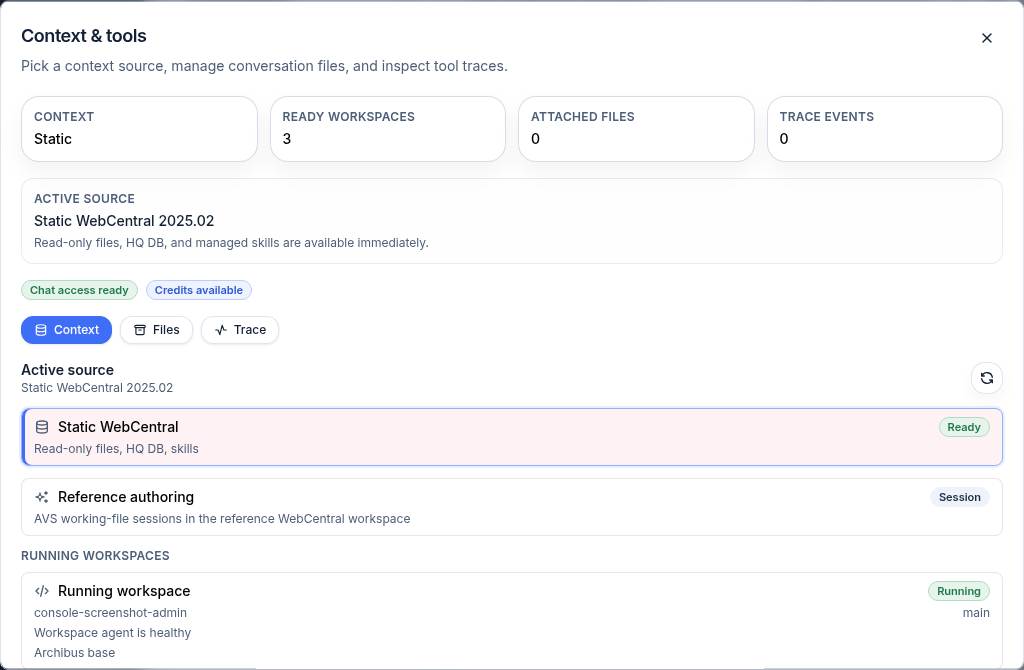
The dialog opens on the Context pill and lists the available sources. Sources are additive, so you can turn on more than one at a time:
- Static WebCentral — read-only files, the HQ database, and managed skills. This is the default and is always ready.
- Reference authoring — AVS working-file sessions in the reference WebCentral workspace.
- Workspaces — your running workspaces, each shown with owner, agent, and status. Pick one to let ArchiBot reason about that workspace’s runtime context.
- Shared Drive — a Shared Drive folder so ArchiBot can read its files.
You can combine Static WebCentral, a reference-authoring source, one workspace, and one Shared Drive in the same thread. Workspace and Shared Drive are limited to one each: picking a different workspace replaces the previously selected workspace, and the same applies to Shared Drive.
The Context pill summarizes what is active as a count, such as 2 sources, with the active sources listed. Combining sources gives ArchiBot more to read when it answers, but it does not change how the model itself behaves. Summary tiles at the top of the dialog also show the number of ready workspaces, attached files, and recorded trace events. Use the refresh control if a newly started workspace does not appear yet. To create or start a workspace, see Create the first workspace and Manage workspaces.
Attach files
Use attachments when the answer depends on a file ArchiBot cannot already read.
- Select the paperclip to upload from your device. The composer accepts PDF, spreadsheet (XLSX, XLS, CSV), drawing (DWG, DXF), Markdown, JSON, and image files.
- Select the archive box to open the
Filestab, where you can attach an existing file, download, or remove it.
Attached files appear as chips above the composer. Remove a chip with its close button if the next prompt should not use it. Uploaded and generated files are also listed on the Files screen, where you can check expiry before relying on an older file.
Only attach data your organization has approved for hosted commercial SaaS processing through the configured model-provider path. Do not upload passwords, private keys, tokens, cookies, or unrelated personal information. Review approved data use before sending sensitive workloads.
Save and reuse prompts
The bookmark button stores prompts you reuse often:
- Type a prompt in the composer.
- Open the bookmark menu and choose
Save prompt. - To reuse a saved prompt later, open the bookmark menu and select it; the body drops into the composer for editing.
Each saved prompt shows a short title and a preview of its body. Remove one with the trash control next to it. When you have not saved any yet, the menu reads No saved prompts yet. Saved prompts are stored in your browser, so they are local to the device and profile you are using.
Read responses
ArchiBot streams its answer into the transcript. A response may include:
- A direct answer with formatting and tables.
- Cited sources or referenced files.
- Generated files, shown as chips you can open or download.
- A
Files for this turnrow when files were attached or produced. - Follow-up suggestions or warnings when information is missing.
While a response is streaming, the header shows a Streaming badge. To follow along, use the scroll-to-latest button if you scroll up during a long response.
Review any operational action ArchiBot drafts before you apply it. ArchiBot helps draft and analyze; your organization remains responsible for final decisions.
Inspect tools and trace
The Context & tools dialog has two more pills:
- Files — attach, download, or remove files for the thread without leaving Chat.
- Trace — the recorded tool steps for the latest response, grouped by tool with timing. If nothing has run yet, it reads
No tool trace has been recorded for this conversation yet.
Use Trace to understand which tools ArchiBot called and whether any step failed. For an account-wide record of activity, see Activity and audit.
Header and chat menu
The thread header carries quick controls and a kebab menu (the three-dot button):
- Context & tools — open the context, files, and trace dialog.
- Export chat — download the current thread (download icon).
- Copy session ID — copy the thread’s session identifier (copy icon).
- New conversation — start a fresh thread (plus icon).
- Chat menu — the kebab opens shortcuts to Files, API keys, Activity, Billing, Support, and Setup, plus Export chat, Copy session ID, and Refresh session. It also shows whether chat is enabled and how many credits remain.
Credits and usage
Submitted prompts draw down credits. Streaming chunks, internal retries, tool steps, citations, browsing the Files list, and downloading an existing file do not draw separate charges. A prompt that fails before the server accepts it should not consume credits.
The kebab menu and the Context & tools summary both show remaining credits. For balances, top-ups, and budget caps, see ArchiBot Chat billing and credits.
Thread history and good practice
- Thread history is account-scoped; you see only threads your role and organization policy allow.
- Keep unrelated work in separate threads and let titles describe the task. This makes files and usage easier to review later.
- Keep prompts specific, and include the relevant date range, building, floor, room, asset, request, or person identifier.
- Attach only the files the question needs, and check file expiry before relying on an old one.
- Use API keys for scripts instead of trying to automate the browser chat surface, and revoke any key that may have been exposed.
If Chat will not send, the composer stays disabled, or context sources are missing, see ArchiBot Chat troubleshooting.
Done When
- The Chat product is enabled for your account.
- Credits are available so the composer can send.
- Attached files are approved for the configured data boundary.