


Activity
ArchiBot Chat activity and audit
Review account lifecycle history and notifications from the Console Activity tab for supportable evidence without raw secrets.
Last updated
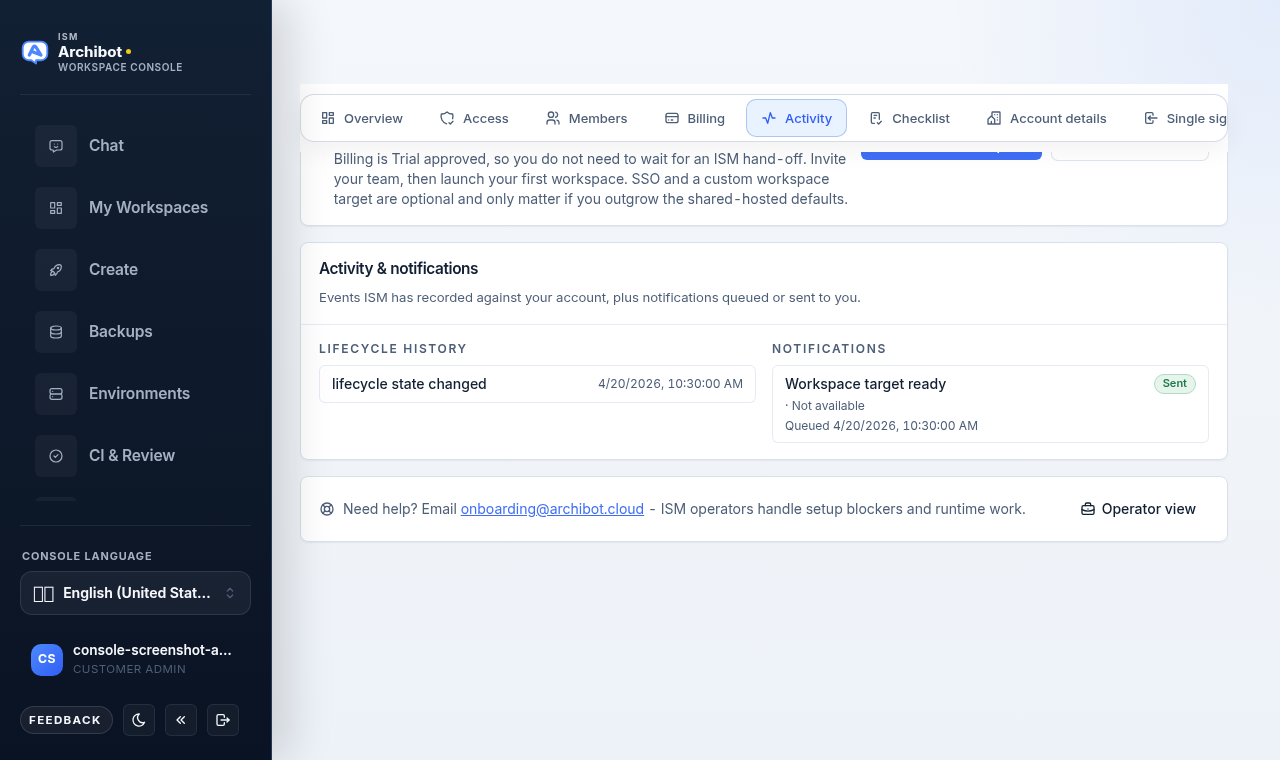
The Activity tab in your Workspace Console account section shows recent events ISM has recorded against your account, along with notifications that are queued or sent to you. It is useful for confirming that a change took effect and for giving support clear, safe evidence.
Activity does not show raw API keys, hidden chat credentials, provider secrets, passwords, or private file contents. It records what happened and when, not the secret values involved.
Open the Activity tab
- Open the account section of the Console (the Workspace Console view at the top of the navigation).
- Select the Activity tab in the row alongside Overview, Access, Members, Billing, Checklist, Account details, and Single sign-on.
- Review the Activity & notifications card.
The card is split into two columns: Lifecycle history on the left and Notifications on the right. The most recent items appear first, and each column shows your latest entries.
Read lifecycle history
The Lifecycle history column lists account events such as a lifecycle state change. Each row shows:
- The event name, for example
Lifecycle state changed. - A timestamp in your local time.
- An optional short summary.
- A state transition when one applies, shown as
previous state→new state.
If nothing has been recorded yet, the column reads “No lifecycle events recorded yet.” Use these rows to confirm that an approval, state change, or other account update actually landed.
Read notifications
The Notifications column lists messages ISM has queued or sent to you, for example a “Workspace target ready” notice. Each row shows:
- The notification subject.
- A status badge:
Sent,Delivered,Queued,Failed, orPending. - The channel and the primary recipient.
- A
Senttimestamp when the message was sent, or aQueuedtimestamp when it is still pending.
If nothing has been queued yet, the column reads “No notifications queued yet.” A Sent or Delivered badge confirms the message left ISM; a Queued or Failed badge tells support where to look if you did not receive an expected message.
Get help from Activity
Below the card, a help row reads “Need help? Email onboarding@archibot.cloud” with a link to that address. Use it when an event looks wrong or a notification you expected never arrived.
Platform operators also see an Operator view button in this row, which opens the operator account list. Most customer admins and members will not see this control.
What to share with support
When you contact support about an account event, share the safe details from Activity:
- The event or notification name, for example
Lifecycle state changedorWorkspace target ready. - The approximate local timestamp shown on the row.
- The notification status badge, for example
QueuedorFailed. - A screenshot of the relevant rows.
Do not share:
- Raw API keys or hidden chat credentials.
- Passwords, cookies, or one-time sign-in codes.
- Provider secrets or object-store credentials.
- Private files or exported artifacts unless ISM gives you a secure exchange path.
Where billing and request-level evidence lives
The Console Activity tab is for account lifecycle and notification history. For evidence tied to ArchiBot Chat usage, billing, and individual requests, use the ArchiBot Chat surfaces instead:
- For available credits, billable usage, and how charges map to activity, see ArchiBot Chat billing and credits.
- For request-level troubleshooting of failed chats or endpoint errors, see ArchiBot Chat troubleshooting.
- For opening a case with the right safe evidence attached, see ArchiBot Chat support cases.
Related guides
- Customer admin setup covers the account section where the Activity tab lives.
- ArchiBot Chat access and SSO explains sign-in events you may see reflected in account activity.
- ArchiBot Chat API keys covers key lifecycle, which is reviewed alongside account activity.
Done When
- Recent events match the action you took.
- Notification status reflects whether a message was queued, sent, or delivered.
- You share event names and timestamps with support, never raw secrets.