


Billing
ArchiBot Chat billing and credits
Review plans, the shared chat and API credit pool, monthly budget controls, Stripe checkout, and the customer portal from the chat Billing screen.
Last updated
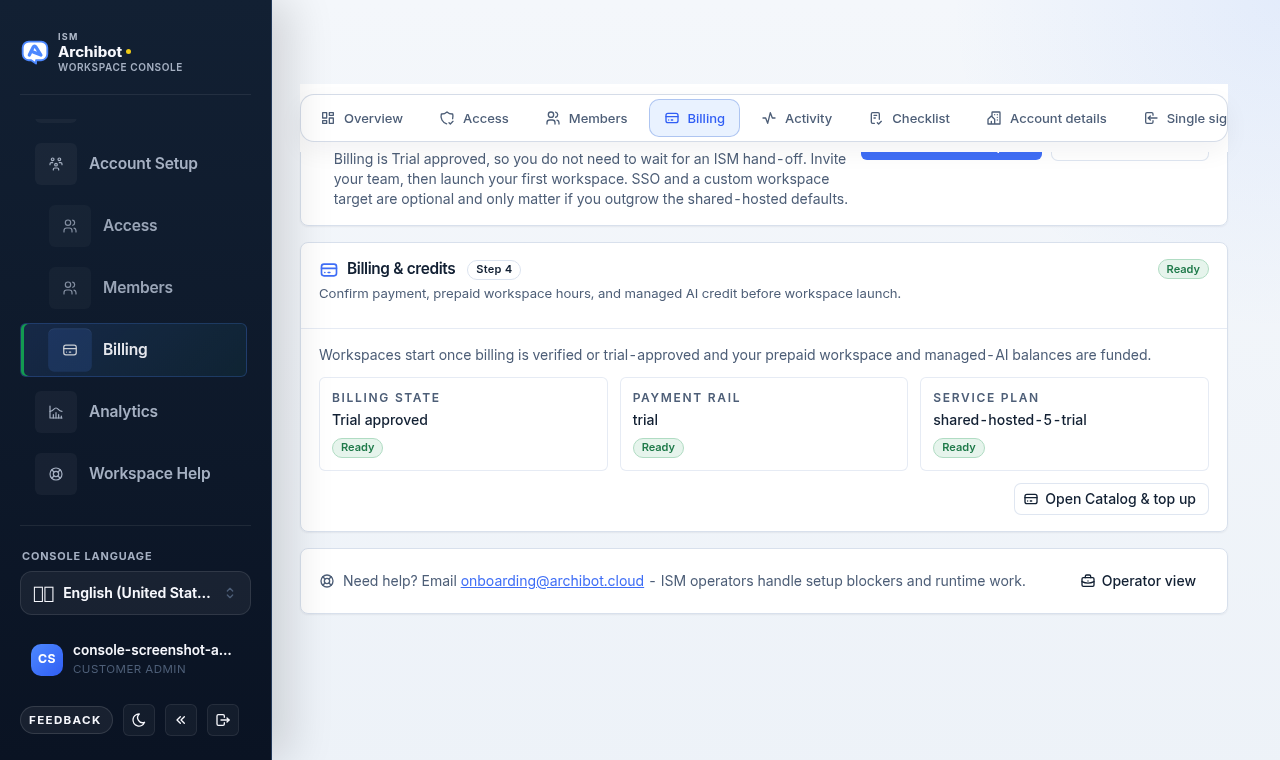
Billing controls whether your account can use ArchiBot Chat and how many credits it has. Chat messages and public API requests draw from the same shared credit pool, so this one screen covers both.
Open the Billing screen
- Sign in to the Console and open
Chatfrom the left navigation. - Open the Billing screen for the chat workspace. The header reads
Billingwith the note that chat and API share the same credit pool. - Use
Back to chatat the top of the screen to return to the conversation view at any time.
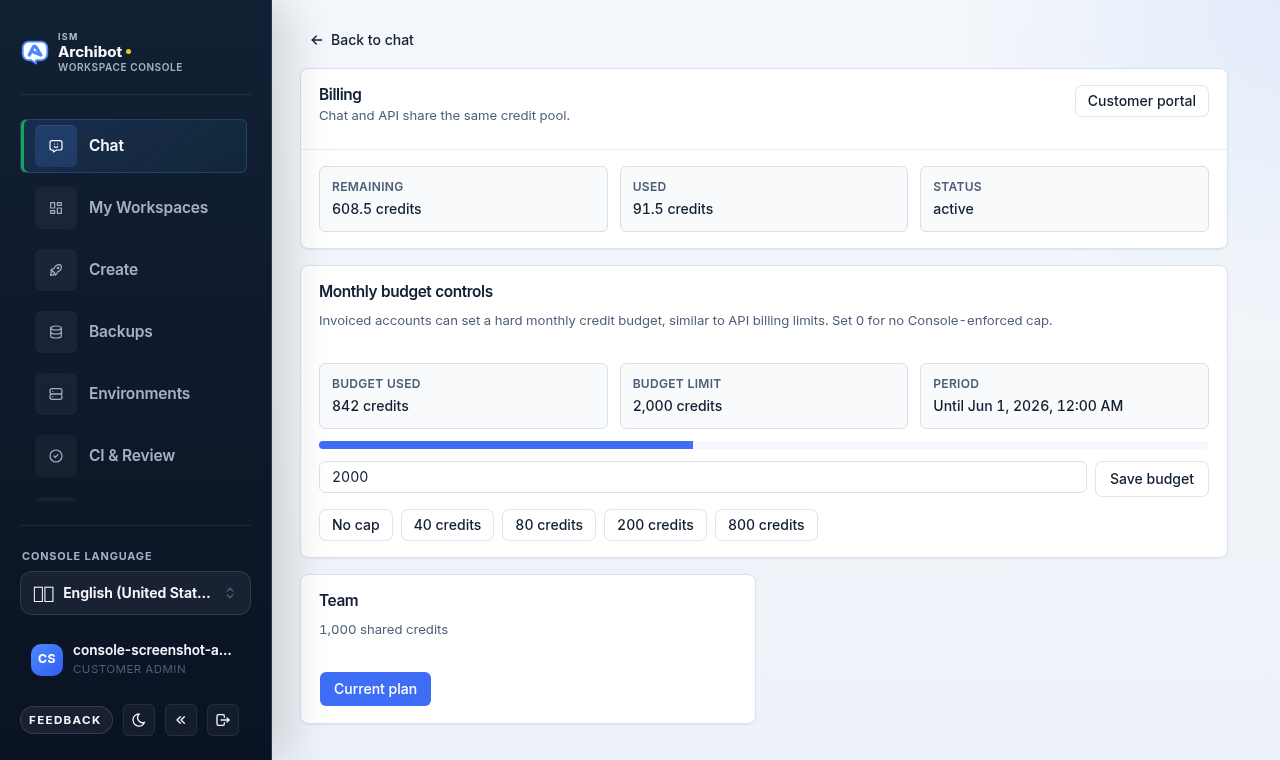
The top card shows three live values:
| Field | Meaning |
|---|---|
| Remaining | Credits still available in the shared chat and API pool. |
| Used | Credits already consumed this period. |
| Status | The current billing status, such as active, trial, or an operator-approved state. |
What a credit covers
A credit is the shared unit that both chat and the public API draw down.
- A chat message that asks ArchiBot to respond draws from the pool.
- A public endpoint request made with an API key draws from the same pool.
Because the pool is shared, browser chat and API requests reduce the same Remaining balance. The following do not draw separate credits:
- Streaming response chunks for a single reply.
- Tool traces and citations attached to a reply.
- Viewing billing, budget, or API key metadata.
- Downloading an artifact you already generated.
For artifact behavior, see ArchiBot Chat artifacts. For API request mechanics, see ArchiBot Chat API keys.
Monthly budget controls
Invoiced accounts can set a hard monthly credit budget, similar to an API billing limit. The budget is a Console-enforced ceiling on top of your plan, not a replacement for it.
The Monthly budget controls card shows:
| Field | Meaning |
|---|---|
| Budget used | Credits consumed against the budget this period. |
| Budget limit | The cap you have set, or No cap when the budget is zero. |
| Period | The date the current budget period resets. |
To set or change the budget:
- Enter a credit amount in the input field, or use a preset button. The presets are
No cap,40 credits,80 credits,200 credits, and800 credits. - Set the value to
0(theNo cappreset) if you want no Console-enforced cap. - Choose
Save budget.
The progress bar above the input shows how close budget used is to the budget limit.
If the budget input and Save budget are disabled, the card shows a note that budget controls appear after the account is approved. The controls become available once your account is in an eligible billing state.
Plans
Each plan card lists the plan name and its shared credit allowance, for example Team with 1,000 shared credits. The exact plans, prices, and allowances available to your account come from the configured Stripe products for your environment.
- The card for your active plan shows
Current planand its button is not selectable. - Other plan cards show a button you can choose to start checkout.
Your account may also be in a trial, operator-approved, suspended, or payment-failed state independent of the plan shown.
Starting Stripe checkout
When Stripe checkout is configured for your environment and a plan has a configured price:
- On the Billing screen, choose the button on the plan card you want.
- The Console opens Stripe Checkout in the browser.
- Complete payment in Stripe.
After checkout succeeds, ArchiBot Chat waits for the signed Stripe webhook before it updates billing status and grants the matching credit lot. If the browser returns from Stripe before the webhook finishes, refresh the Billing screen.
A plan button stays disabled if checkout is not ready for your environment or the plan has no configured price. If a plan you expect is not selectable, ask your customer admin or ISM support whether checkout is fully wired for your environment.
Customer portal
After a Stripe customer exists for your account, choose Customer portal in the top-right of the Billing screen to open the Stripe-hosted customer portal.
Use the portal to manage payment details, invoices, and subscription settings that Stripe exposes for your account. ArchiBot Chat still treats signed Stripe webhooks as the source of truth after any portal change, so plan and credit updates appear on the Billing screen once the webhook is processed.
The Customer portal button is disabled until a Stripe customer exists for your account.
Credit lots and expiry
Credits are tracked in lots. Each grant or purchase creates a lot with a grant date, an expiry date, a product, an original amount, and a remaining amount. Debits consume the earliest-expiring eligible lot first, and expired lots are not available for chat or API use.
Credit lot records and expiry adjustments are managed on the operator side. If you need a lot reviewed, an expiry checked, or a grant applied, raise it with ISM support rather than expecting to edit lots from the chat Billing screen. See ArchiBot Chat support cases.
Payment failure
If payment fails:
- New chat messages or API calls may be blocked.
- Existing conversation history may remain visible depending on policy.
- API keys may stay listed but fail new requests.
- The customer admin or billing owner should update payment details through the customer portal.
ArchiBot Chat checks billing status before it draws credits, so accounts in a payment-failed, suspended, or pending state should not lose credits for blocked requests. If payment has been corrected but access is still blocked, contact ISM support.
Usage notifications
If usage notifications are enabled in setup and email delivery is configured for your environment, ArchiBot Chat emails the account user when the shared credit balance falls to 20% or below. Only one low-balance notification is sent per account for that threshold.
If billing lifecycle notifications are enabled, ArchiBot Chat can email the checkout or billing user after signed Stripe webhooks update plan status or grant credits. Email delivery, bounce, and suppression evidence is recorded so support can tell an account setting problem apart from an email delivery problem.
To turn notifications on, see ArchiBot Chat setup. To review recorded delivery and billing events, see ArchiBot Chat activity and audit.
Related guides
- ArchiBot Chat getting started for first access.
- ArchiBot Chat setup for enabling chat, API access, and notifications.
- ArchiBot Chat API keys for keys that draw from the same credit pool.
- ArchiBot Chat troubleshooting when access or credits behave unexpectedly.
- ArchiBot Chat support cases for operator-side credit and billing requests.
Done When
- The active plan matches expectations.
- Remaining credits are available in the shared chat and API pool.
- Billing status is active, trial, or operator-approved.