


ArchiBot Chat
ArchiBot Chat getting started
Find ArchiBot Chat in the Console, understand the layout, and learn what to check before your first conversation.
Last updated
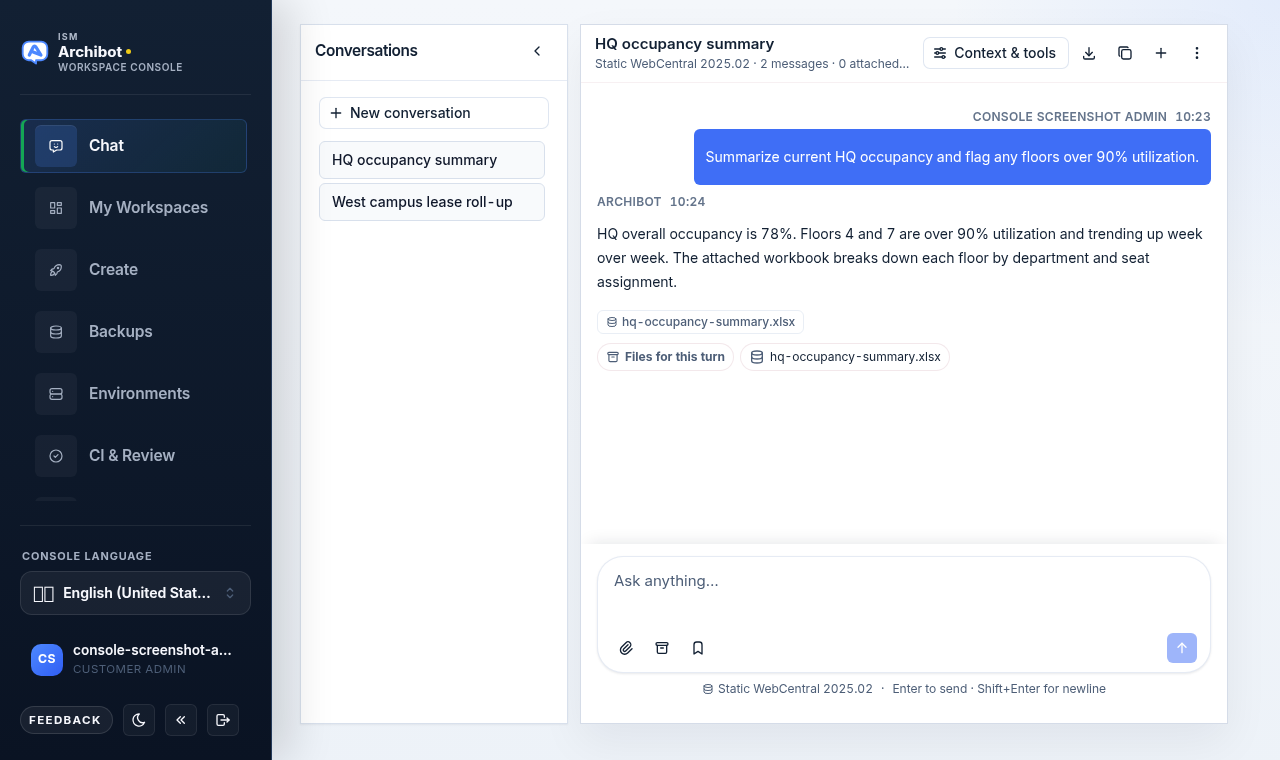
ArchiBot Chat lets you ask ArchiBot questions in a browser and review the files, data, and tool output behind each answer. It is part of the Console: you reach it from the Chat item in the left navigation, not from a separate app or URL. Your organisation may also use generated API keys for scripts and integrations, but no API setup is required to start chatting.
Before you start
You need:
- A Console account that can sign in through your organisation’s identity provider.
- The Chat product area enabled on your account.
- A paid, trial, or operator-approved billing state with a credit balance.
Workspace access is helpful but not required. If your account has workspaces, you can point a conversation at a specific workspace as a context source. See ArchiBot Chat setup for the full readiness checklist.
Open the Chat surface
- Sign in to the Console with your organisation’s sign-in option.
- In the left navigation, select Chat.
- Confirm the workbench opens with an empty conversation and an Ask anything… composer.
If you sign in but Chat does not appear, or it opens but the composer is disabled, your account may not have the Chat product area enabled or may have no credits. Contact your customer admin or ISM support, and include the email address you used to sign in. See ArchiBot Chat access and SSO and ArchiBot Chat billing and credits for what to check first.
Understand the layout
There is no tab bar across the top. The surface has three regions plus a header:
- Conversation list (left) — your recent conversations, with + New conversation to start a fresh thread.
- Transcript (centre) — your messages and ArchiBot’s answers. Each answer shows any files it produced and a Files for this turn strip.
- Composer (bottom) — the Ask anything… box with icon-only actions. Press Enter to send, Shift+Enter for a newline.
- Header (top) — the conversation title, the active context source, and the action buttons described below.
Header actions
| Control | What it does |
|---|---|
| Context & tools | Opens the Context & tools dialog (context source, attached files, tool trace) |
| Download icon | Exports the current chat |
| Copy icon | Copies the session ID for support |
| Plus icon | Starts a new conversation |
| Vertical dots (kebab) | Opens the menu with all other screens |
The other ArchiBot Chat screens do not have their own tabs. Open the vertical dots menu in the header to reach them.
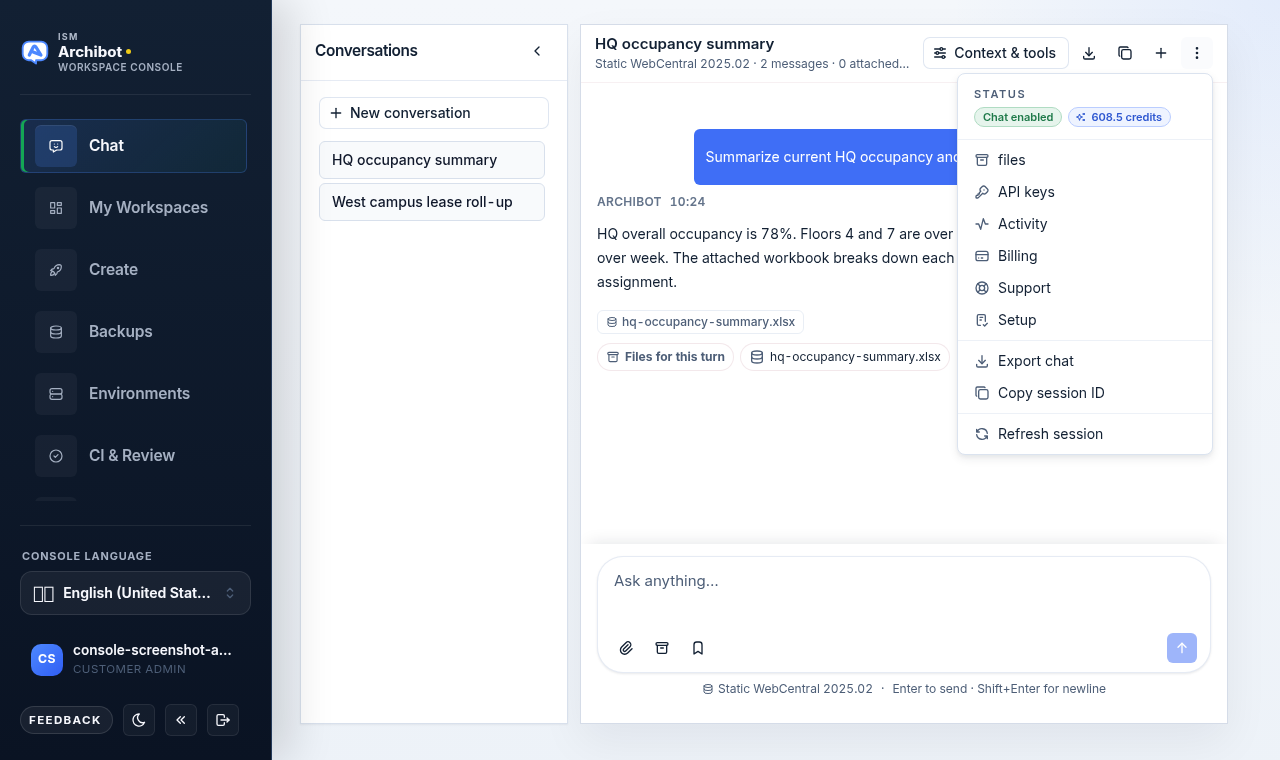
| Menu item | Use it for |
|---|---|
| Files | Browse files you uploaded or ArchiBot generated (formerly “Artifacts”) |
| API keys | Create, rotate, and revoke endpoint keys |
| Activity | Review recent request IDs and account audit events |
| Billing | Review plan, usage, product access, and credit expiry |
| Support | Open and review account-scoped support cases |
| Setup | Confirm account access, plan, and credentials |
| Export chat / Copy session ID | Same as the header icons |
| Refresh session | Reload account state |
The top of the menu also shows two status badges: Chat enabled (or “Chat pending”) and your remaining credit balance. These are the quickest way to confirm your account is ready.
First run
The first time you open ArchiBot Chat, start with Setup from the kebab menu. Setup confirms your account access, plan, and credential readiness before your first real conversation.
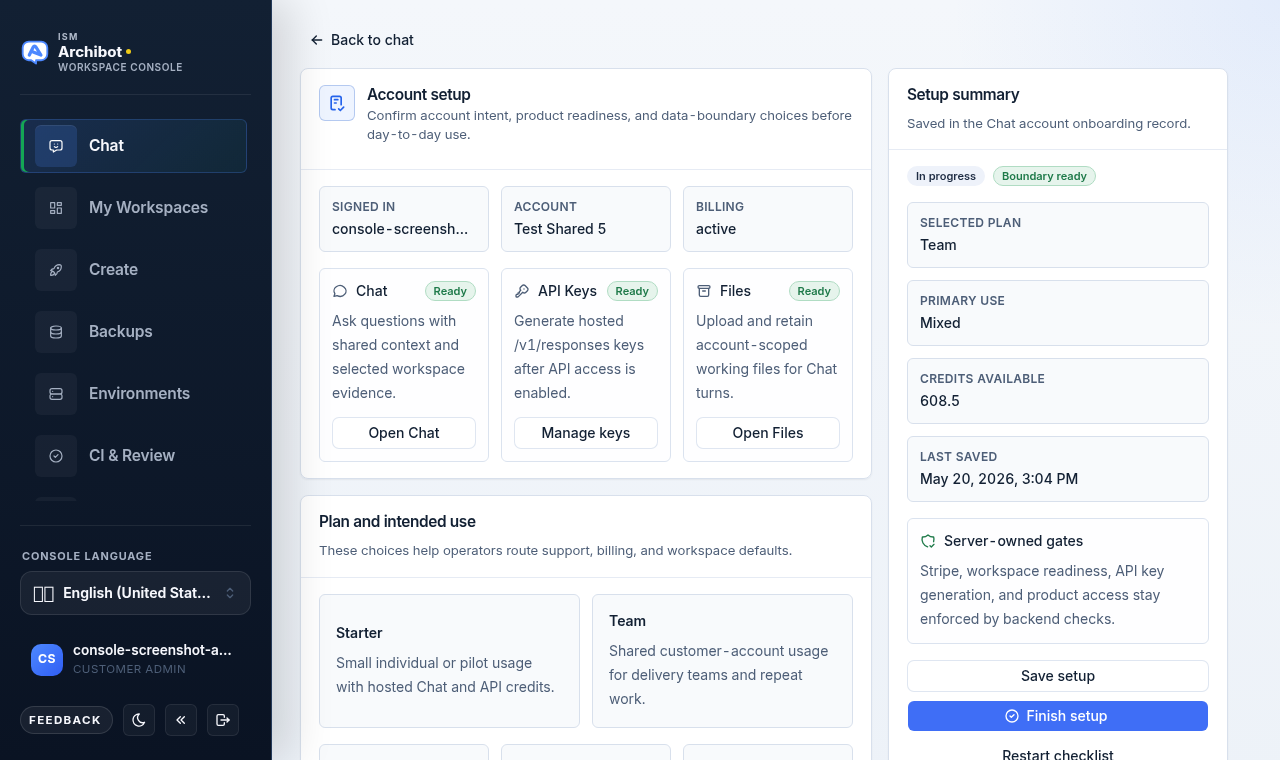
You can skip Setup and return later, but completing it helps confirm that billing, product access, and credentials are ready. The full walkthrough is in ArchiBot Chat setup.
Context and tools
Every answer runs against a context source. The default is Static WebCentral 2026.01 — read-only files, database, and managed skills. You can switch the source from the Context & tools button in the header or the small context label above the composer.
The Context & tools dialog has three pills:
- Context — pick the active source: Static WebCentral, a workspace your account can reach, or a Shared Drive grant.
- Files — see attached files for the current turn, upload more, or detach them.
- Trace — review the tool calls, context lookups, and results behind the latest answer. When no trace has been recorded yet, this pane reads “No tool trace has been recorded for this conversation.” After ArchiBot runs tools, it lists each grouped step, what it touched, and whether the step completed or failed.
Use the Context pill to confirm you are pointed at the right source before asking operational questions. See Using ArchiBot Chat for how context sources change what ArchiBot can see.
The composer
The composer actions are icon-only:
- Paperclip — attach a file (PDF, spreadsheet, CSV, drawing, Markdown, JSON, or image).
- Archive icon — open the Files view in the Context & tools dialog.
- Bookmark — save the current draft as a reusable prompt or insert a saved prompt.
- Up arrow — send. Enter sends; Shift+Enter adds a newline.
If the composer placeholder reads “Add credits to chat” or “Chat is not enabled”, you cannot send until billing or product access is resolved.
Data boundary
Hosted ArchiBot Chat is a commercial SaaS product unless your contract explicitly says otherwise.
Use chat, uploads, file exports, Activity exports, and support requests only for data your organisation has approved for the configured commercial SaaS, storage, backup, support, and model-provider paths.
If data may be regulated, export-controlled, customer-sensitive, or governed by special contract handling, confirm that your organisation has approved commercial SaaS processing before using ArchiBot Chat. Enterprise customers can request a security packet before use. See ArchiBot Chat approved data use.
What counts as usage
A chat message that asks ArchiBot to respond debits one credit from your account balance. The internal tool calls, streamed text, citations, and retries that produce that answer belong to the same message.
A completed public endpoint request made with a generated API key debits the same shared balance. Chat and API usage draw from one credit pool.
Failed preflight checks should not debit credits. If a request fails after model-side work begins, billing behaviour depends on the policy shown in your account or support response. See ArchiBot Chat billing and credits.
Next steps
- Complete ArchiBot Chat setup before your first conversation.
- Read Using ArchiBot Chat for context sources, attachments, and trace.
- Review ArchiBot Chat approved data use before uploading sensitive data.
- Set up ArchiBot Chat API keys for scripts and integrations.
- Check ArchiBot Chat billing and credits to understand your credit balance.
- See ArchiBot Chat troubleshooting if Chat does not open or the composer is disabled.
Done When
- You can open Chat from the Console.
- Your account shows Chat enabled and a credit balance.
- You understand the commercial data boundary.