


Onboarding
ArchiBot Chat setup
Open the ArchiBot account section of Settings and finish Setup: confirm access, choose your plan and intended use, set file, API, and notification posture, then save.
Last updated
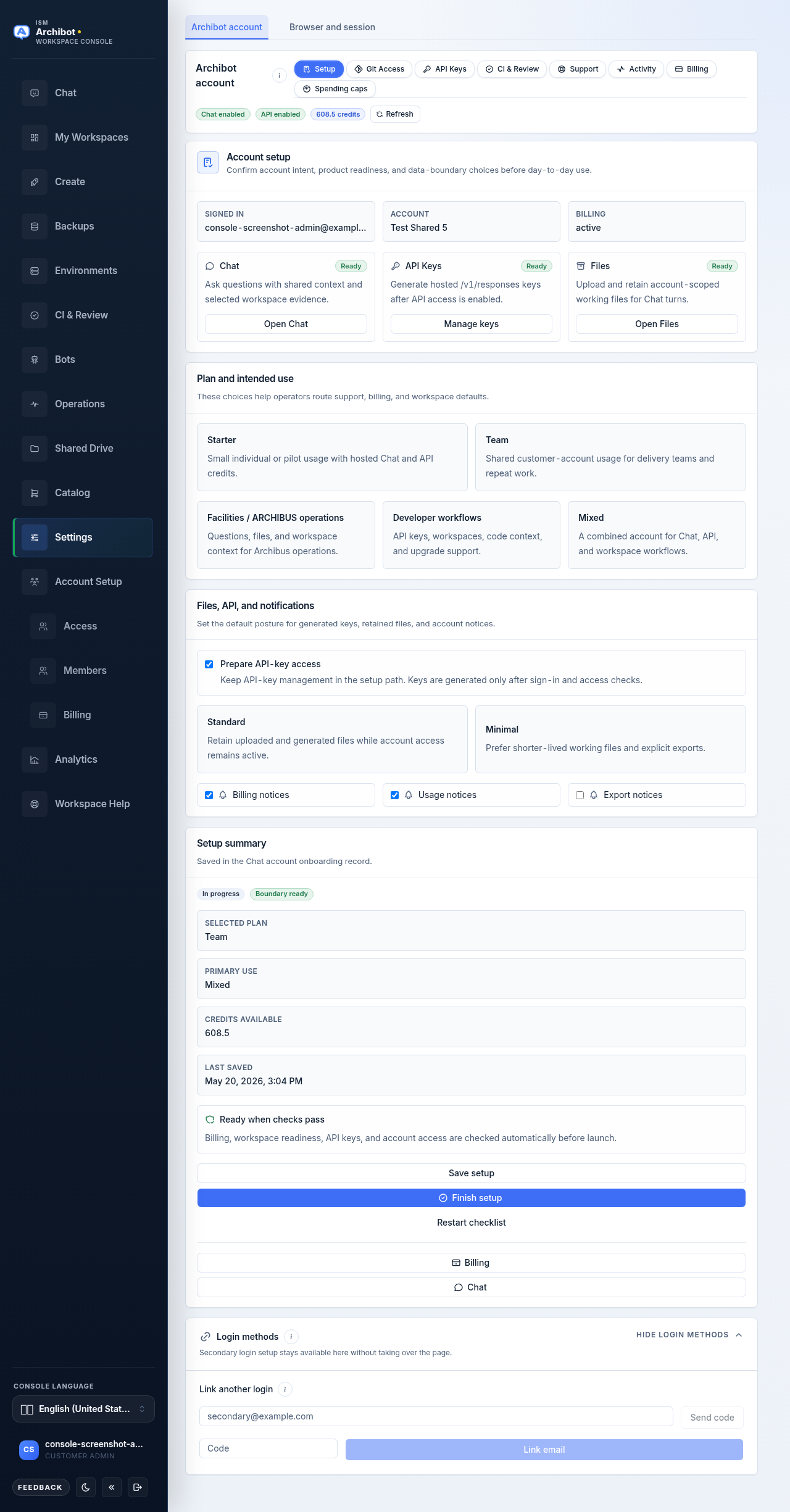
Setup is a tab in the ArchiBot account section of Settings. It confirms your access, lets you record a plan and intended use, and sets your default posture for files, API keys, and notices. It is not a separate wizard you step through once; it is a panel you can reopen and adjust at any time.
Setup does not grant product access on its own. Access comes from the product groups assigned to your account. If you have not been granted ArchiBot products yet, request access first and complete Setup once an operator approves it.
Before Setup: requesting access
If your sign-in works but your account does not yet have an ArchiBot product group, the product cards in Setup show Pending with a Request access button instead of an action.
Access requests are handled outside the Console, through the public ArchiBot Chat access-request form. The request typically records your company or team name, the products you want (Chat, API, or workspaces), and your intended use. Submitting a request does not grant access. An operator reviews it, confirms the billing or approval path, and assigns the matching product groups before Setup unlocks.
For organization-controlled billing or single sign-on changes, contact your customer admin or ISM support rather than the public form. See Access roles for who can grant what.
Open Setup
- Sign in to the Console and open Settings.
- Stay on the ArchiBot account tab (the alternative tab is Browser and session).
- In the ArchiBot account pill strip, select Setup.
The pill strip is the row of buttons under the ArchiBot account heading: Setup, Git Access, API Keys, CI & Review, Support, Activity, Billing, and Spending caps. The header also shows quick status: Chat enabled, API enabled, your credit balance, and a Refresh control.
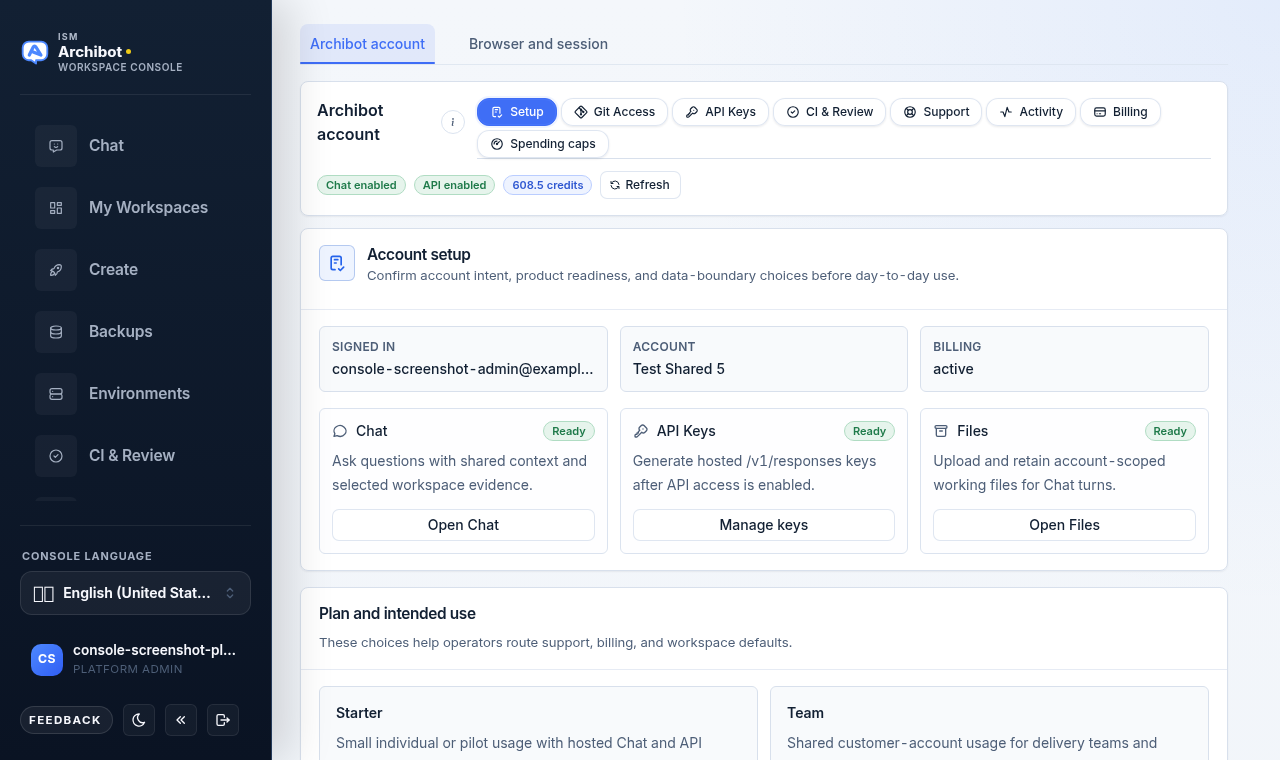
Billing and Spending caps appear only for customer admins and platform operators. Members see the rest of the strip without those two tabs.
Account setup card
The first card, Account setup, confirms your identity and product readiness.
The top row shows three read-only fields:
| Field | Meaning |
|---|---|
| Signed in | The email of your signed-in account |
| Account | The customer account this session belongs to |
| Billing | The current billing status, for example active |
Below that, three product cards each show a Ready or Pending badge:
- Chat — ask questions with shared context and selected workspace evidence. The action is Open Chat.
- API Keys — generate hosted
/v1/responseskeys after API access is enabled. The action is Manage keys, which opens the API Keys tab. - Files — upload and retain account-scoped working files for Chat. The action is Open Files.
When a product reads Ready, its button runs the action. When it reads Pending, the button becomes Request access instead.
API keys are not generated from this card. Use the API Keys tab for that, covered in ArchiBot Chat API keys.
Plan and intended use card
The Plan and intended use card is shown only to customer admins and platform operators. These choices help operators route support, billing, and workspace defaults; they do not change your access or charge you on their own.
Choose a plan tile:
- Starter — small individual or pilot usage with hosted Chat and API credits.
- Team — shared customer-account usage for delivery teams and repeat work.
Then choose an intended use:
- Facilities / ARCHIBUS operations — questions, files, and workspace context for Archibus operations.
- Developer workflows — API keys, workspaces, code context, and upgrade support.
- Mixed — a combined account for Chat, API, and workspace workflows.
Pricing and credit grants are managed by your account agreement and shown in the Billing tab, not on these tiles. For what the numbers mean, see ArchiBot Chat billing and credits.
Files, API, and notifications card
The Files, API, and notifications card sets the default posture for generated keys, retained files, and account notices.
- Prepare API-key access — a checkbox that keeps API-key management in the setup path. Keys are still generated only after sign-in and access checks pass, on the API Keys tab.
- File retention — choose Standard (retain uploaded and generated files while account access stays active) or Minimal (prefer shorter-lived working files and explicit exports). Your organization’s contractual retention rules and legal holds override this preference.
- Notification toggles — turn Billing notices, Usage notices, and Export notices on or off.
If your environment requires a data-boundary acknowledgement, a highlighted Acknowledge the approved data boundary checkbox appears in this card. It asks you not to upload credentials, private keys, live customer confidential data, raw transcripts, or workspace secrets unless your approved contract and operator handoff allow it. When this is required, Setup cannot be marked complete until it is checked.
Setup summary and finishing
The Setup summary panel on the right tracks state and holds the action buttons. It shows two badges: Complete or In progress, and Boundary ready or Boundary required. Below that it lists your Selected plan (admins only), Primary use, Credits available, and Last saved.
To save your choices, select Save setup. To mark Setup finished, select Finish setup — this is disabled until the data boundary is acknowledged when that is required. Restart checklist clears your draft so you can start over. The panel also offers shortcut buttons to Billing (admins only) and Chat.
When Setup is finished, the product cards read Ready and you can open Chat or jump to the API Keys tab. Next, see Using ArchiBot Chat and ArchiBot Chat artifacts.
Other ArchiBot account tabs
Setup is one tab among several in the ArchiBot account section. The most relevant for first-run review:
-
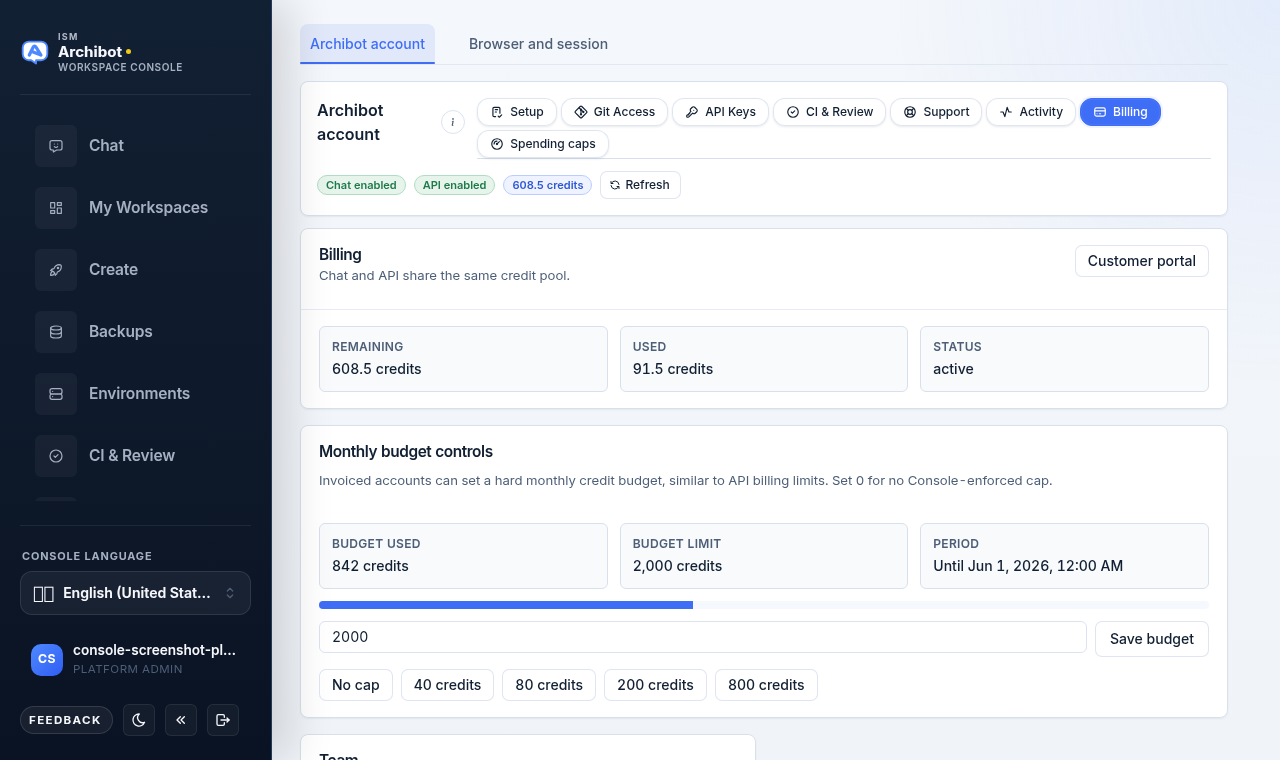
Billing (admins only) — Chat and API share the same credit pool. This tab shows Remaining, Used, and Status, plus monthly budget controls and a Customer portal link.
-
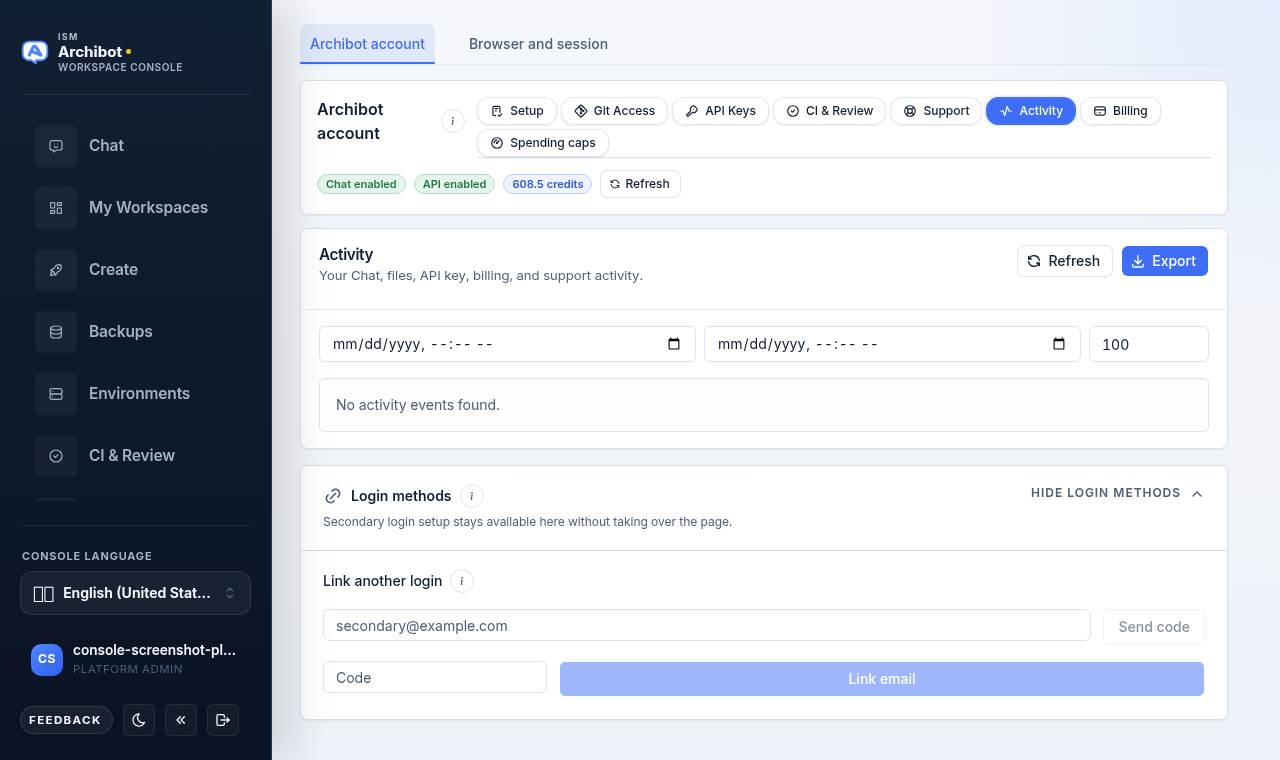
Activity — a date-filtered log of your Chat, files, API key, billing, and support activity, with Refresh and Export controls. A Login methods panel below it lets you link a secondary login without leaving the page.
The remaining tabs — Git Access, API Keys, CI & Review, Support, and Spending caps — are covered in their own guides and surfaces.
Changing Setup later
You can reopen Setup at any time and save again. Common reasons:
- Your role changes and a product moves from Pending to Ready.
- Your organization changes plans or intended use.
- You want to switch file retention between Standard and Minimal.
- You want to turn billing, usage, or export notices on or off.
For billing or single sign-on changes controlled by your organization, contact your customer admin or ISM support. See Support handoff for how to escalate.
Done When
- The ArchiBot account header shows Chat enabled, API enabled, and your credit balance.
- Each product card shows Ready, and the Setup summary shows Complete and Boundary ready.
- Your plan, intended use, file retention, and notification choices match your account policy.