


Support
ArchiBot Chat support cases
Send an account-scoped support request from the Console and include useful evidence without exposing secrets.
Last updated
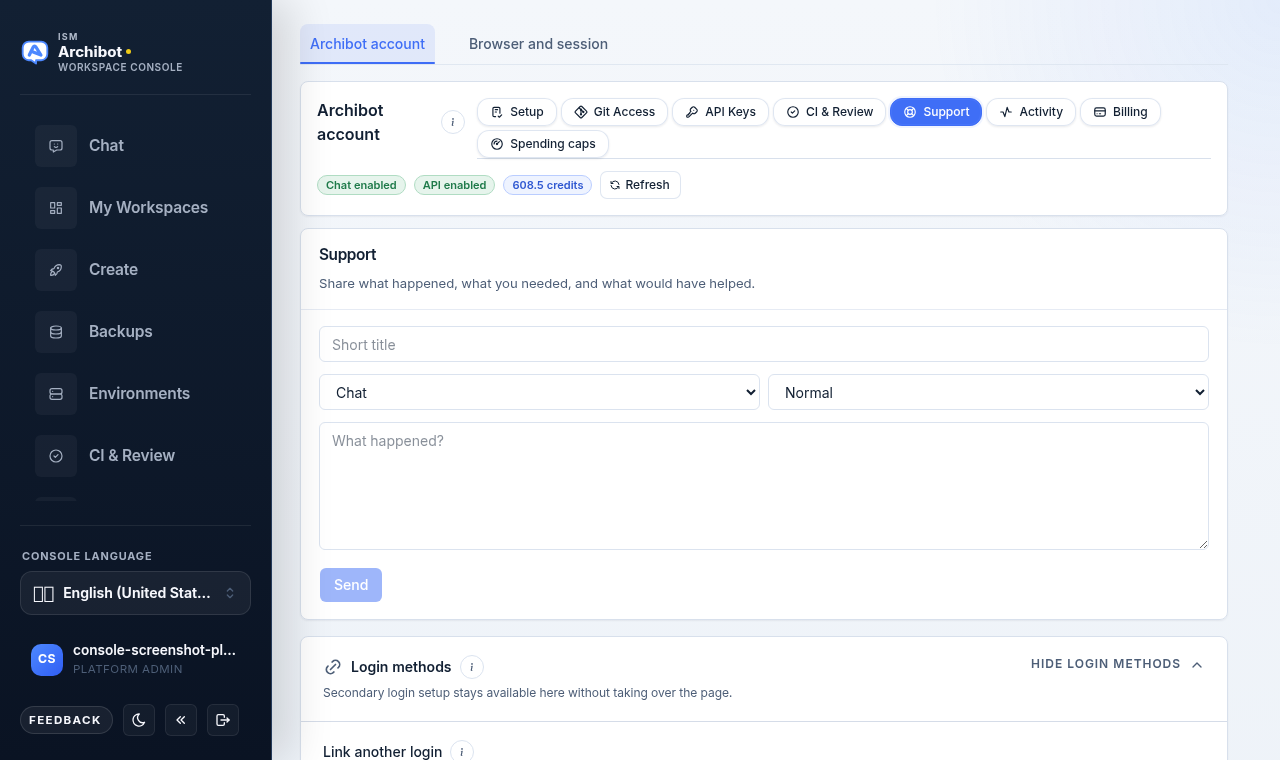
Use Support when you need ISM to investigate an ArchiBot Chat account issue. A support request captures a short title, a category, a severity, and a description, then routes to ISM with your account context attached.
Support requests are account-scoped. They stay tied to your ArchiBot Chat account and are reviewed by platform operators. The Console does not show an in-app case list or status board, so keep your own note of the reference ID returned when you send.
Find the Support tab
- Open Settings and stay on the
ArchiBot accounttab. - In the pill strip under
ArchiBot account, selectSupport.
The pill strip also holds Setup, Git Access, API Keys, CI & Review, Activity, Billing, and Spending caps. The Support pill opens the request form on the same page.
Send a request
- Enter a
Short titlethat names the problem in a few words. - Pick a category from the first select. Options are
Chat,API,Billing,Access,Files,Account, andOther. - Pick a severity from the second select. Options are
Low,Normal,High, andUrgent. - In the
What happened?box, describe what happened, what you needed, and what would have helped. - Select
Send.
Send stays disabled until both the title and the description have text, so a request always carries enough to act on. Category defaults to Chat and severity defaults to Normal.
Do not include raw API keys, passwords, cookies, one-time codes, sensitive customer data, or private files unless ISM gives you a secure exchange path.
Confirm it sent
After you send, a confirmation banner appears above the form. When a tracking reference is created, it reads like Sent as ACP-1042 with an Open in Linear link to follow the request. The form clears so you can send another request if needed.
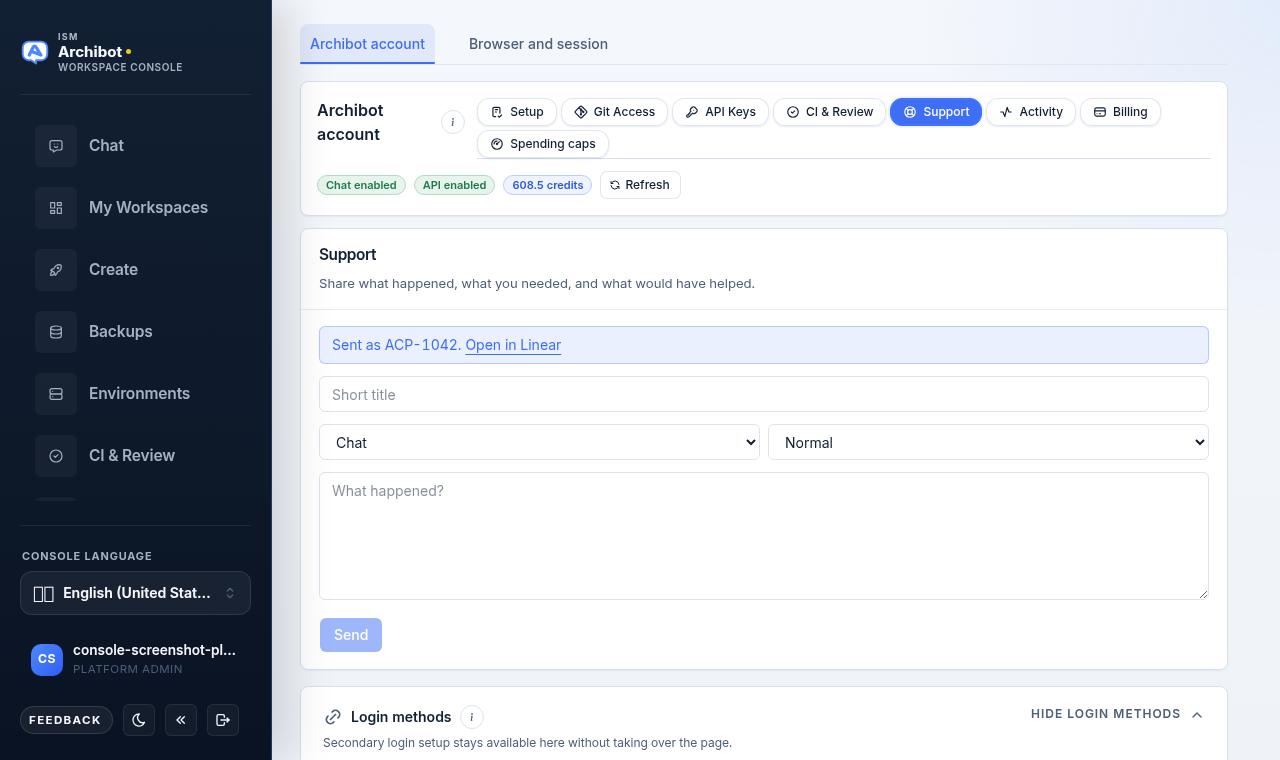
Record the reference ID for your own tracking. Because the Console does not list past requests, the ID is the simplest way to reference the issue in later correspondence.
Useful details to include
A focused description helps ISM act on the first read. Include:
- Request IDs from the
Activitytab when the issue is tied to a specific action. - The approximate time the issue happened.
- An API key prefix, not the full key.
- A conversation title or artifact name, not sensitive file contents.
- The billing plan and visible billing state when the issue is billing-related.
For pulling request IDs and timestamps, see activity and audit. For API-specific issues, the key prefix and scope live in API keys.
Choose a category
Pick the category that best routes the request:
| Category | Use it for |
|---|---|
Chat | Conversation behavior, responses, or chat workspace problems. |
API | Endpoint keys, request errors, or integration issues. |
Billing | Credits, invoices, budgets, or plan questions. |
Access | Sign-in, SSO, or membership problems. |
Files | Artifacts, attachments, or saved file issues. |
Account | Account settings, setup, or general account questions. |
Other | Anything that does not fit the categories above. |
What support does and does not change
Sending a support request does not grant product access, change billing, revoke keys, delete artifacts, or modify identity groups. Operators review requests and follow up through separate operator workflows in Operations. Any resulting status changes are recorded as audit evidence on your account.
If you need to move related files or context to ISM as part of an investigation, follow the secure handoff steps in support handoff rather than pasting sensitive content into the description.
Related guides
- ArchiBot Chat troubleshooting to try common fixes before you send a request.
- Activity and audit to find request IDs and timestamps.
- ArchiBot Chat billing and credits for billing-related context.
- Approved data use for what is safe to include.
Done When
- The request has a short title and a useful category.
- The description explains what happened, what you needed, and what would have helped.
- Request IDs are included when available.
- No raw secrets or sensitive customer data are included.