


Daily Work
Use the ArchiBot VS Code extension
Use ArchiBot in VS Code with a managed ArchiBot workspace, with a local Archibus folder, or with no folder open.
آخر تحديث
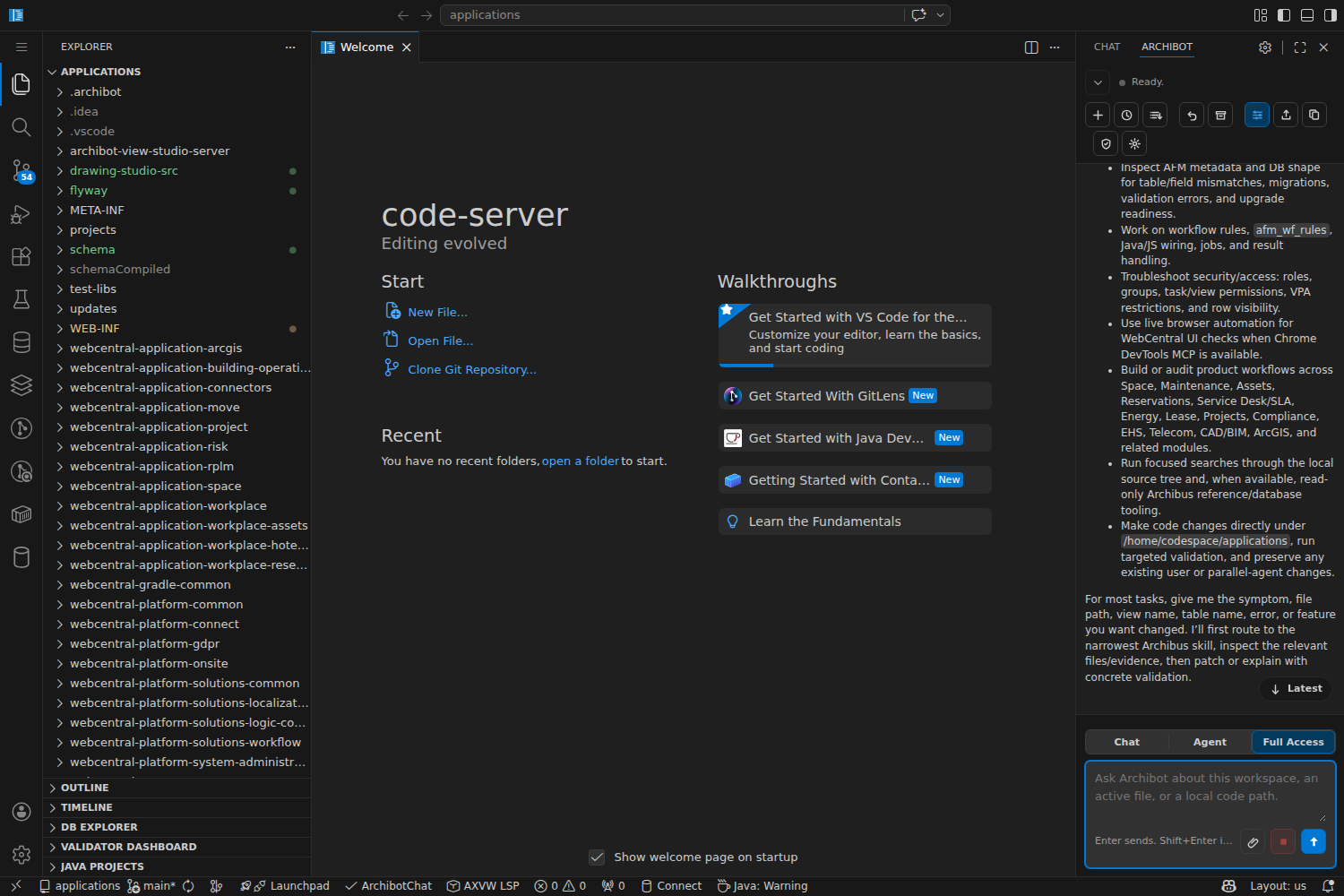
ArchiBot is the VS Code extension for Archibus developer work. It can run in three practical situations:
- Managed ArchiBot workspace — the full experience, with the application, database, managed credentials, runtime logs, app links, and workspace-scoped ArchiBot context.
- Local Archibus folder — editor support for local files, including AXVW language features and validation where the project shape is present.
- No folder open — account setup, extension health, docs, and general chat entry points only.
The extension is useful outside a workspace, but it is not the same mode. Database tools, Tomcat controls, runtime logs, managed workspace credentials, and selected-workspace context require a managed ArchiBot workspace.
Use it in a managed workspace
This is the normal path for full Archibus work.
- Open My Workspaces in Console.
- Start an existing workspace or create one from Create Workspace.
- When the row is running, click Browser to open code-server, or open the row menu and choose VS Code Desktop.
- Open the ArchiBot panel from the editor sidebar.
In Browser, the workspace opens at the application folder, usually /home/codespace/applications. ArchiBot is already installed in the workspace editor. It can see the managed project shape, the configured afm-projects.xml, the running application links, and the database/tooling that Console provisioned.
Use this mode when you need to:
- validate AXVW views against the workspace project;
- ask ArchiBot to read project files or make edits;
- inspect the configured workspace database through supported read-only tools;
- open Tomcat, logs, Git Health, or runtime support links;
- use managed ArchiBot chat without pasting keys.
Use it with a local folder
Use local mode when you have Archibus source on your computer or in another repository checkout, but you are not inside an ArchiBot workspace.
- Install the ArchiBot extension in VS Code.
- Open the folder that contains the Archibus application, or a parent folder one or two levels above it.
- Trust the workspace only if you trust the files.
- Open an AXVW or related XML file.
The extension looks for common Archibus root shapes, including applications, schema, WEB-INF, and WEB-INF/config/afm-projects.xml. It also checks shallow nested layouts, so repositories with an Archibus root one or two directories below the opened folder can still self-configure.
If archibot-lsp is not installed on your host, the extension uses the packaged LSP binary from the extension bundle. You should not need to install a separate LSP binary for the normal public extension path.
If the folder only contains a standalone .axvw file, ArchiBot still starts local AXVW language features. Metadata-backed strict validation stays off until an afm-projects.xml file is configured or detected, so a normal folder does not produce database connection warnings.
Local mode is good for:
- AXVW syntax, outline symbols, hover documentation, and go to definition;
- quick review of local Archibus source;
- validating project files when
afm-projects.xmlis present; - using hosted chat or account setup flows that do not need workspace runtime access.
Local mode does not create a database, run Tomcat, mount Shared Drive, or grant managed workspace credentials. If a command needs those, create or start a managed workspace.
Local LSP status
The current local WebCentral smoke on June 30, 2026 used a host-local webcentral-202502 checkout and the packaged Linux LSP binary from the extension bundle. The repeatable packaged-LSP probe returns these results:
| Feature | Local result | Performance note |
|---|---|---|
LSP startup and afm-projects.xml detection | Passed | The packaged LSP starts with the bundled strict helper and local AFM projects path. |
Standalone .axvw folder | Passed in direct and installed UI smokes | A temporary one-file folder with no WEB-INF, no schema, and no afm-projects.xml started local-only LSP features with strict metadata validation disabled and no database connection warning. |
| Document outline symbols | Passed | First outline response returned in about 0.4 seconds. |
| Hover docs for AXVW fields, command values, embedded SQL, and embedded JavaScript | Passed | Field hovers return in about 0.5 seconds the first time and immediately on repeat. Hover documentation includes trusted Open Documentation text, and the installed code-server smoke proves that link opens the embedded documentation preview. Same-view JavaScript hovers validate resolved getMessage(...), View.panels.get(...), and View.dataSources.get(...) strings, and explicitly call out missing local targets instead of offering dead links. SQL table metadata hover can still take close to one second on first request. |
| Go to definition for datasource wiring | Passed | Definition resolved immediately in the packaged probe. |
| Find references for datasource wiring | Passed | References returned immediately in the packaged probe. |
| Document highlights and links | Passed for local AXVW references | Datasource highlights returned immediately and are visible in the installed code-server smoke. Local XML plus JS local reference links are available only for known same-view targets such as messages, panels, dataSources, and controller members. Unresolved references stay unlinked and are explained through hover text. |
| Folding and Expand Selection | Passed | Folding ranges use the AXVW/XML hierarchy and suppress single-line folds. Expand Selection climbs from attribute value to whole attribute to containing elements. The installed code-server smoke observes both a folded datasource region and a visible expanded selection range. |
| CodeLens references | Passed for high-signal definitions | Referenced datasource and panel definitions get sparse reference lenses that open VS Code’s native references UI. The installed code-server UI smoke renders reference-lens text and opens the native References peek for a datasource reference. |
| Inlay hints | Passed for sparse inferred table context | Datasource-backed panels and fields without an explicit table show inferred table <name> hints. The first package-smoked slice intentionally avoids annotating markup that already declares the table, and the installed code-server UI smoke renders the inferred table hint. |
| Signature help | Passed for common Archibus JavaScript calls | Parameter help appears for focused APIs such as View.openDialog, View.panels.get, View.dataSources.get, View.controllers.get, getMessage, View.showMessage, View.confirm, View.createController, and getFieldValue. The installed code-server UI smoke renders View.openDialog parameter help. |
| Workspace symbol search | Passed for active and unopened AXVW matches | abContacts returns datasource abContacts_ds plus the matching panels without child fields that only matched through the datasource container. Non-empty symbol searches can scan unopened .axvw files within a bounded budget, and the installed code-server smoke surfaces symbols for the active scratch file and for an unopened real WebCentral view. Empty-query output is capped at 50 indexed results and does not scan disk, but it is still broad. |
| Completion suggestions while LSP is active | Passed | Panel-type completion now returns only the valid panel-type values in both the packaged LSP probe and the installed code-server UI smoke. Datasource field completion can infer the datasource table and suggest contact fields; repeat metadata-backed suggestions return from cache immediately. View.panels.get("...") string completion returns the local panel id without generic XML or JavaScript globals. |
| Diagnostics and quick fixes | Passed | A scratch AXVW with an event-handler contract issue produced diagnostics and quick fixes. |
| Prepare rename and semantic tokens | Passed for capable clients | Prepare-rename selects the symbol value range, and the installed UI smoke opens the rename input for a datasource id. Semantic tokens are advertised when the client declares support, include raw embedded JavaScript blocks, and the installed code-server smoke now samples distinct rendered token colors. |
Treat the local LSP results as package-level evidence plus a focused installed-UI slice, not full desktop parity. The installed code-server smoke currently covers rendered CodeLens text, inlay hints, workspace symbols for active and unopened AXVW documents, document highlights, local reference Ctrl-click navigation, prepare rename, References peek, signature help, hover docs and hover documentation link opening, unresolved-reference hover text, panel-type completions, semantic-token color sampling, Expand Selection, and folding. Broader JavaScript/controller completions, workspace-symbol result ordering/grouping, docs references as document links, and deeper cross-workspace indexing still need broader client coverage. Managed workspaces remain the supported path when you need the full Archibus runtime, database, and managed credential context.
Use it with no folder open
With no folder open, VS Code has no project root. The extension can still show install status, account/setup paths, docs links, and limited chat entry points, but it cannot start the language server against a project or run workspace tools.
Use no-folder mode for:
- confirming the extension installed;
- connecting an ArchiBot account when that flow is available;
- opening docs and support;
- asking general questions that do not depend on local files or a managed workspace.
Open a folder when you want file-level tools. Start a managed workspace when you want app, database, runtime, or managed credential tools.
Which mode should I choose?
| Need | Best mode |
|---|---|
| Work on a customer WebCentral app with database and runtime context | Managed workspace |
| Edit or validate local AXVW/XML files from a repo checkout | Local folder |
| Confirm install, read docs, or connect account access | No folder |
| Use Tomcat links, runtime logs, DB Explorer, or managed ArchiBot context | Managed workspace |
| Use VS Code Desktop instead of Browser for the same managed workspace | Managed workspace launched from My Workspaces |
Troubleshooting
If local validation does not find your project, open the Archibus root directly or the parent folder that contains it. The public extension path detects standard roots and shallow nested roots; deeper custom layouts may need archibot.workspaceRoot or archibot.afmProjectsPath set in workspace settings.
If the language server does not start, check the ArchiBot output channel. A current extension bundle should include archibot-lsp; a missing host binary by itself should not block startup.
If a database, Tomcat, log, or runtime command is unavailable, confirm you are in a managed workspace. Local folders do not have those managed services unless your team configured them separately.
Related guides
- Manage workspaces — start, stop, update, and launch workspace editors from Console.
- Work inside your workspace — what is already installed once code-server opens.
- Use the workspace bot — use ArchiBot inside a running workspace.
- Using ArchiBot Chat — browser chat outside the editor.
تكتمل المهمة عند
- You know whether you are using a managed workspace, a local folder, or no folder.
- You can launch Browser or VS Code Desktop from My Workspaces when a managed workspace exists.
- You know which extension tools are unavailable without a managed workspace.