


Daily Work
Use the workspace bot
Start ArchiBot inside code-server and put it to work: what it knows about your Archibus environment, what it can and can't do, ready-to-use prompts, and how it differs from Console chat.
Last updated
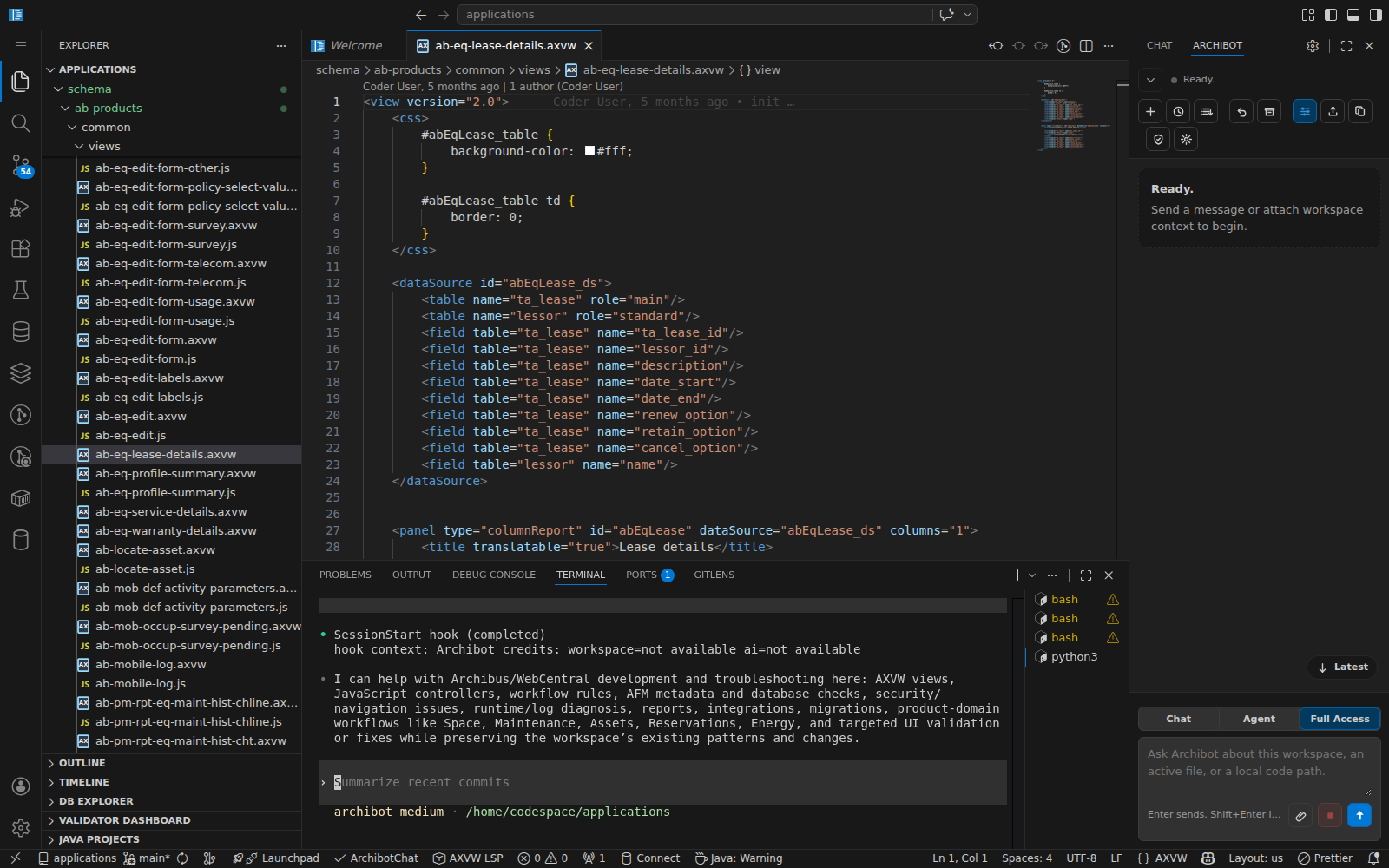
Every Archibus workspace ships with ArchiBot, a managed AI assistant that runs inside the workspace and already understands your Archibus environment. It can read your code, validate AXVW views, run read-only queries against the workspace database, look things up in the Archibus reference, and drive the running app — all without you wiring up keys or context. This guide is for anyone working in code-server, whatever your role.
For the rest of the environment around it — the editor, the app, the database — see Work inside your workspace.
If you are installing ArchiBot in local VS Code or opening the extension with no folder, start with Use the ArchiBot VS Code extension so you know which tools require a managed workspace.
Start the bot
You have two ways in:
- Terminal. Open a terminal in code-server (Terminal → New Terminal) and run
archibot start. That launches a managed session — under the hood it’s a managed Codex CLI tuned for Archibus. - Editor panel. Open the ArchiBot panel from the editor’s sidebar and type in its message box — no terminal needed. Start ArchiBot in the panel begins a session.
You don’t log in. The workspace already holds a managed key, so the bot is ready the moment the workspace is. If archibot isn’t found, your workspace template may not include managed ArchiBot — check with your account admin.
Chat from the editor panel
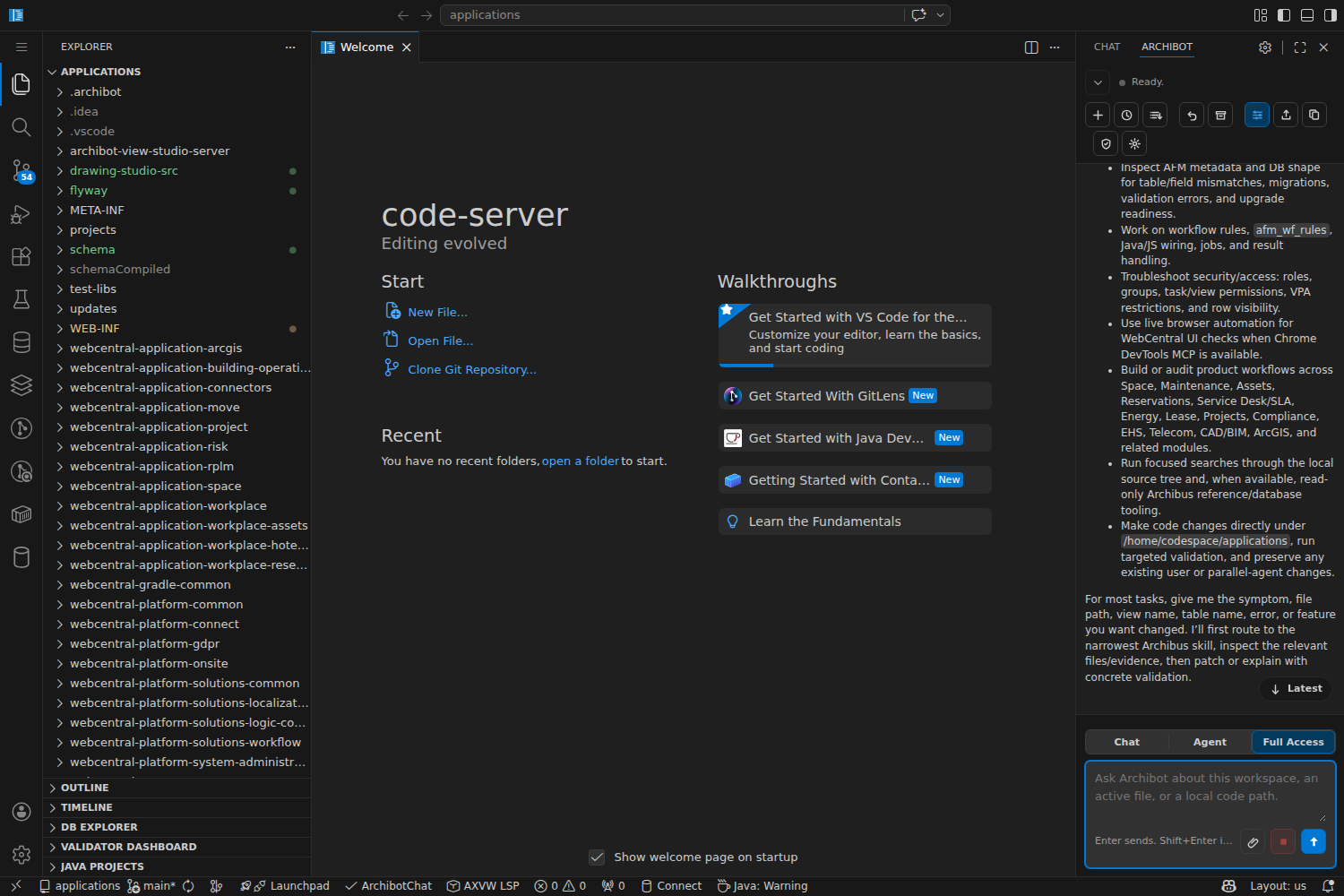
Prefer to stay in the editor instead of a terminal? Open the ArchiBot panel from the sidebar and use the message box at the bottom. The panel has Chat, Agent, and Full Access modes: use Chat for questions about the file or project you’re in, Agent to let ArchiBot make changes in your workspace, and Full Access to give it broader run of the workspace. It talks to the same managed bot, with the same Archibus skills, as the terminal — pick whichever fits the moment.
What it knows and can do
ArchiBot is set up as an Archibus and WebCentral developer’s assistant. Out of the box it can:
- Work with AXVW views — scaffold a new view, explain an existing one, and validate it against the Archibus rules, reporting the specific issues to fix.
- Read the database, safely — run
SELECT-style queries against the workspace database to check schema, look at sample rows, or confirm a datasource. Results are row-capped and respect view restrictions. - Author datasources, workflow rules, and forms — and check them against Archibus conventions before you wire them up.
- Look things up — search the bundled Archibus reference and product help instead of guessing.
- See the running app — open the live app in a headless browser to confirm a view renders or to reproduce a problem.
- Handle build and run chores — read logs, restart Tomcat, and walk through deployment or migration steps.
It routes work through a large library of Archibus skills (space, assets, leases, moves, projects, reports, security, and more), so it tends to follow the same patterns your team already uses.
What it won’t do
- It won’t change the database. Its query tool is read-only — no
UPDATE,INSERT, orDELETE. Schema and data changes still go through migrations and your normal review. - It won’t leak secrets. Provider keys are redacted and raw credential readback is switched off, and it’s instructed to keep tokens, keys, and raw customer data out of files, notes, and anything it saves. Hold yourself to the same line.
- It acts on your workspace files — review its edits the way you’d review a teammate’s before committing.
Recipes
Concrete prompts to try. Be specific and point it at the file or table you mean; the more exact you are, the better the result.
Build an AXVW view
“Create an AXVW view that lists rooms for a selected building, with a building filter and columns for room name, area, and category. Validate it and fix any issues before you finish.”
Validate and repair an existing view
“Validate
schema/ab-products/.../my-view.axvwand walk me through fixing each error you find.”
Inspect data before you build
“Show me the columns on the
rmtable, then return 20 sample rooms with their building and floor.”
Add a workflow rule
“Add a workflow rule that emails the space manager when a room’s category changes, and show me where it’s registered.”
Work on a form
“On this form, add a document field for floor plans and validate the form controls.”
Trace a datasource
“Find the datasource behind this panel and add a restriction so it only shows active records.”
Figure out why a change isn’t showing
“My view change isn’t appearing in the app. Check the Tomcat logs, tell me what’s wrong, and restart Tomcat if that’s the fix.”
Confirm it renders
“Open the new room list in the browser and confirm it loads without errors.”
Look something up
“How does Archibus handle multi-currency on lease records? Cite the reference.”
Send it to review
“Summarize the changes I made, then submit them for CI review.”
That last one uses archibot-submit-review, which packages your changes for the Console CI Review flow — see Persistent environments and CI Review.
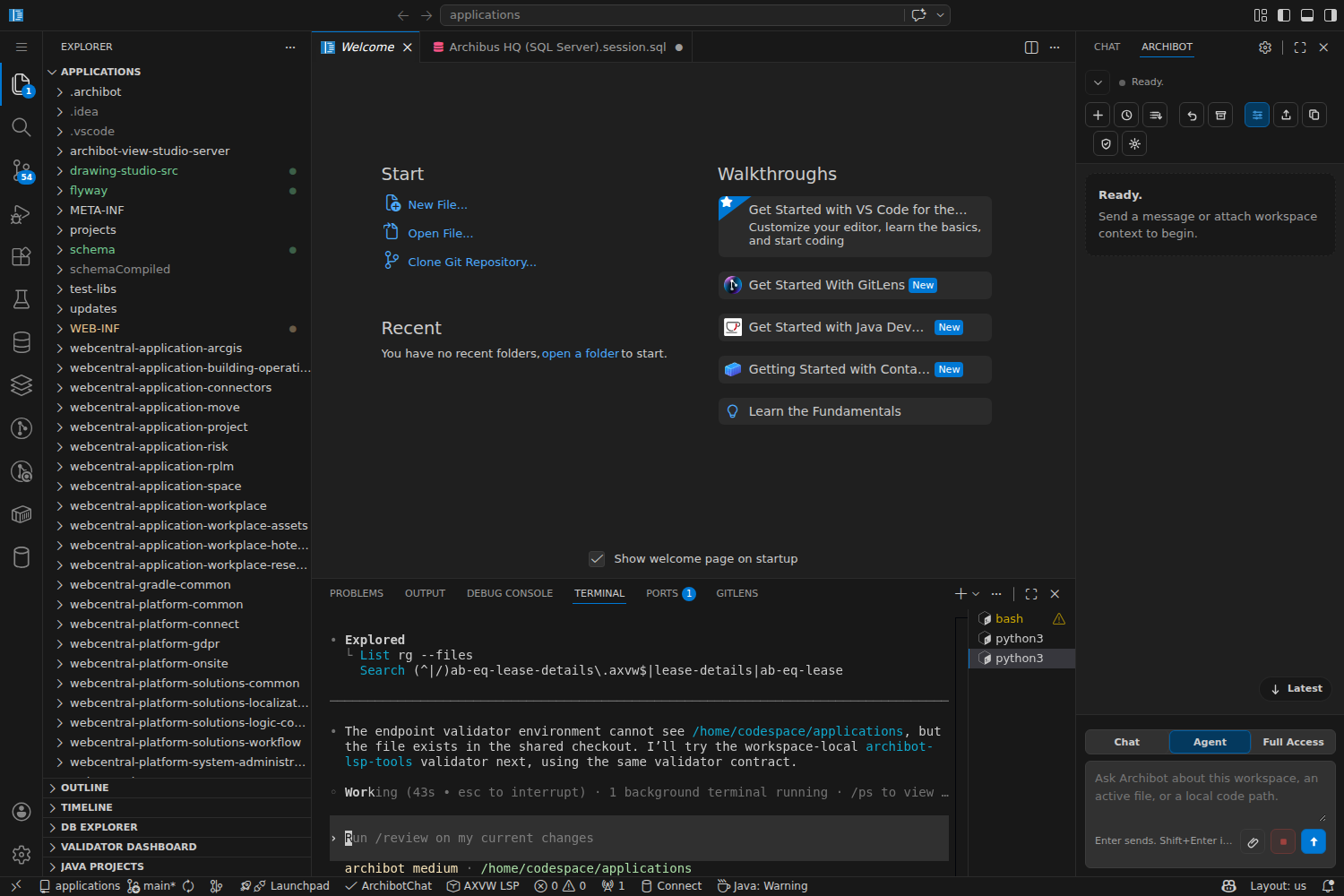
Validation and database lookups run through ArchiBot’s built-in Archibus tools — here it’s validating an AXVW view:
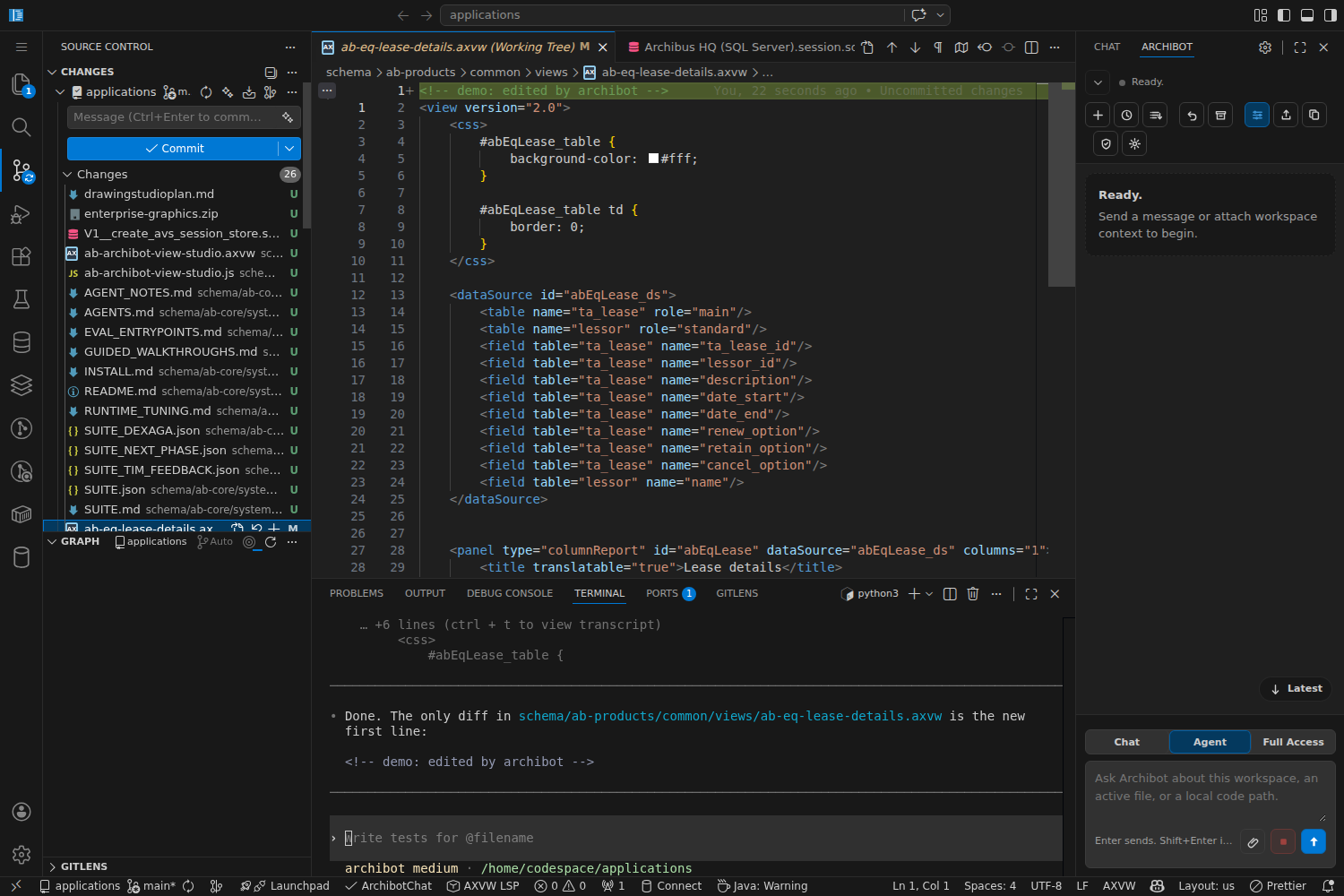
When you ask it to change something, ArchiBot edits the files in place and the change shows up in Source Control, ready for you to review like any other edit.
Keep your session
A conversation is tied to the workspace runtime. List past sessions with archibot sessions list and reopen one with archibot start --session <name>; archibot start on its own begins a fresh conversation. A session does not survive a workspace stop/start or rebuild, so when the bot produces something you care about — a summary, a plan, a generated file — save it: commit it to git, or copy it into Shared Drive. Don’t rely on scrolling back to a terminal that a restart will clear.
Workspace bot vs. Console chat
ArchiBot also exists as a browser chat in Console (Using ArchiBot Chat). They share the same skills and Archibus knowledge, but they work in different places:
- The workspace bot has hands on your workspace — it reads your files, runs queries against your database, restarts your app, and edits code in place.
- Console chat is browser-based and good for questions, planning, and reference when you’re not in a workspace.
Use one or the other for a given task. Running both against the same work just spends credits twice.
Other commands
archibot statusandarchibot doctor— check that the managed session and its tooling are healthy.archibot capabilities— list what the managed bot can do in this workspace.archibot skills list— see the Archibus skills available to it.archibot versions— show the managed tool and image versions in use.archibot feedback— send sanitized feedback to the platform team.archibot-v2,archibot-cc, andcursor-agent— managed Cursor-style and Claude-style assistants, if you prefer those interfaces. They use the same managed access.
Related guides
- Work inside your workspace — the editor, app, database, and logs the bot works against.
- Use the ArchiBot VS Code extension — extension setup with or without a managed workspace.
- Using ArchiBot Chat — the browser chat version and its context sources.
- Workspace ArchiBot and Shared Drive — where to save what the bot produces.
- Persistent environments and CI Review — what happens after you submit changes for review.
- Troubleshooting — first steps when the bot or the app misbehaves.
Done When
- You have a running workspace open in code-server.
- Running archibot start in a terminal opens a session.
- The bot can read files in the application folder.
- You save anything you want to keep before stopping the workspace.