


Daily Work
Work inside your workspace
What you get inside a running workspace in code-server: the editor and its extensions, the Archibus app and database, logs, email testing, git, and where your files live.
Last updated
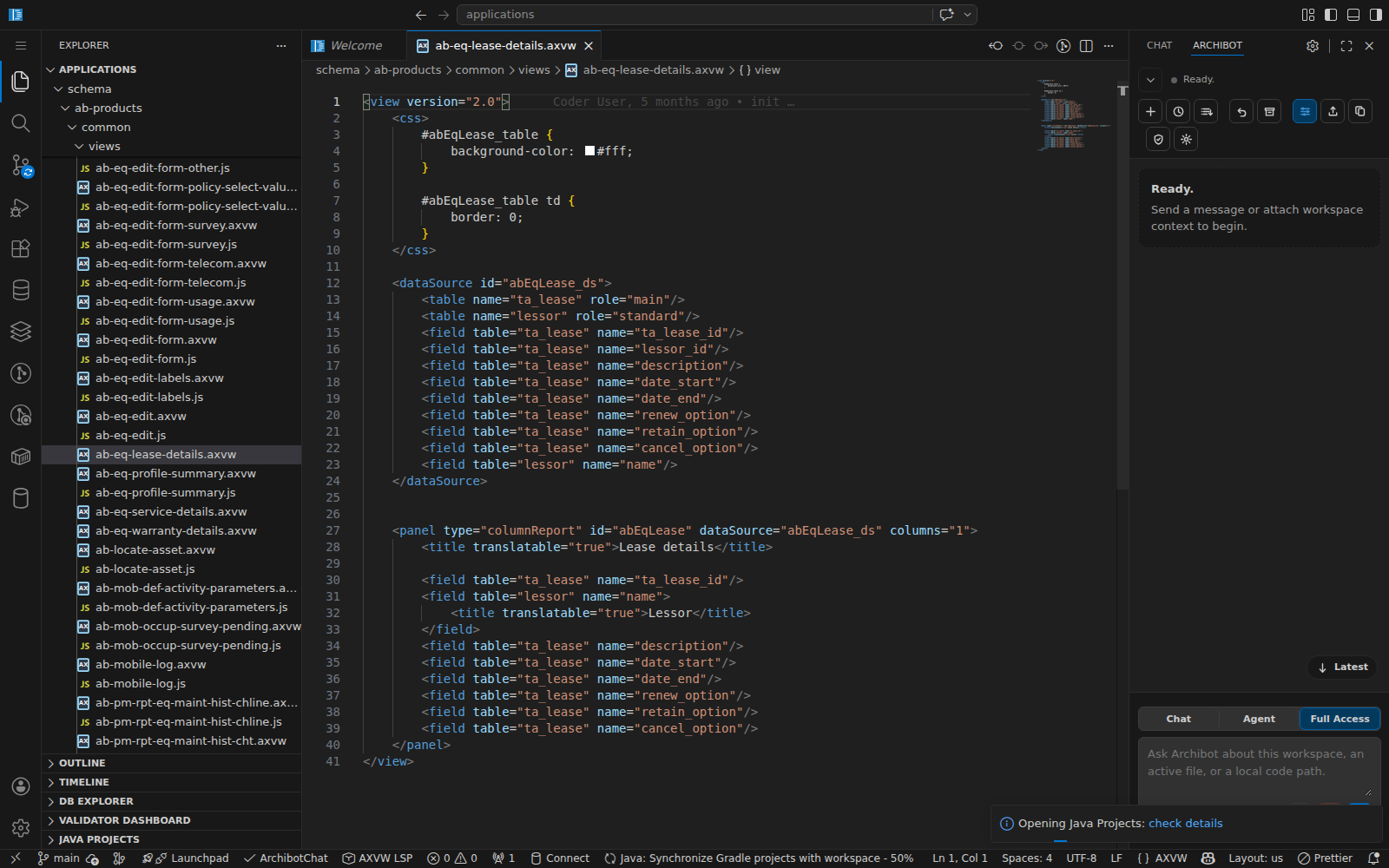
This guide is for whoever opens the workspace and does the work — member, admin, or operator. Anyone with access to a workspace can open it in code-server (VS Code in the browser) and use everything below. Creating and starting workspaces is covered in Create the first workspace and Manage workspaces; this guide picks up once the editor is open.
Open the editor
From My Workspaces in Console, find your running workspace and click Browser. The editor opens in a new tab, already pointed at the application folder (/home/codespace/applications). If you prefer your local tools, the row’s overflow menu also offers VS Code Desktop and JetBrains Gateway — they connect to the same workspace over a tunnel.
The first open after a start can take a few seconds while extensions finish installing in the background.
If you want to use ArchiBot in local VS Code without a managed workspace, use Use the ArchiBot VS Code extension first. Local-folder mode gives you editor and file-level Archibus help, while the workspace mode described here adds the managed app, database, credentials, logs, and runtime context.
What’s already installed
The editor comes set up for Archibus work, so you rarely install anything yourself:
- ArchiBot — the in-workspace assistant, in its own sidebar panel. See Use the workspace bot.
- A full Java toolset — language support, debugger, Maven, and Gradle — for Archibus server code.
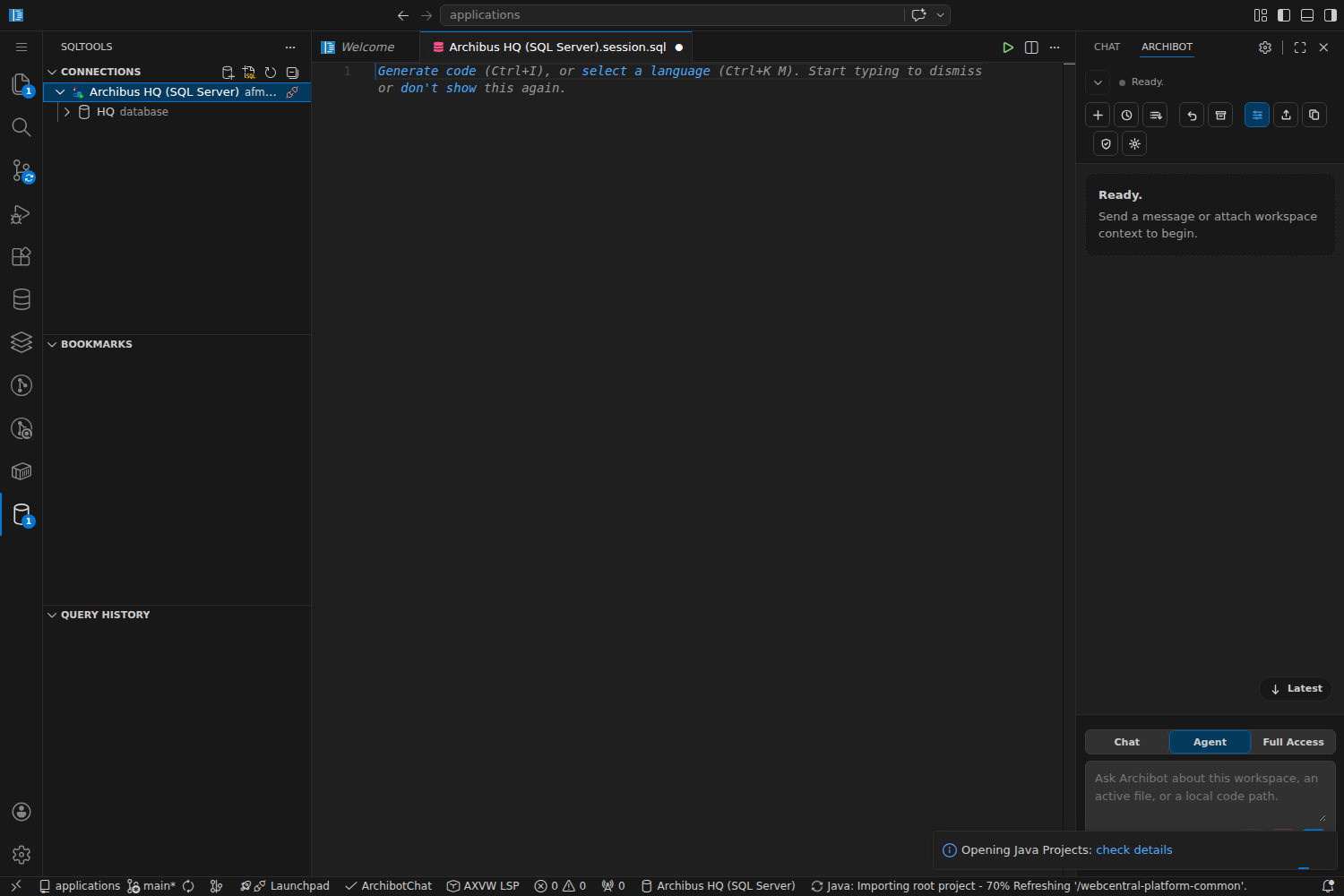
- SQLTools with SQL Server and Oracle drivers, plus a database client — connect to the workspace database and run queries from the editor.
- GitLens for history and blame, Docker, YAML, EditorConfig, Prettier, markdownlint.
- Rainbow CSV and an Excel viewer for data files.
You can add your own extensions; they live in your workspace home and survive a stop/start.
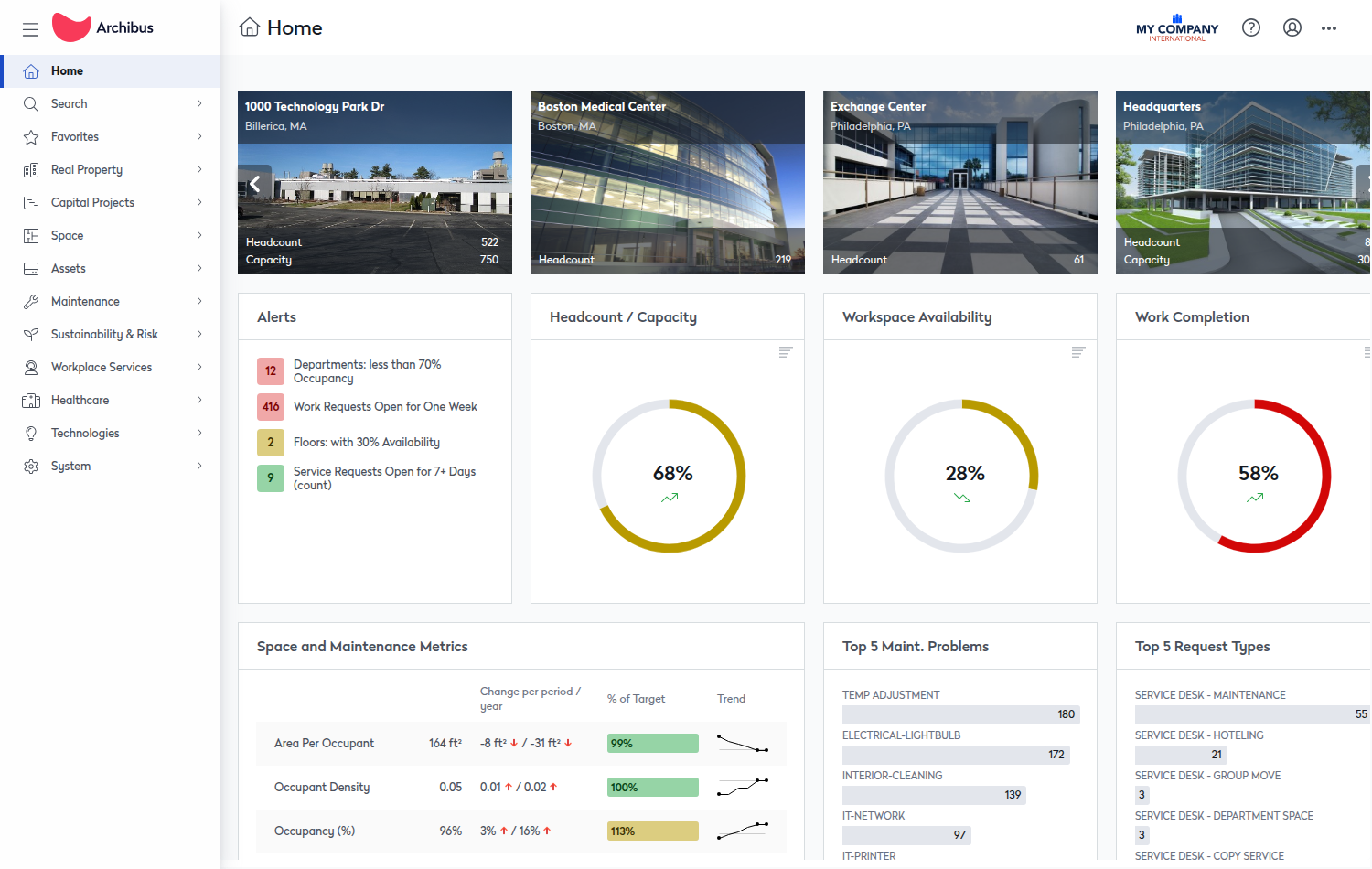
The Archibus app
Most Archibus workspaces run Tomcat with the Archibus WAR already deployed under tomcat/webapps/archibus/. Tomcat listens on port 8080.
- Open the running app from the Tomcat link in the Coder workspace page.
- After you change code or configuration, restart Tomcat. Use the Restart Tomcat action on the workspace, or run
~/tomcat-service.sh restartin a terminal.~/tomcat-service.sh statustells you whether it’s up. - Server output goes to
~/logs/catalina.out.
The database
Depending on how the workspace was built, it runs either SQL Server (port 1433) or Oracle (port 1521). The connection is wired into the Archibus config for you — you don’t set up credentials by hand. The SQLTools and database-client extensions are pre-installed, and the bot can run read-only queries for you (it won’t change data). Project and connection settings live in WEB-INF/config/afm-projects.xml under the application folder.
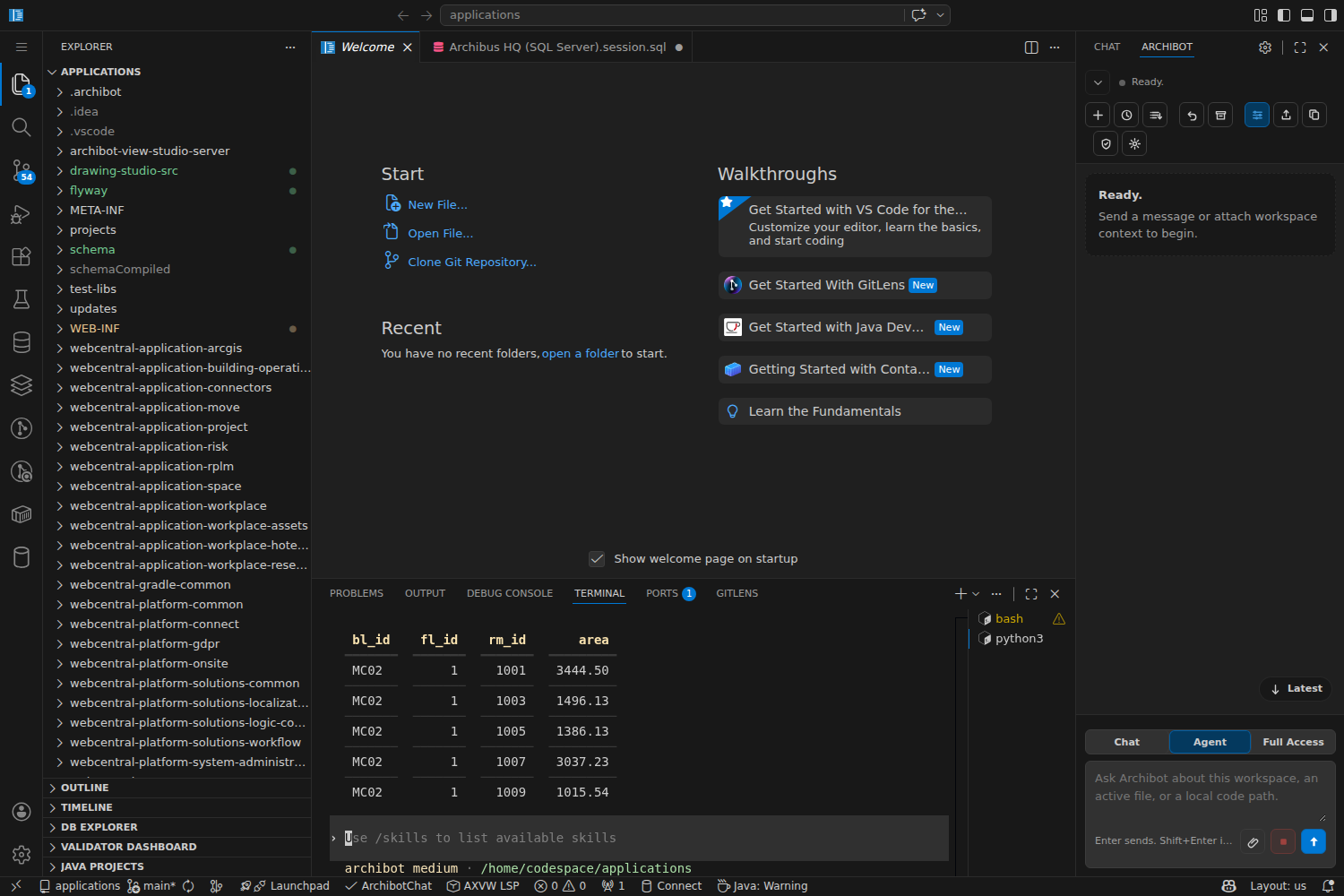
Or ask the bot to look something up — it runs the query with its read-only tool and shows the rows right in the terminal.
Where things live
A few paths worth knowing:
/home/codespace/applications— the Archibus application root the editor opens in.~/logs—startup.log(what ran when the workspace came up),catalina.out(Tomcat), andmail-debug.log(test email).~/flyway— database migration config, when Flyway is used.
Your home directory is persistent storage. It survives a stop and start, but a delete removes the workspace and its disk. For anything you want to keep across workspaces — notes, evidence, drafts — commit it to git or save it to Shared Drive.
Email goes to a test inbox
So workspace email never reaches a real recipient, outgoing mail is captured by a local debug server on 127.0.0.1:1025. Read what the app “sent” in ~/logs/mail-debug.log. If you specifically need real delivery, set SMTP_DEBUG_DISABLE=1 before starting Tomcat.
Git is already authenticated
Repository access (Bitbucket or GitLab) is set up through managed credentials, so git pull, commit, and push work without you pasting a token. Commit and push as you normally would. Don’t store tokens, keys, or credential files in the repo or in Shared Drive.
Related guides
- Use the workspace bot — start ArchiBot in the editor and put it to work.
- Use the ArchiBot VS Code extension — compare managed workspace, local folder, and no-folder modes.
- Manage workspaces — start, stop, update, and schedule from Console.
- Workspace ArchiBot and Shared Drive — keep notes and artifacts that outlive a workspace.
- Troubleshooting — first steps when the app or editor looks wrong.
Done When
- You have a running workspace and opened it in the browser.
- The editor loads at the applications folder.
- Tomcat answers on the workspace's app URL.
- The ArchiBot extension is visible in the sidebar.