


Review And Automation
Persistent environments and CI Review
Create shared persistent environments with the four-step wizard, set up CI workspace profiles, review merge events across the five CI tabs, and promote validated candidates from Console.
Last updated
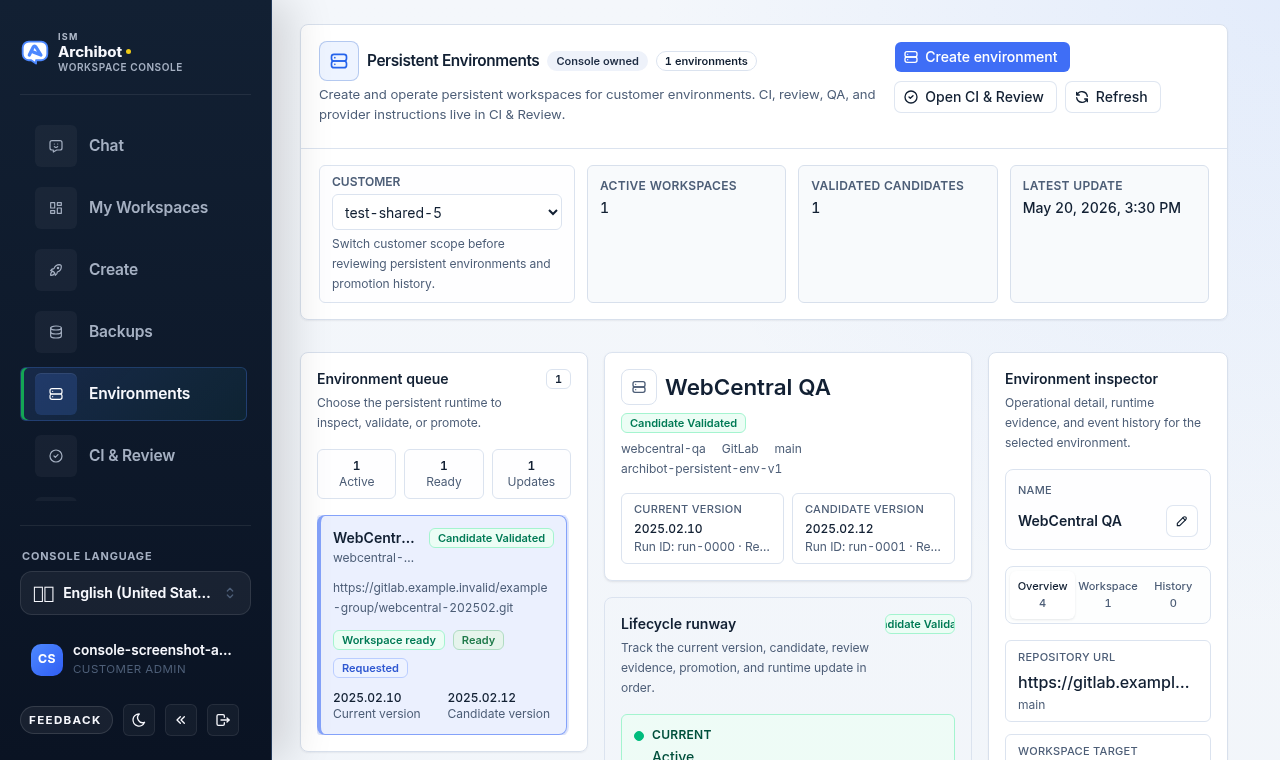
Persistent environments and CI Review are Console-owned workflows for shared validation. Use them when a customer needs a long-lived QA, UAT, demo, staging, or client-review runtime and wants changes to pass code review and QA before they are promoted.
These workflows are different from personal developer workspaces. A persistent environment is a shared customer runtime with policy, billing, support, and event history. A CI workspace profile is a route-owned review or QA runtime profile that Console uses when a merge event needs browser, database, code-intelligence, or destination-environment checks.
Both surfaces live in the Console left rail. Environments owns the shared runtimes and their candidates; CI & Review owns the routes, merge events, runs, and provider handoff. The two link to each other, so you can move between an environment and its review history without losing context.
Before you start
- You need a customer admin or platform operator role to create environments and CI profiles.
- The repository and branch you plan to validate must be reachable through a connected Git provider. See Customer admin setup for provider connection and Backups and restore sources for database seeds.
- Decide whether the route is source-branch-only or targets a persistent environment, because that choice changes which checks run.
Create a persistent environment
Open Environments and select Create environment. Console opens a four-step wizard with a step rail across the top: Source, Runtime, Policy, and Review. A live launch panel on the right shows the current selections and lists any required items that are still blocking.
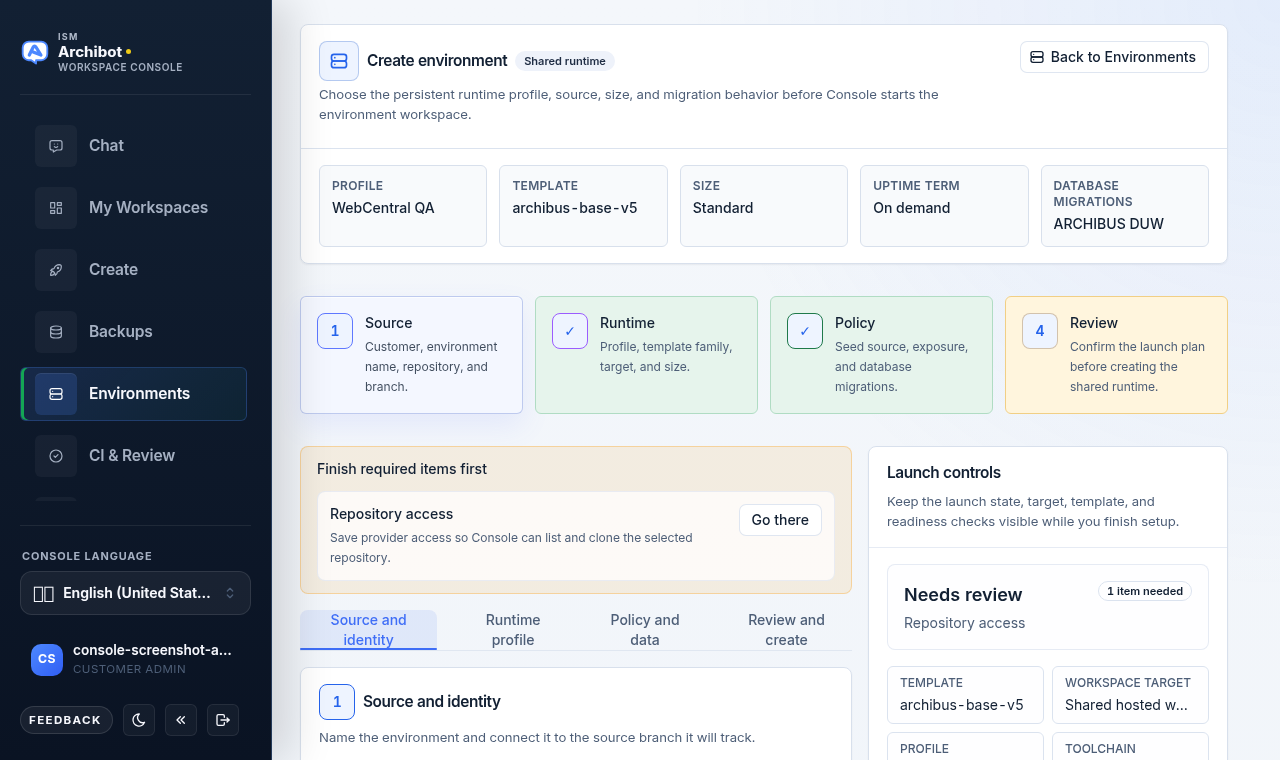
- Source. Pick the customer scope, name the environment, and confirm the repository URL and source branch. Console verifies provider access here. When a change depends on more than one repository, enable the repository stack so a runtime repository and a product repository check out in order.
- Runtime. Choose the persistent-environment profile, template family, workspace target, and runtime size. The profile sets the WebCentral version assumptions, including the expected Java, Gradle, Tomcat, and license bundle for the backing workspace.
- Policy. Set the seed source (database backup), exposure, and the database migration engine. Choose the migration engine that matches the destination: Flyway, ARCHIBUS DUW, or disabled migrations.
- Review. Confirm the launch plan. The review grid summarizes the profile, repository mode, size, and database backup. When everything required is present, select Create environment.
When creation starts, Console creates the environment record and starts the backing workspace when the selected target supports it. The environment card then shows the persistent workspace, candidate and current versions, environment-update state, runtime shortcuts, and event history.
Persistent environments are meant to stay on longer than personal development workspaces. Choose the runtime size and pricing term deliberately, and use the event history to confirm when the backing workspace, Tomcat route, database seed, and promotion state are ready.
Anyone who can see an environment can rename it. Use the pencil edit-name control on the environment card to change the display name. Rename is display-name-only: it does not change the environment key, customer, repository, provisioner, or any other configuration. Structural changes still need admin or manage access.
Use the WebCentral version profile that matches the source repository or WAR, especially for older WebCentral versions that need Tomcat 8.5 or Tomcat 9 instead of the current default. See Workspace presets for how those profiles map to runtime settings.
Open environment runtime shortcuts
After the persistent workspace exists, use the environment card actions:
| Action | Use when |
|---|---|
| Open workspace | You need the backing workspace shell or editor. |
| Open Archibus | You want the Tomcat /archibus application route. |
| Restart Tomcat | You need a controlled Tomcat restart from the workspace app. |
| Open archibus.log | You need recent Tomcat application log evidence. |
| Open CI & Review | You need review, QA, target-environment checks, or promotion history for this environment. |
Do not paste raw logs into support tickets. Share the visible status, run ID, workspace name, timestamp, and sanitized error text instead.
Update an environment runtime in two stages
When a candidate version is ready to land on the persistent runtime, Console uses a deliberate two-stage update so a shared environment is never restarted by accident.
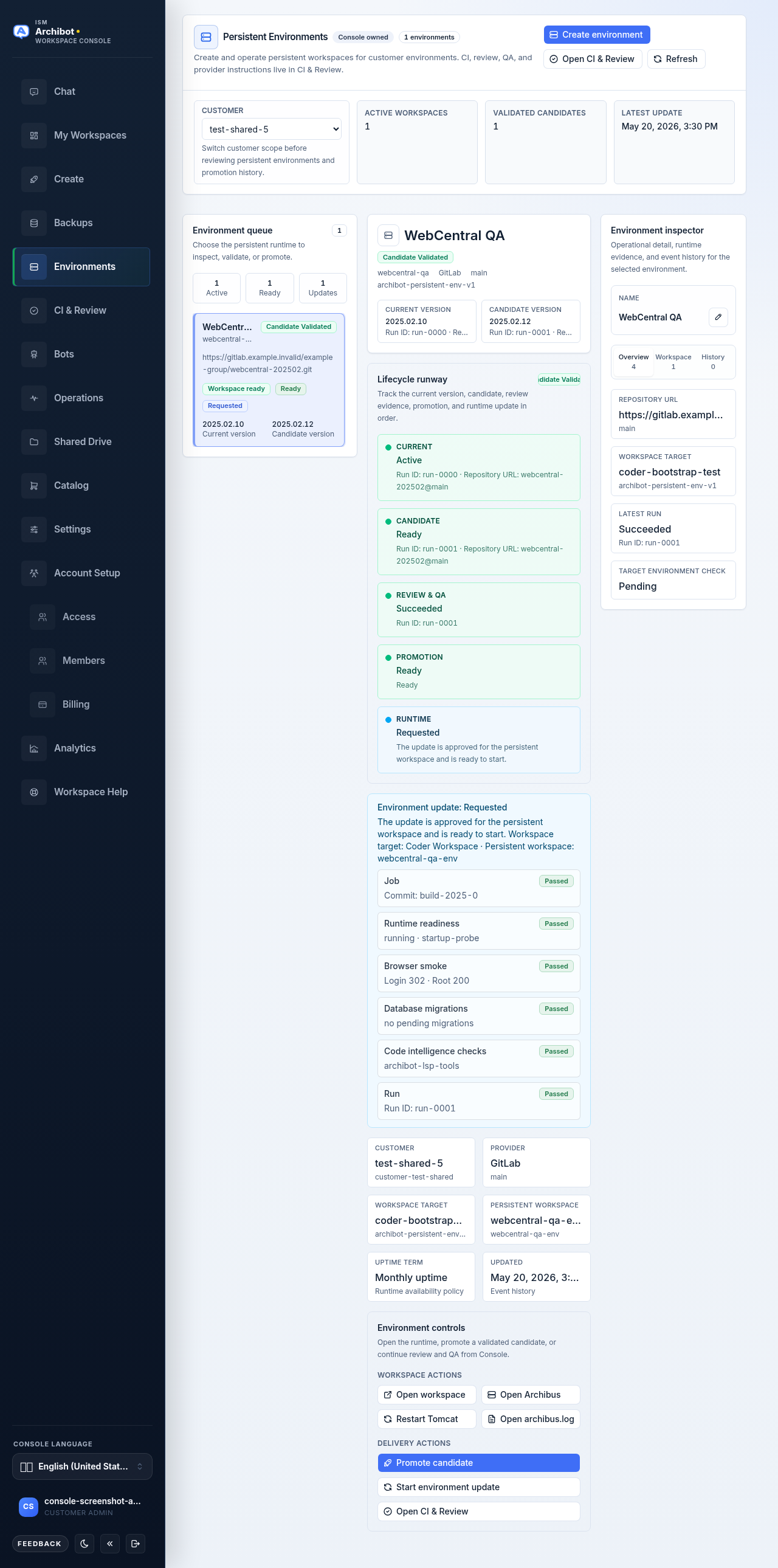
- Request environment update. This approves the update for the persistent workspace and marks it as requested. Console shows that the update is ready to start but has not touched the running environment yet.
- Start environment update. This starts the persistent workspace update and waits for the runtime result. Console moves the state to running, then applied once the persistent runtime is on the promoted version.
The environment card shows the current update state and a short description for each stage, plus runtime evidence rows so you can confirm what changed.
Create a CI workspace profile
Open CI & Review and select Create CI profile (it is Create CI/profile in the top action bar). Console opens a four-step wizard with the same step rail shape: Source, Runtime, Policy, and Review, shown in the work area as Source route, Workspace runtime, Run policy, and Review and create.
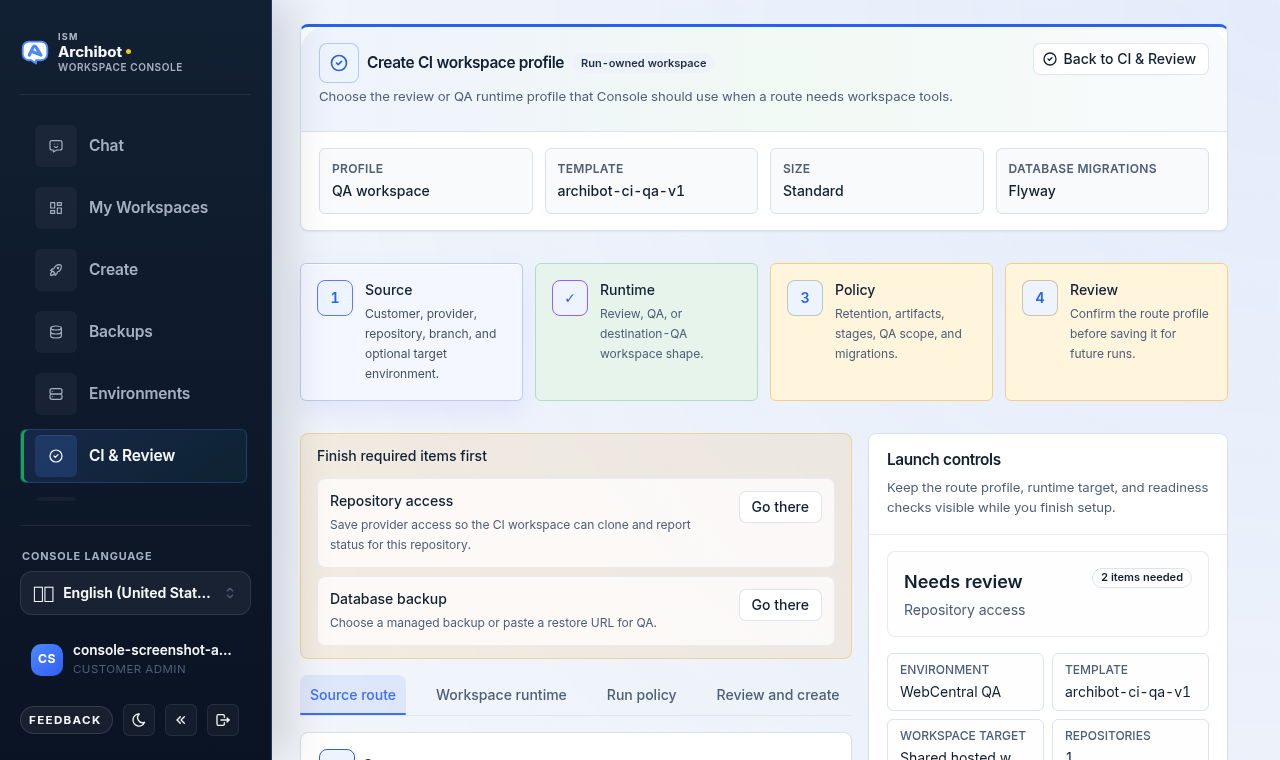
- Source route. Choose the customer, provider, repository, branch, and an optional target environment. Selecting a target environment is what turns on the destination check later. Apply a repository stack profile when the change needs a runtime repository plus a product or dependency repository.
- Workspace runtime. Choose the workspace shape: review, QA, review plus QA, or destination QA. Select the CI template, workspace target, and size.
- Run policy. Set retention, artifacts, which stages run, QA scope, and the database migration engine. Select the WebCentral version profile and database backup. Review usually uses high reasoning; QA usually uses low reasoning after deterministic checks have gathered evidence.
- Review and create. Confirm the route profile in the review grid, then select Create CI profile.
Saving a CI workspace profile does not create a personal developer workspace. It creates the route metadata that Console uses when a merge event or test run needs a review or QA workspace. Lightweight runs can still use the Console runner without a workspace when browser, database, and code-intelligence tools are not required.
If the route has no target persistent environment, Console can still run source-branch QA. Code review starts from a Console merge event, provider pull request, or explicit diff so reviewers see the actual change set and merge gate. The destination-environment check is skipped because there is no environment configuration to validate against.
The five CI & Review tabs
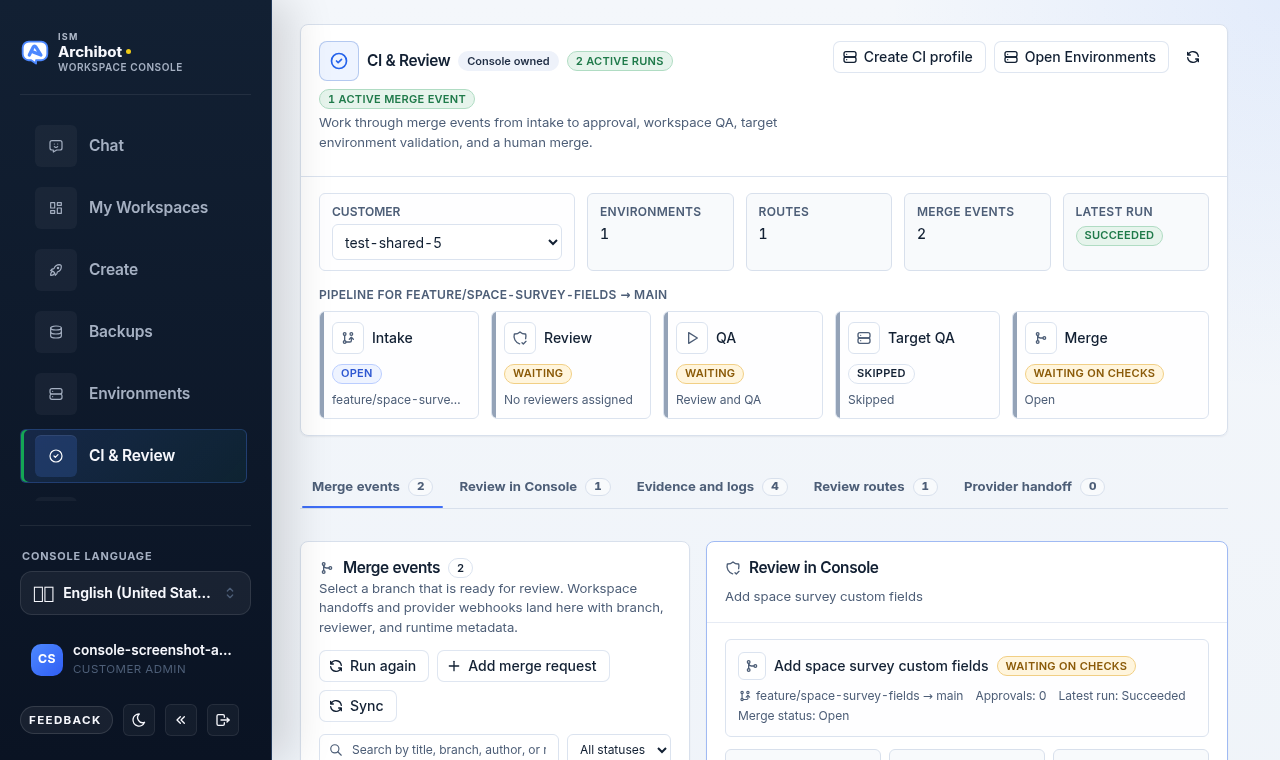
The CI & Review work area is organized into five tabs above the main panel, each with a live count:
| Tab | What it holds |
|---|---|
| Merge events | The review queue: every merge event Console knows about, from webhooks, workspace handoffs, or manual registration. |
| Review in Console | The selected merge event in detail: branches, reviewers, stacked changes, and the controls to start review and QA. |
| Evidence and logs | Run detail and the timeline of stage changes, job names, target environment status, and sanitized log lines. |
| Review routes | The saved CI workspace profiles, where you can load a route’s provider setup or trigger a run. |
| Provider handoff | The managed provider connection, webhook, route token, and pipeline callback details for the selected route. |
Above the tabs, a workflow strip shows the stage pipeline for the selected merge event: Intake, Review, QA, Target QA, and Merge. Each stage shows its own status, such as open, waiting, skipped, or waiting on checks.
Source-branch-only versus target environment
Source-branch-only routes run code review and runner QA without a selected persistent environment. In that mode, Console intentionally skips the target environment check, and the Target QA stage shows as skipped.
Routes with a selected persistent environment add a target environment check. After code review and runner QA pass, Console validates the candidate against the selected environment defaults before the merge or promotion can proceed.
The target environment check uses the environment defaults that matter after promotion, including database type, database backup, migration engine, workspace target, template, toolchain, workspace parameters, and license override when configured.
When a route uses an older WebCentral version, keep the same version profile on the persistent environment, source QA profile, and destination QA profile. That makes review evidence, browser smoke tests, and the final promotion check run on the same runtime assumptions.
Set up the provider handoff
Open the Provider handoff tab and load a route to register or check the managed provider connection. Console owns the review layer; the provider connection lets it post review and QA comments, send status feedback, and receive merge events.
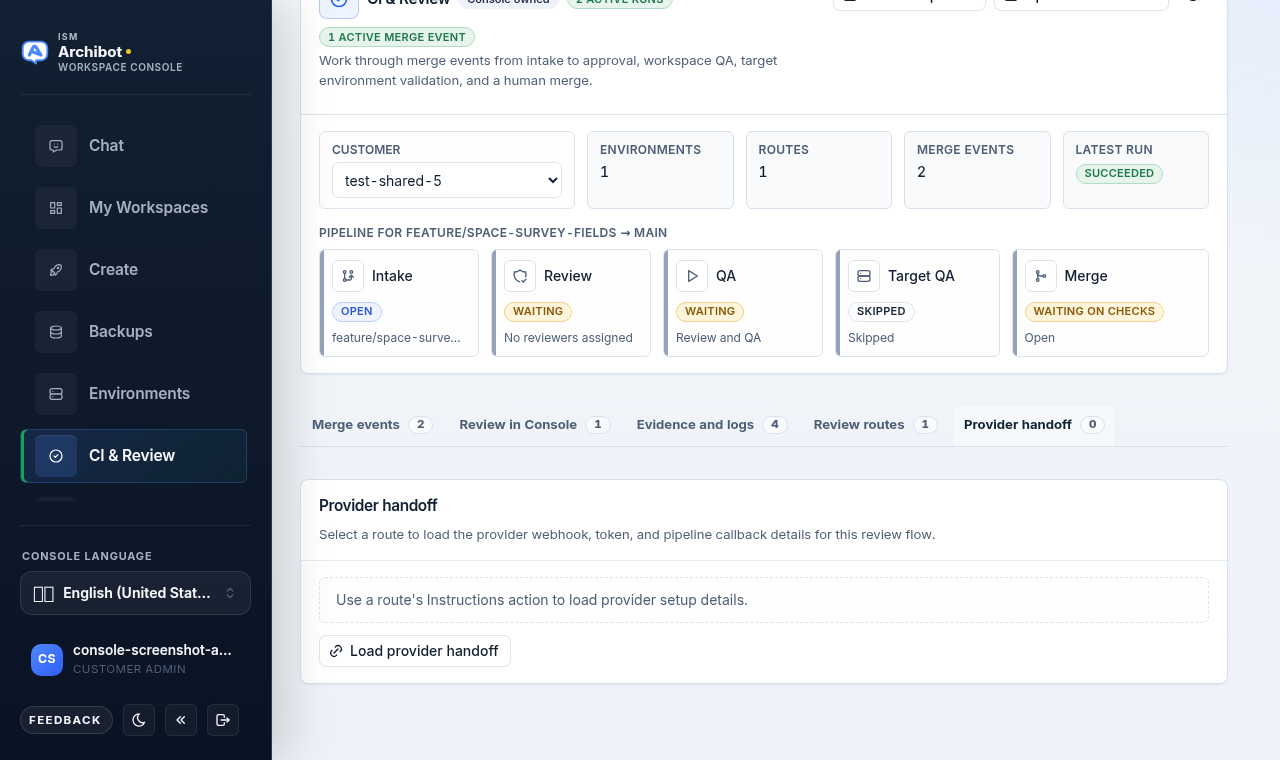
From this tab you can:
- Save a managed connection. Register the provider app, service hook, or an approved credential reference such as
token://...,k8s://secret/key, or an OpenBao/Vault reference. Console can also accept a one-time provider token or app password and store it in Console token storage, a Kubernetes Secret, or OpenBao/Vault. After saving, Console shows only a credential preview. - Rotate the credential. Use Rotate credential when a token expires or is replaced. Run a connection check afterward.
- Revoke the credential. Use Revoke credential to keep the connection record but stop posting until a new credential reference is added.
- Install or reconcile a webhook. Use Install webhook so merge-event updates reach Console, Reconcile webhook to repair a drifted hook, and Remove webhook to stop events. Save or select a route before installing the webhook.
- Check the connection. Use Check connection to confirm health before relying on the route for review, status, or comment posting.
A readiness panel walks through route metadata, provider service, installation target, credential source, allowed actions, the Console record, and provider health, so you can see which step is still missing.
Do not put provider tokens, raw credential payloads, or private deploy secrets into route names, descriptions, QA notes, or route instructions.
Review a merge event
Merge events are the normal review unit in Console. A merge event can come from a provider webhook, a workspace handoff, or manual Console registration.
- Open CI & Review.
- Pick the merge event from the Merge events tab.
- Open Review in Console to see the source branch, target branch, provider link, feature items, reviewer list, and stacked changes.
- Assign reviewers or add a custom reviewer, and update reviewer notes.
- Select Start review & QA when the route is ready.
- Watch the workflow strip: Intake, Review, QA, Target QA, and Merge.
When stacked changes are detected, Console shows the bounded stack preview and per-file context it can safely display. Use provider links only for secondary context.
ArchiBot review and runner QA can run separately or together. Review focuses on code, stacked-diff context, missing tests, risky paths, and documentation impact. QA focuses on execution evidence such as browser smoke, database checks, selected test commands, toolchain validation, and workspace logs. See Console Bots for how ArchiBot review and QA bots are configured.
If a run needs to stop, use Cancel run on the run in the Evidence and logs tab. Console marks the run as canceled.
Merge and promote
Console keeps human merge as the default.
Before Merge in Console is available:
- A reviewer approval must be recorded.
- The requested code review stage must pass.
- The requested runner QA stage must pass.
- If a target environment is selected, the target environment check must pass.
After the merge is complete, the validated candidate can become a promotion candidate for the selected persistent environment. Use Promote candidate from Environments only when the latest CI run and target environment check match the candidate version. Once promoted, use the two-stage environment update described above to land it on the running runtime.
Logs, evidence, and Shared Drive
CI & Review and Environments keep event history in Console. Use the run timeline in the Evidence and logs tab to see stage changes, job names, target environment status, and sanitized log lines.
Use Save to Shared Drive when support needs evidence to outlive the normal run-log retention window. The account needs a writable drive for this. Keep long-lived evidence sanitized and customer-approved. See Workspace ArchiBot and Shared Drive for how scoped drive access works.
Reviewers should be able to answer three questions from Console before merging:
- What changed, including any stacked diffs?
- Which review, QA, and destination checks ran?
- Where is the sanitized evidence if the run needs support review later?
Do not share:
- API keys, provider tokens, webhook secrets, cookies, or invite links.
- Kubernetes Secrets, pod environment variables, kubeconfigs, or Coder tokens.
- Raw database URLs, raw backup contents, or license files.
- Private transcripts or customer data dumps.
Common blockers
| Blocker | What it usually means | Next action |
|---|---|---|
| Repository access missing | Console cannot confirm private Git access. | Connect or refresh the provider credential beside the repository field, or use Manage Git access. |
| Target or template missing | The account does not have a matching workspace target or template alias. | Ask a customer admin or ISM support to review target readiness. |
| Backup not selected | The environment or QA profile needs a database seed. | Choose an approved backup or use the documented custom restore path. |
| Migration policy missing | Console does not know whether to use Flyway, ARCHIBUS DUW, or disabled migrations. | Select the migration engine that matches the destination environment. |
| Target environment check blocked | Review or runner QA passed, but destination evidence is missing or failed. | Open the run timeline and target environment check details before merging. |
| Promotion disabled | The candidate is missing, stale, or not validated by the latest required run. | Re-run review and QA, or select the correct candidate branch. |
Support handoff
For support, include:
- Customer account and environment name.
- Merge event ID or CI run ID.
- Source branch, target branch, and provider merge request number when visible.
- The stage that is blocked.
- The sanitized Console error or log summary.
Do not include raw credentials, full logs with secrets, private database data, or one-time links. See Support handoff for the full evidence checklist.
Done When
- A target environment, repository, branch, backup, and migration engine are selected before environment creation.
- CI workspace profiles clearly show whether they run source-branch-only or target a persistent environment.
- Review, QA, target environment check, merge, and promotion status are visible in Console before any merge.
- Logs saved to Shared Drive contain no secrets before sharing them with support.