


Operators
Tenant Admin for operators
Run the operator Access surface — pick the account boundary, then work members, permissions, workspace targets, billing policy, SSO, and onboarding evidence from one Console-owned desk.
Last updated
What the Access surface is for
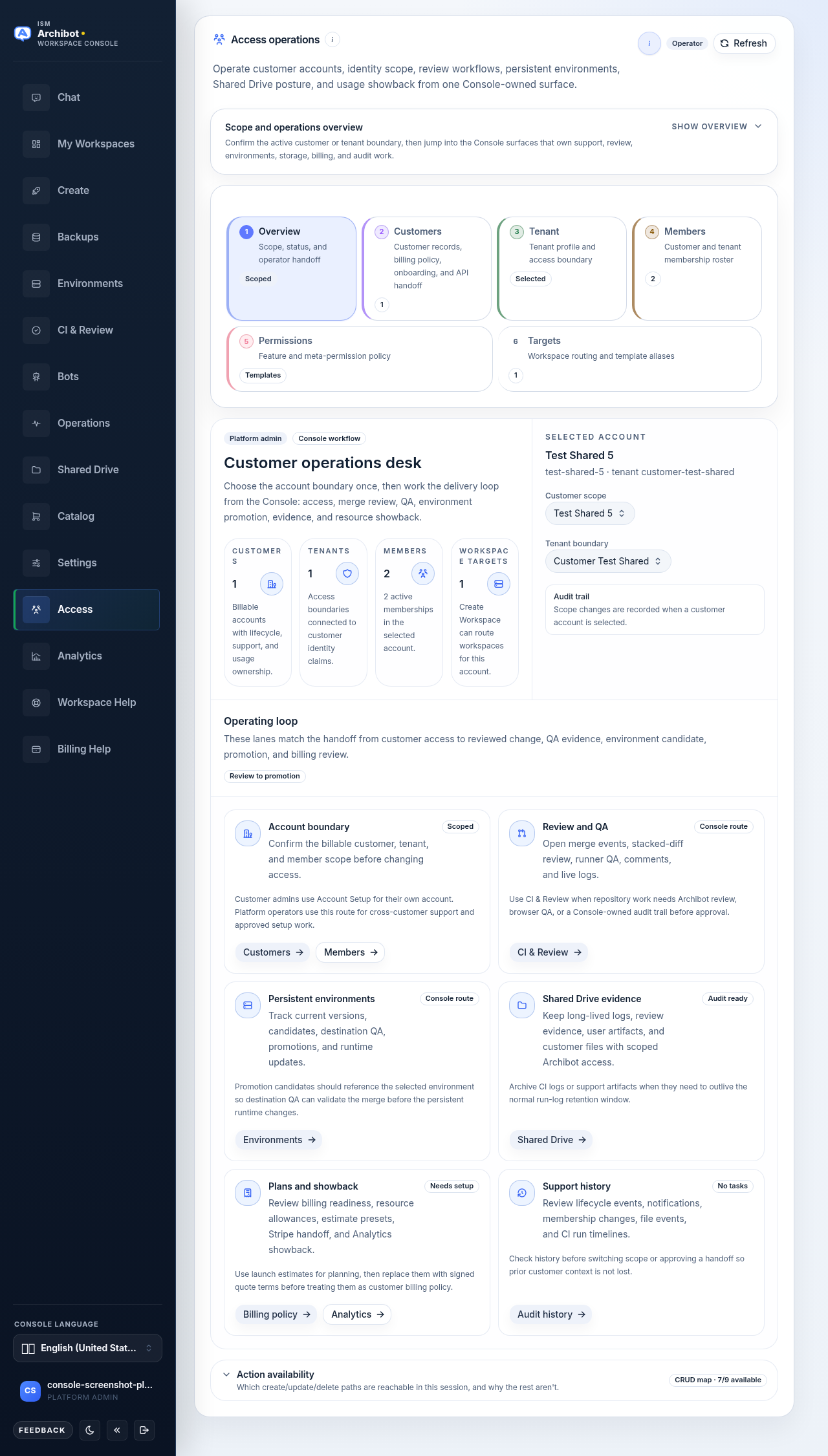
The operator surface at /tenants is titled Access operations in Console, and the working area inside it is the Customer operations desk. It is one Console-owned route where platform teams pick an account boundary once, then run the whole delivery loop: access and identity scope, members and permissions, workspace target routing, billing readiness, persistent environments, Shared Drive evidence, and usage showback.
The same route shows a self-serve view to customer admins so they can confirm their access, submit SSO details, work the onboarding checklist, and invite their team. The labels and available actions change with your role: platform operators and admins see cross-customer support and approved setup work, while customer admins see only their own account.
Use it as launch control. Approve the account boundary, the billing gate, tenant access, target routing, and the usage handoff before a customer starts creating workspaces.
Pick the scope first
Always confirm the billable customer, tenant, and member scope before changing anything. Most actions are customer-scoped and enforce the selected customer when one is present. On a new cluster, run the bootstrap and scope check first — it answers who you are signed in as, which customer account you are managing, where workspaces will run, and whether usage can be attributed to that customer — before testing downstream workspace or billing flows.
If the SSO access labels are empty, downstream pages such as Analytics may not know which customer scope to use. Re-enter through SSO before testing workspace creation.
Sub-tabs across the desk
The Customer operations desk groups its work into sub-tabs along the top of the surface. Move across them in roughly this order during a launch.
| Sub-tab | What you do there |
|---|---|
| Overview | Confirm the active customer or tenant boundary and jump to the surfaces that own support, review, environments, storage, billing, and audit. |
| Customers | Customer records, billing policy, onboarding, and API handoff. |
| Members | The customer and tenant membership roster. |
| Permissions | Feature and meta-permission policy per membership. |
| Targets | Workspace routing and template aliases. |
| Onboarding | Checklist, SSO setup, lifecycle, and notification history. |
The Overview lanes mirror the operating loop: customer access, reviewed change, QA evidence, environment candidate, promotion, and billing review. Quick actions on Overview open Customers, Members, CI & Review, Environments, Shared Drive, Billing policy, Analytics, and Audit history.
Action availability (the CRUD map)
The CRUD map badge shows which create, update, and delete paths are reachable in the current session, and why the rest are not. Read it when an action looks missing. For example, it explains that customer accounts have no delete route yet — move lifecycle to suspended, offboarding, or closed instead — and that some actions are operator-gated because they drive billing, attribution, or the account boundary.
A few entries worth knowing:
- Customer account — operator-only, because the account record drives billing, lifecycle, and attribution. Customer admins can submit onboarding data but cannot mutate the billable record.
- Members — create, update, and delete require tenant-admin rights; customer-scoped routes enforce the selected customer.
- ArchiBot API keys — available in the customer handoff step. Raw secrets are shown once.
- Notifications — customer admins can read their notification history; dispatch stays operator-gated.
In-app help
Each panel carries a contextual help control. The Explain access operations action opens a dialog that restates the four setup questions and a plain-language glossary: a customer account is the billable company, a tenant is the slice of Console access for that company, a workspace target is the runtime cluster where workspaces run, and an API key is how ArchiBot or automation calls the customer-scoped API. The dialog is read-only context; closing it returns you to the same scope. Use it when you are unsure whether a missing label or empty scope is blocking a downstream test.
Customers and onboarding tabs
Open the Customers sub-tab to work a single account. Each customer record carries its own tab strip:
- Profile — account identity.
- Plan — lifecycle, defaults, and service tier.
- Onboarding — checklist and lifecycle history.
- Billing — billing review and pricing policy.
- API — customer-scoped API access.
The Onboarding tab opens its own sub-tabs: Details (account context and contacts), SSO setup (share or review IdP metadata), Checklist (the shared launch record), Lifecycle (state history), and Notifications (durable notification history). Checklist status and notes become the shared launch record instead of side-channel email or chat.
Members and permissions
On the Members sub-tab, operators can invite, create, update, transfer, disable, and remove members within the selected tenant. (Customer admins can invite, create, update, disable, and remove, but not transfer.) Use tenant admin sparingly — most users should be tenant members unless they manage invites or onboarding evidence.
The Permissions sub-tab opens the Permission policies editor, which sets role-derived access, custom feature permissions, and meta-permissions for each membership in the selected scope.
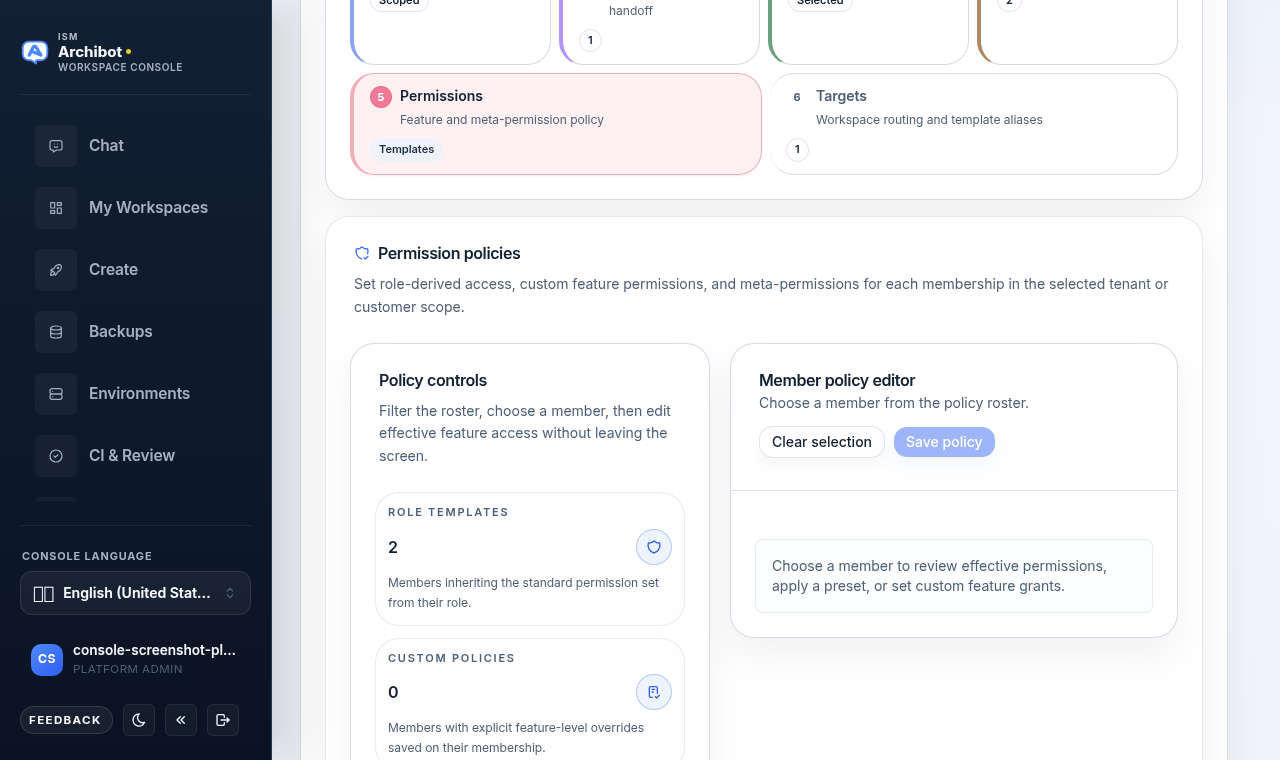
Work the editor in three moves:
- Use Policy controls and Filters and search to narrow the roster, then pick a member. The metrics tiles (Role templates, Custom policies, Meta grants, Admins) show how the scope is distributed.
- In Member policy editor, choose the Policy mode. Role template calculates effective permissions from the selected role and status; Custom grants saves feature and meta-permission arrays directly on the membership.
- Apply a Preset grant as a starting bundle, adjust individual grants in the feature matrix, then choose Save policy. Use Clear selection to back out without saving.
Preset grants give a known bundle you can adjust:
- Tenant admin — full tenant and customer administration with controlled delegation.
- Workspace lead — workspace lifecycle, Shared Drive write, and CI review management.
- Billing manager — Analytics, invoices, spending caps, and resource pricing without workspace control.
- Auditor — read-only visibility across operations plus audit export authority.
Meta-permissions control who may delegate roles, grant or revoke permissions, approve exceptions, manage policy templates, approve support access, export audit evidence, or approve break-glass elevation. Grant these only to memberships that administer access policy. Each feature grant is saved by stable permission ID so future backend enforcement consumes the same policy.
Workspace targets and defaults
Create Workspace can only route workspaces for an account once a workspace target is attached, so attach a target before customer workspace creation. On the Targets sub-tab you confirm the workspace runtime URL, target auth mode, template aliases, and supported Git providers. Template aliases keep customer-visible names stable; service-token fields on targets remain operator-only.
Use Workspace defaults to set the org-level values Create Workspace should start with for this customer.
Billing and resource pricing
The Billing tab covers billing readiness, the Stripe handoff, and the resource pricing policy. Billing state is the workspace-create gate: record the payment rail and mark the account trial approved or verified before customer workspace creation.
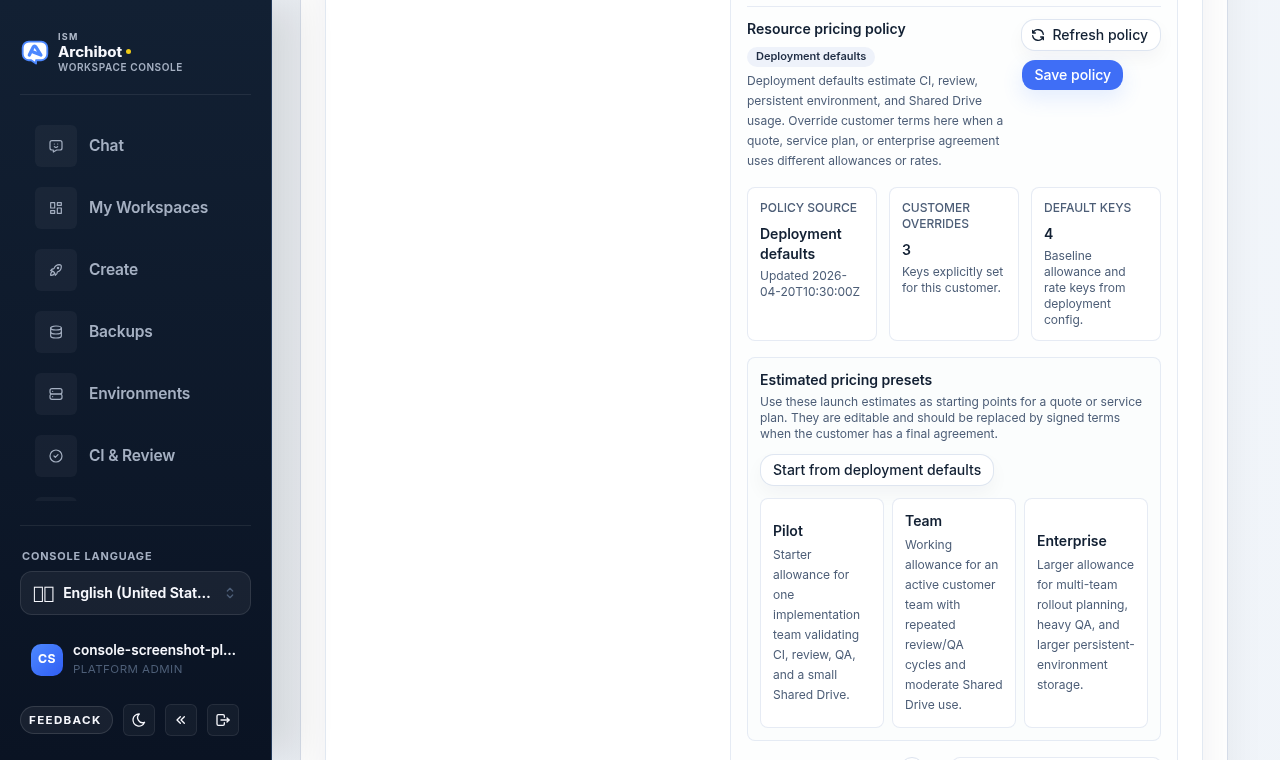
Resource pricing policy overlays deployment defaults for one customer’s Analytics and overage accounting. The panel shows the policy source, how many keys are explicitly set for the customer, and the baseline default keys from deployment config. Override customer terms here only when a quote, service plan, or enterprise agreement uses different allowances or rates, then choose Save policy.
Estimated pricing presets give launch starting points you can adjust before quoting:
- Pilot — starter allowance for one implementation team validating CI, review, QA, and a small Shared Drive.
- Team — working allowance for an active customer team with repeated review/QA cycles and moderate Shared Drive use.
- Enterprise — larger allowance for multi-team rollout planning, heavy QA, and larger persistent-environment storage.
Use Start from deployment defaults to reset the editor. Record the pricing model version label for the quote or policy revision. Stripe stays authoritative for invoices, payments, and revenue records — Console pricing entries are operator or customer terms, not provider payloads, and Stripe invoice events update paid history automatically.
SSO setup
Customer admins submit IdP type, domains, claims, groups, callback URLs, and test users on the SSO setup tab so ISM can map access safely. For OIDC, collect discovery URLs; for SAML, collect metadata URLs and callback validation details. Operators review the submitted metadata on the same tab. SSO access labels come from the identity provider and determine which overview, setup actions, and customer scope Console exposes.
Keep the two note packets separate
- Customer-submitted details and ISM launch context are customer-visible. Use them for context the customer can review with ISM.
- Internal operator notes are ISM-only and should not appear in customer-scoped onboarding responses.
In every field — customer-visible or internal — keep credentials, payment details, private keys, and invite links out. Onboarding lifecycle and notification history are durable records; email dispatch stays gated behind the notification sender.
Related guides
- Access roles for the role boundaries this surface enforces.
- Customer admin setup for the customer-facing self-serve path.
- Operations center for live CI, QA, bot, and capacity signals.
- Persistent environments and CI Review for the review-to-promotion lanes.
- Usage and billing for how showback and Stripe records meet the pricing policy you set here.
Done When
- The selected customer and tenant scope is correct before any change.
- Customer-visible context and internal operator notes are kept in their own packets.
- A workspace target is attached before a customer creates workspaces.
- Credentials, payment details, private keys, and invite links stay out of every field.