


Automation
Console Bots
Draft bounded ArchiBot bot work in chat, review the task packet, and run it only when customer policy, profile, and blueprint gates allow it.
Last updated
What bots are for
Console Bots turn a bounded, well-described change into ArchiBot work that ends in a Console merge event, review, QA, and human approval. A bot task captures the repository and branch to work from, the path scope to stay inside, and QA notes the later QA step should run.
Saving a task does not merge code. While an account is in setup-only mode, the surface shows a Setup only banner and you are only capturing reviewable task records. When execution is enabled, Console still checks the bot policy, selected profile, allowed blueprint, concurrent-run limit, and monthly budget before any workspace starts.
Who can use bots
Customer admins can draft and manage bot work for their own account. Platform operators can do the same for a selected customer account, and they manage the policy, profiles, and blueprint settings that gate execution.
Customer members cannot open the Bots page. If a member needs a bot task, ask a customer admin to review and draft it.
How the page is laid out
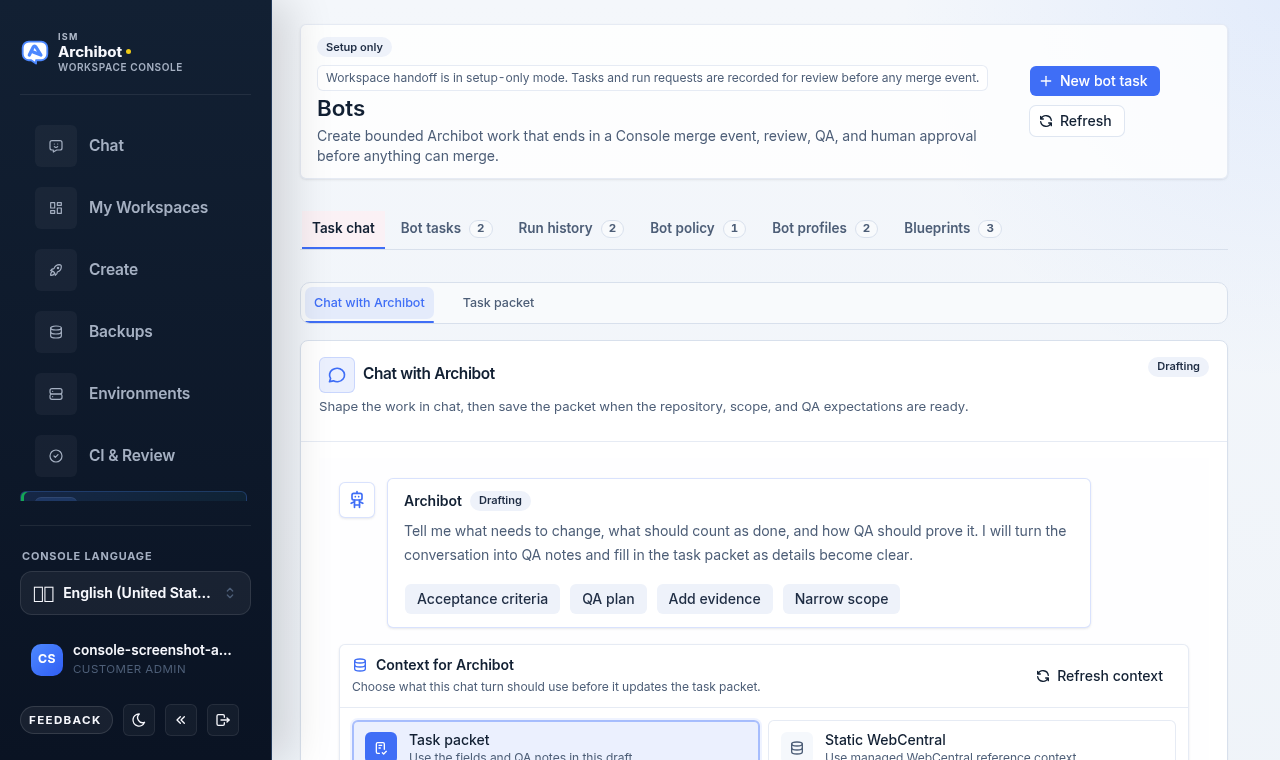
Open Bots from the Console sidebar. A header banner reads Setup only or Workspace handoff enabled depending on the account, and a New bot task button and Refresh sit in the top right.
Below the header is a row of section tabs, each with a count:
| Tab | What it holds |
|---|---|
| Task chat | The chat builder and the task packet for the draft you are shaping. |
| Bot tasks | Drafted and completed bot work, with review, QA, logs, and approval state. |
| Run history | Run requests and their runner, activity, and sanitized logs. |
| Bot policy | The per-customer switch and limits that gate execution. |
| Bot profiles | Customer profiles that define the worker template, reasoning, and limits. |
| Blueprints | The fixed workflow templates and whether each is enabled for the customer. |
Shape a task in chat
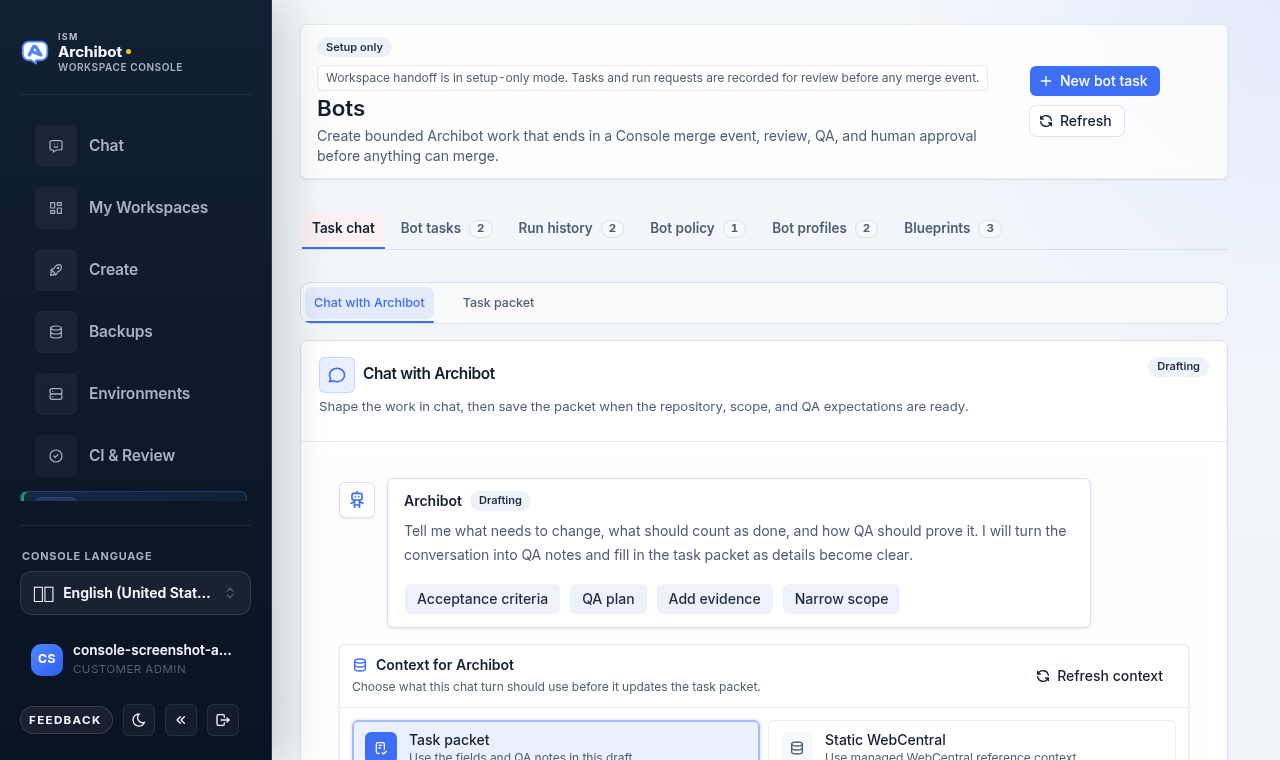
The Task chat tab opens on Chat with ArchiBot. This replaces the old fixed form: you describe the work in conversation, and ArchiBot fills in the task packet as details become clear.
- Open Bots, then stay on the Task chat tab.
- Use the Chat with ArchiBot sub-tab. Read the opening message, which asks what needs to change, what counts as done, and how QA should prove it.
- Use a starter pill to focus the conversation, or type your own message:
- Acceptance criteria turns a description into pass/fail criteria.
- QA plan drafts browser checks, data setup, and what should fail the run.
- Add evidence shapes the task from notes or pasted evidence.
- Narrow scope tightens the repository paths, branch, and files the bot may touch.
- Type in Message ArchiBot and select Send (or press Ctrl+Enter). Each message updates the QA notes and can suggest a title or scope.
- Switch to the Task packet sub-tab to review what ArchiBot captured before you save.
Keep requests specific. “Add a field to Space Console” with clear acceptance criteria works; “fix the app” or “clean up the repo” does not.
Review and complete the task packet
The Task packet sub-tab shows the values that will be saved with the task and passed to the workspace. A field count appears in the top right, and three summary cards at the top show the Customer, Profile, and Source.
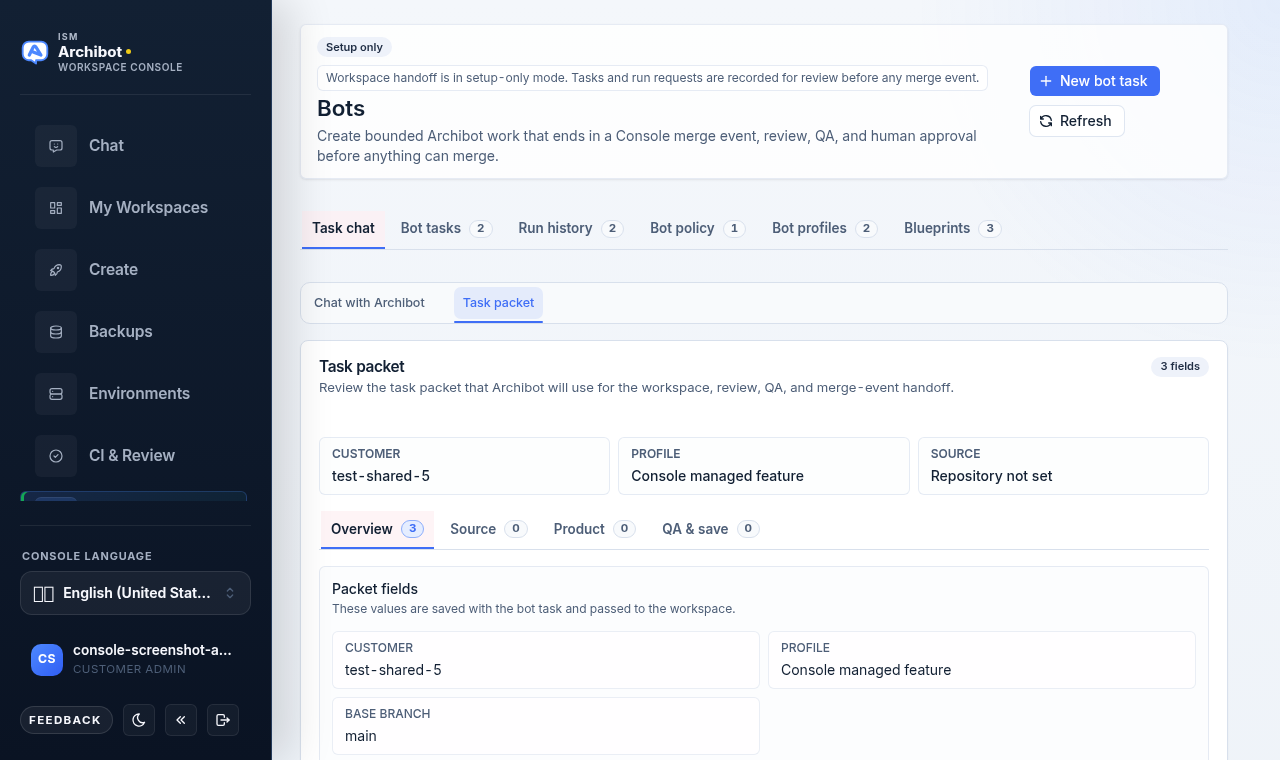
The packet is organized into its own sub-tabs, each with a count:
- Overview lists the packet fields, including the customer, profile, task title, and base branch.
- Source holds the Repository URL and Base branch the bot works from, plus the Path scope (for example
src/, docs/) when the change should stay in specific folders. - Product is optional. Turn on Add dependent product repository when the bot must edit a product repo that depends on the runtime repo. You then set the product repository URL, base branch, Checkout path, and Deploy command. The runtime repository is prepared first, then the product repository is checked out, deployed, and used as the worktree and merge-event source.
- QA & save holds the QA notes (browser checks, data setup, or edge cases) and the save control.
When you are ready, the button on QA & save is labeled by the account state:
- In setup-only mode it reads Save draft and stores a reviewable task record only. Workspace execution, budgets, and merge-event handoff stay disabled.
- When workspace handoff is enabled it reads Start bot.
The button stays disabled until the task title and required fields are set. Platform operators must also choose a Customer account first.
Bot tasks
The Bot tasks tab lists drafted and completed tasks with their review, QA, logs, and approval state. Open a task to see its packet and history. To stop a draft you no longer want, cancel it: cancelling keeps the audit record and sets the status to canceled rather than deleting the task.
Run history
When execution is enabled, a run can create a branch, prepare a workspace, and hand the result to Console as a merge event. The Run history tab shows each run request on the left and a Run detail panel on the right.
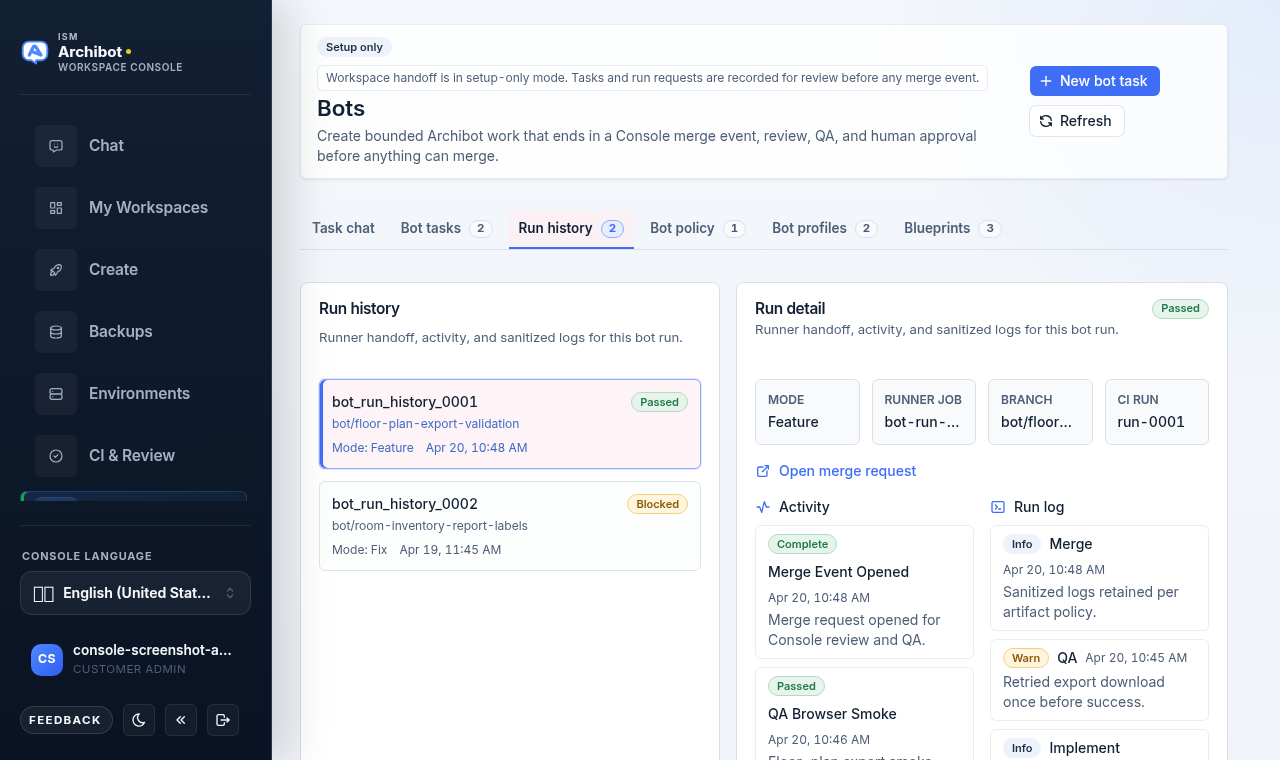
The detail panel shows the run status, Mode, Branch, runner job, Activity timeline, and sanitized run logs. When a merge event exists, Open merge request links to it. Console stays the review layer: a person approves and merges from Console after the required review and QA gates pass. See Persistent environments and CI Review for the review flow.
Bot policy (operators)
The Bot policy tab controls which bots a customer can request before any workspace execution is allowed. A badge shows Customer enabled or Customer disabled.
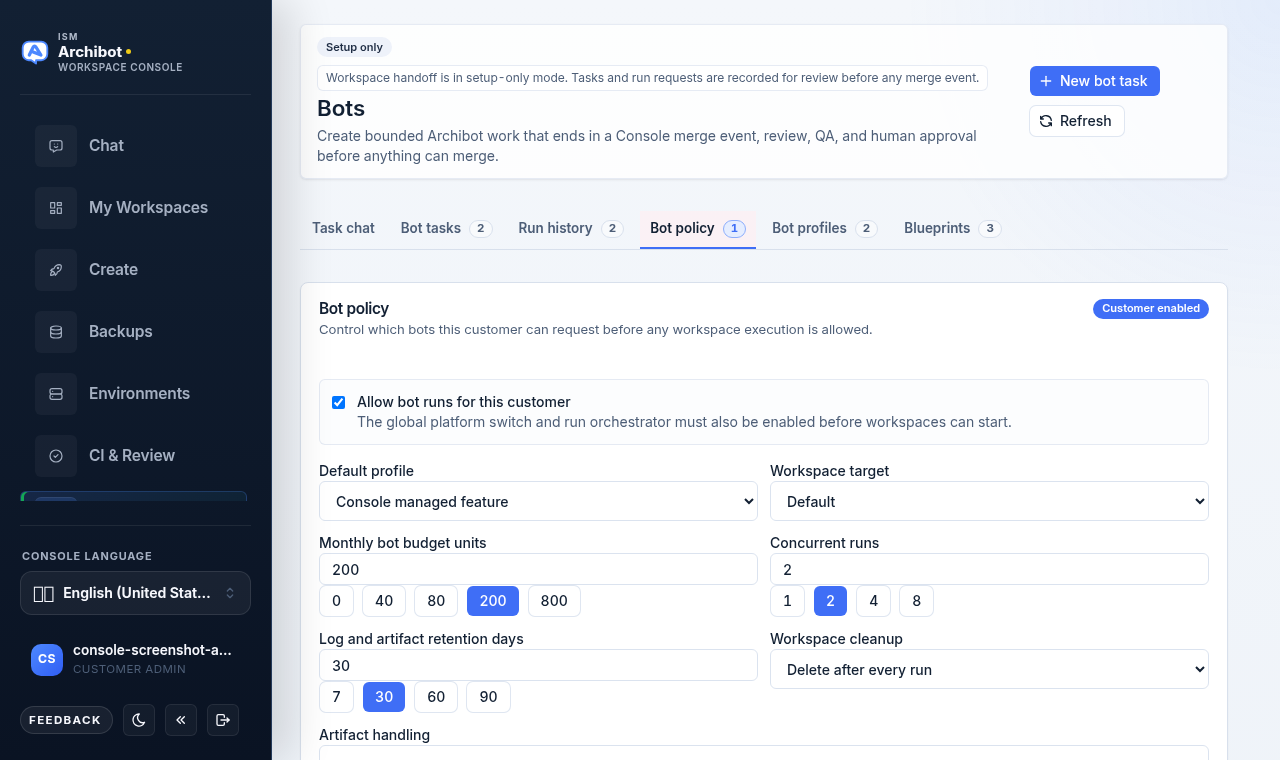
Key controls:
- Allow bot runs for this customer is the customer switch. The note reminds you that the global platform switch and run orchestrator must also be enabled before workspaces can start.
- Default profile and Workspace target set the defaults applied to new runs.
- Monthly bot budget units and Concurrent runs offer preset choices plus a free entry.
- Log and artifact retention days sets how long logs and evidence are kept.
- Workspace cleanup chooses whether to delete workspaces after each run, keep failed ones for debugging, or keep all until manually deleted.
- Artifact handling chooses how evidence is retained, including archiving to a Shared Drive.
- Allowed blueprints limits which blueprints this customer may run.
Select Save policy to persist the settings.
Bot profiles (operators)
The Bot profiles tab creates customer-specific profiles that define the worker template, reasoning, tools, and limits used by task drafts.
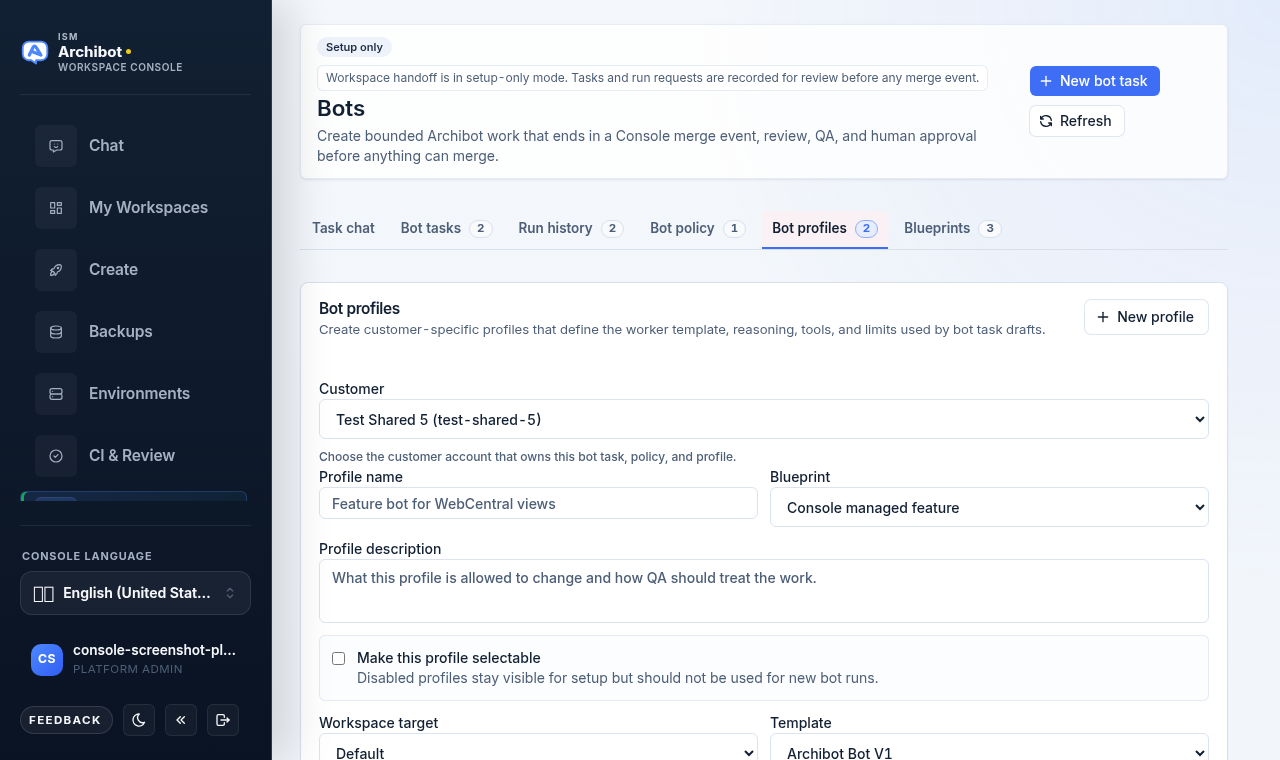
- Choose the Customer account that owns the profile.
- Select New profile, then set a Profile name and the Blueprint it uses.
- Add a Profile description of what the profile may change and how QA should treat the work.
- Turn on Make this profile selectable so it can be used for new runs. Disabled profiles stay visible for setup but should not be used.
- Set the Workspace target, Template, Reasoning effort, Runtime cap (seconds), Monthly budget units, Concurrent runs, and Tool allowlist.
- Select Save profile. Existing profiles offer Edit profile, Use as template, and Delete profile.
Blueprints (operators)
The Blueprints tab lists the fixed workflow templates, such as Console managed feature, Console managed fix, and Console managed docs. Each card shows its review model, QA step, runtime cap, and file budget, with an Enabled or Setup only badge.
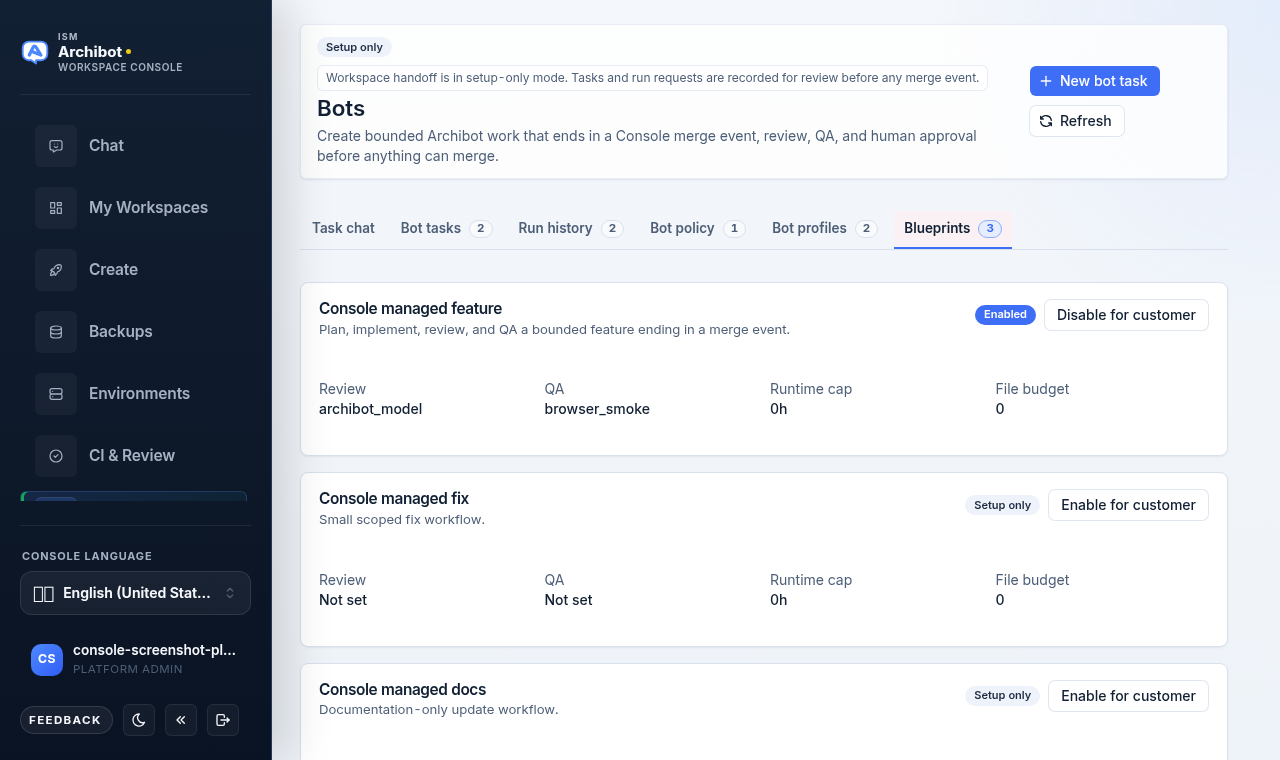
Use Enable for customer or Disable for customer to control which workflows a customer may run. Enabling a blueprint here does not start any work; it only widens what a policy and profile may select.
Safe content
Do not place passwords, API keys, cookies, invite links, webhook secrets, private repository tokens, database URLs, pod environment variables, raw logs, or customer data in a bot task, QA note, profile, or blueprint setting.
Safe content includes repository URLs, branch names, issue references, path scopes, non-secret setup notes, visible Console errors, and browser behaviors to verify.
What happens later
When bot execution is enabled for an account, a saved task can become the starting point for a controlled workflow: workspace setup, implementation, merge-event creation, review, QA, and human approval. Each step still passes the normal Console review gates before anything merges.
Related guides
- Persistent environments and CI Review
- Operations center
- Workspace ArchiBot and Shared Drive
- Tenant Admin for operators
- Manage workspaces
Done When
- You are a customer admin or platform operator.
- The task title, repository, branch, path scope, and QA notes contain no secrets.
- Bot execution is enabled by customer policy and ISM before you expect a workspace or merge event to start.
- A human reviewer still handles review approval and merge from Console.