


Operations
Billing Help for operators
Use the operator-only Billing Help chat to inspect a customer's billing state, clear credit and verification blockers, and apply audited support credit.
Last updated
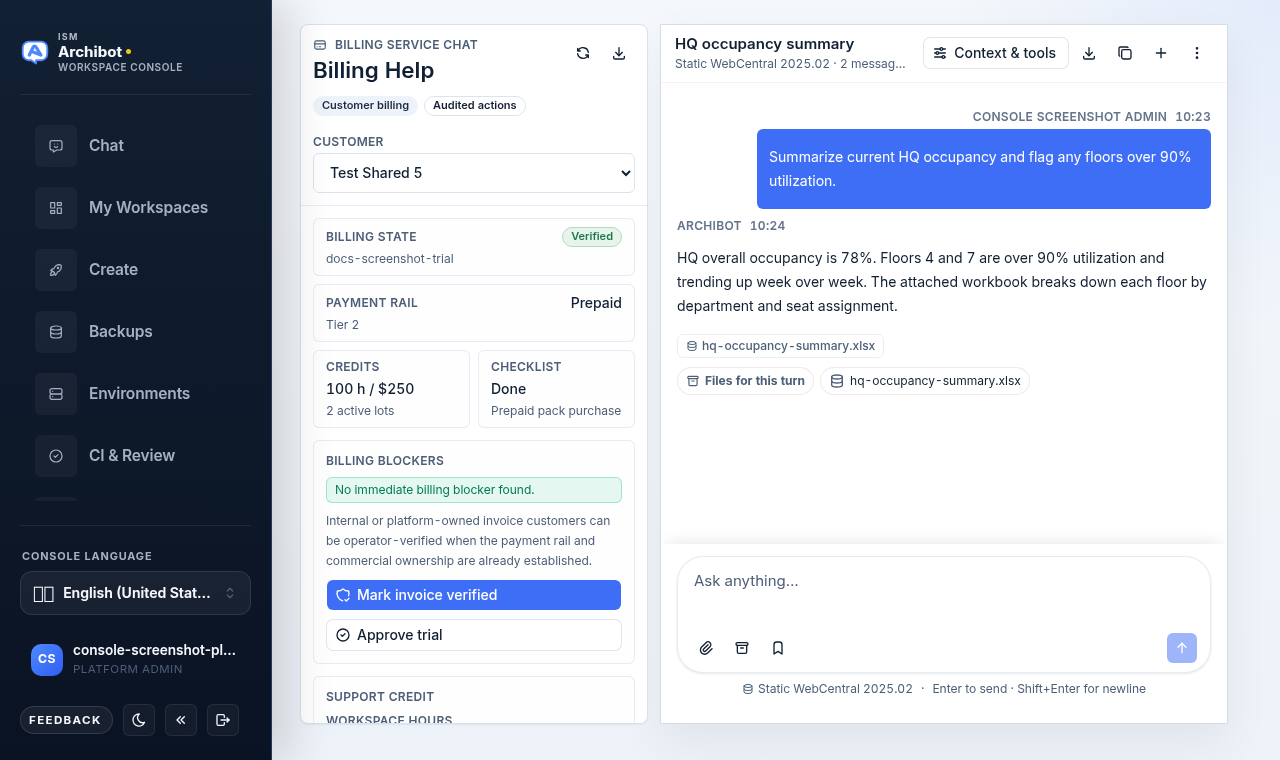
Billing Help is an operator-only surface for clearing the billing and credit problems that stop a customer from provisioning workspaces or using managed AI. It pairs a per-customer billing summary with a chat assistant that reasons over that customer’s billing state, prepaid ledger, and onboarding checklist.
This guide is for platform operators. If you only need to read your own usage and balances, see Usage and billing and Catalog and readiness instead.
Before you start
- You need an operator role. Billing Help only appears in the Console sidebar when you are in the operator view; customers and tenant admins do not see it. See Access roles.
- The actions here are audited. Marking invoice verified, approving a trial, and applying support credit all change a customer’s billing record, so confirm the customer and reason first.
- Have the customer identity ready (legal name or customer id). The picker lists customers by legal name.
Open Billing Help
- In the Console sidebar, select Billing Help. It sits in the operator navigation with a credit card icon.
- The page opens with the billing summary rail on the left and the billing service chat on the right.
Select a customer
- In the left rail header, open the Customer dropdown.
- Choose the customer you are helping. The summary loads their current billing record.
If the dropdown shows “No customers available”, the customer billing list could not load. Use the refresh control (the circular arrow in the rail header) and check that you still have an operator session.
Read the billing summary
The left rail gives you the at-a-glance state for the selected customer:
| Field | What it tells you |
|---|---|
| Billing state | Whether billing is Verified or still needs review. A review reference shows underneath when one is set. |
| Payment rail | How the customer pays (for example invoice, prepaid, or trial), with their usage tier below. |
| Credits | Remaining prepaid workspace hours and managed AI credit, plus how many active credit lots back them. |
| Checklist | Status of the billing checklist item, with the most recent ledger adjustment below. |
Use the download control in the rail header to Export billing report for the selected customer when you need an offline record.
Review billing blockers
The Billing blockers panel lists what is currently stopping the customer, for example unverified billing, a missing payment rail, an open checklist item, or no remaining prepaid balance. When nothing is wrong it shows “No immediate billing blocker found.”
A short note reminds you that internal or platform-owned invoice customers can be operator-verified when the payment rail and commercial ownership are already established. When you are unsure whether a given customer qualifies, ask the chat (see below) before taking an action.
Clear blockers
Each action applies to the customer currently selected in the picker.
- Mark invoice verified moves the customer to a verified billing state when they pay by invoice and their commercial relationship is already established.
- Approve trial approves a trial path for customers who should be allowed to start without a verified payment rail yet.
- Apply support credit grants a one-off credit. Fill in Workspace hours, AI cents, and a short Reason (for example a billing support adjustment), then select Apply support credit.
After each action, a confirmation notice appears in the rail and the summary refreshes. If something fails, an error banner explains why and no change is recorded.
Use the billing chat
The chat on the right is scoped to the selected customer. Its billing state, prepaid ledger, and checklist stay attached to the thread, so you can ask focused questions and get customer-safe next steps.
The empty state offers starter prompts:
- Unblock billing reviews the customer’s billing state, payment rail, prepaid balance, and onboarding checklist, then explains exactly what is blocking platform use.
- Invoice exception explains whether the customer can be operator-marked as invoice verified, especially for platform-owned or already-approved manual invoice rails.
- Summarize report summarizes recent billing activity, including prepaid credits, recent adjustments, invoice readiness, and customer-safe next steps.
Type your own question in the composer at any time. Treat the chat as guidance: it explains the situation and recommends a path, but the audited actions in the left rail are what actually change the customer’s record.
After you act
- Confirm the Billing blockers panel now reads “No immediate billing blocker found”, or note which blockers remain.
- If a workspace was waiting on billing, have the customer retry provisioning. See Create the first workspace and Troubleshooting.
- For issues that need engineering or a written trail beyond a credit, open or update a case via Support handoff.
Related guides
Done When
- The Billing Help item appears in the Console sidebar (operator view only).
- You can select a customer and read their billing state, payment rail, and credit balance.
- Billing blockers list shows either an open blocker or "No immediate billing blocker found."
- Mark invoice verified, Approve trial, and Apply support credit complete and show a confirmation notice.