


Account
Console account activity
Read the lifecycle history and notification log on your account so you can confirm what ISM has recorded and which messages were queued or sent.
Last updated
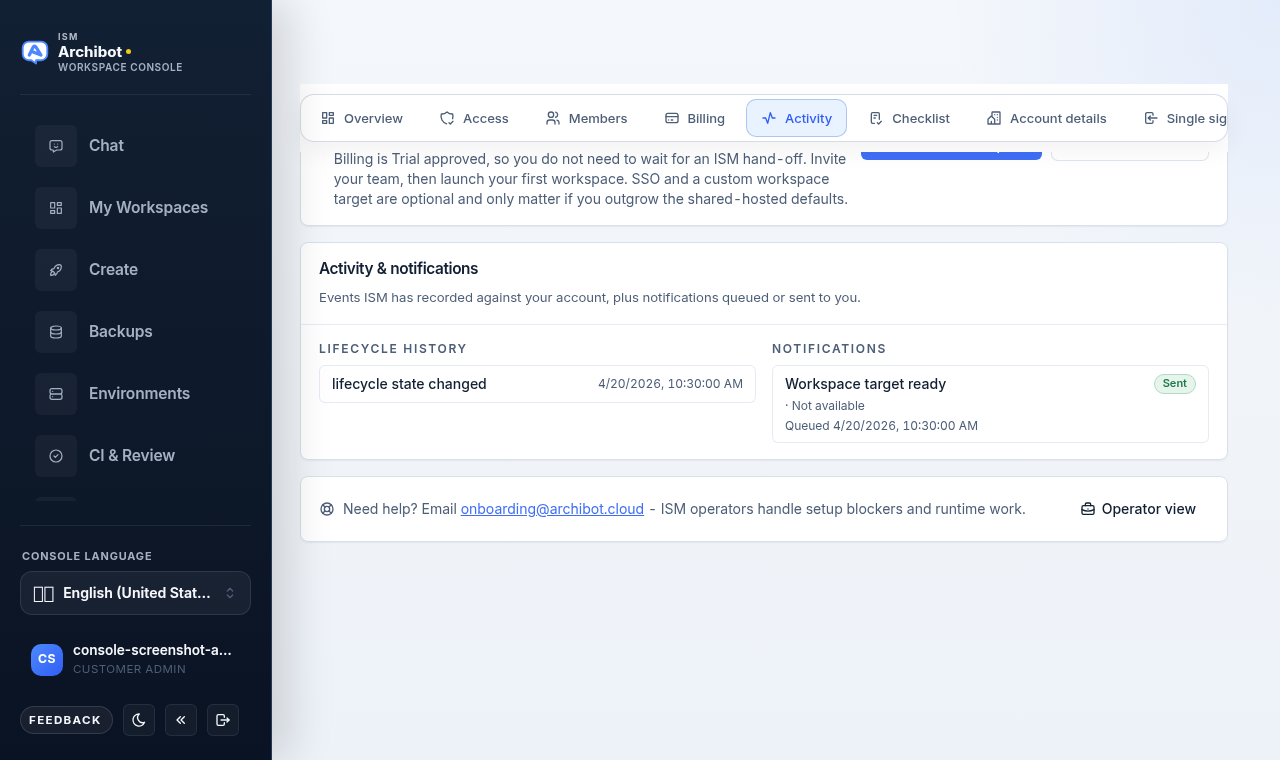
The Activity tab in Account Setup is a read-only record of what ISM has logged against your account. It has two parts: a lifecycle history of account state changes, and a notification log showing the messages ISM queued or sent to you. Use it to confirm a hand-off happened, see when your billing or workspace target changed, and check whether a notification actually went out.
This is different from the Activity feed inside the ArchiBot Chat app, which records prompts, runs, and audit events for the chat product. For that, see ArchiBot Chat activity and audit.
Who can see it
The Activity tab lives in the customer-admin Account Setup area. You reach it as a customer admin who owns account setup for your tenant. If you only use ArchiBot workspaces or ArchiBot Chat day to day, you may not have this view. See Access roles for how roles map to Console surfaces.
Open the Activity tab
- Sign in to the Console and open Account Setup. If you are still working through onboarding, the tabs at the top of the page are Overview, Access, Members, Billing, Activity, Checklist, Account details, and Single sign-on.
- Select the Activity tab.
- The page shows an Activity & notifications card. Its description reads “Events ISM has recorded against your account, plus notifications queued or sent to you.”
If neither column has any entries yet, the card does not appear. That is normal for a brand-new account that has not had any state changes or notifications.
Read lifecycle history
The left column, Lifecycle history, lists the most recent account state changes, newest first. Each entry can show:
| Detail | What it tells you |
|---|---|
| Event name | The kind of change, such as a lifecycle state change. |
| Timestamp | When ISM recorded the event, in your local time. |
| Summary | A short note about the event, when one was attached. |
| State transition | The previous state and the new state, shown as before → after. |
If an event has no recorded previous or new state, that side shows “Not available.” Only the most recent events are listed; this is a summary view, not a full export.
Read the notification log
The right column, Notifications, lists messages ISM queued or sent to you, newest first. Each entry can show:
- The subject line, such as “Workspace target ready.”
- A status badge: Sent when the message went out, or an outline badge for a message that is still queued or did not send.
- The channel and recipient. When a recipient is not recorded, it shows “Not available.”
- A timestamp: “Sent” with a date for delivered messages, or “Queued” with a date for messages still waiting.
Use the badge to tell the two cases apart. A green Sent badge means ISM delivered the message. An outline badge with a “Queued” timestamp means the message is recorded but has not been sent yet.
When to use this tab
- After an ISM hand-off, confirm the lifecycle event landed and the state moved as expected.
- When you expected an email and did not see it, check whether the notification shows as Sent or is still Queued.
- Before raising a question with ISM, copy the event name and timestamp so support can match it to their records.
Get help
If a lifecycle event or notification looks wrong, the help strip at the bottom of the page points you at ISM onboarding. Note the event name, the timestamp, and what you expected, then follow Support handoff to reach an operator. For setup steps that produce these events in the first place, see Customer admin setup.
Checks
- You can open the Activity tab in Account Setup.
- You can read a lifecycle event, its timestamp, and any state transition.
- You can tell whether a notification was sent or is still queued from its badge.
Related guides
- Customer admin setup
- Access roles
- Usage and billing
- Support handoff
- ArchiBot Chat activity and audit
Done When
- You can open the Activity tab in Account Setup
- You can read lifecycle events and their state changes
- You can tell whether a notification was sent or is still queued