


Support
Sending feedback
Use the global Feedback button to send a quick, structured note from any Console page. Pick a type and impact, add a subject and details, leave the page and account context attached, and keep the returned identifier for follow-up.
Last updated
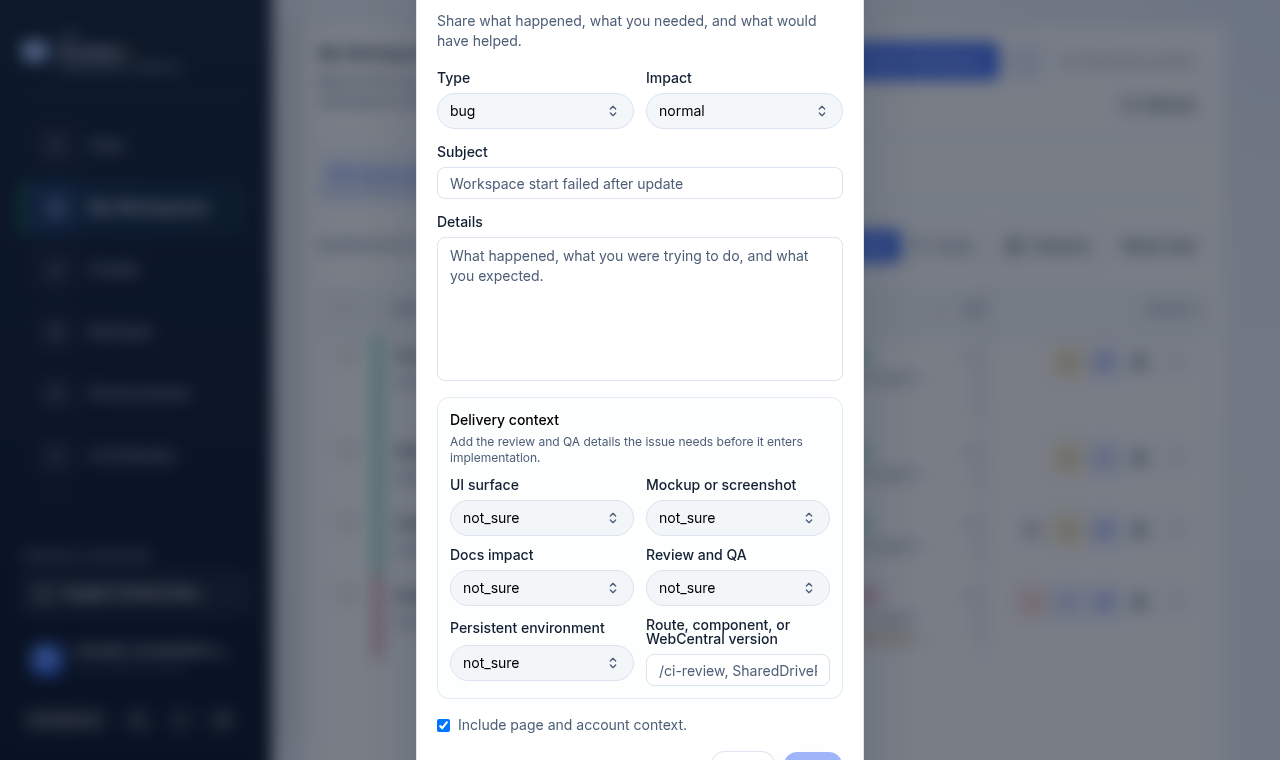
The Feedback button sits at the bottom of the Console sidebar and is available on every page. It opens a short form for sending a quick note to the ISM team without leaving what you were doing. Use it for a bug, a blocker, a guidance gap, stale docs, a feature request, or a quick win.
This is the lightweight companion to a structured support case. If you need a categorized ticket with a severity, use the Support tab instead (see /support-handoff/). Both routes capture the same kind of context.
Open the Feedback dialog
- Look at the bottom of the Console sidebar, below the navigation.
- Select the Feedback button (it shows a chat-bubble icon).
- The Send Feedback dialog opens over the current page.
The dialog title reads Send Feedback, with the prompt “Share what happened, what you needed, and what would have helped.”
Choose a type and impact
The first row has two selects:
- Type — what kind of note this is. The options are Bug, Blocked, Guidance gap, Stale docs, Request, and Win.
- Impact — how much it matters. The options are Normal, High, Urgent, Low, and Positive.
Pick the closest match. For a working report, Bug with Normal impact is the default starting point; raise the impact to High or Urgent only when something is genuinely blocking you.
Write the subject and details
- Subject — a one-line summary, for example “Workspace start failed after update.” This field is limited to 140 characters.
- Details — what happened, what you were trying to do, and what you expected. This field holds up to 5000 characters.
Both Subject and Details are required. The Send button stays disabled until you fill in both.
Keep the text descriptive but safe: do not paste secret values, tokens, one-time links, or account data into either field.
Add delivery context (optional)
Below the details is a Delivery context card, described as “Add the review and QA details the issue needs before it enters implementation.” Every select here defaults to Not sure, so you can leave the whole section alone if you are unsure. Filling it in helps the team route the note faster.
| Field | What it captures |
|---|---|
| UI surface | Where you saw it: Not sure, React Console view, WebCentral view, Console and WebCentral, or No visible UI. |
| Mockup or screenshot | Whether a visual is needed: Not sure, Not needed, Needed before review, Already attached, or Generate a visual guide. |
| Docs impact | Which docs are affected: Not sure, No docs update, Public docs, User guide, Setup instructions, or Support runbook. |
| Review and QA | The check level expected: Not sure, Review only, Browser smoke, DB or migration check, LSP or static checks, Destination QA, or Full review and QA. |
| Persistent environment | Environment impact: Not sure, No persistent-environment impact, Defaults or config only, Destination QA required, or Promotion candidate expected. |
| Route, component, or WebCentral version | A free-text field, for example “/ci-review, SharedDrivePage, or WebCentral 2025.02.” |
The route field is plain text and limited to 300 characters. Keep identifiers generic; do not include anything sensitive.
Keep page and account context attached
At the bottom is the Include page and account context checkbox, which is selected by default. When it is on, the note carries the current page path and your account context so the team can see where you were without you describing it.
Leave it checked unless you have a specific reason not to. Clear it only if you would rather not attach that context.
Send and save the identifier
- Select Send. The button shows “Sending…” while it submits.
- On success, a confirmation appears at the top of the form reading Sent as
<identifier>, sometimes with an Open in Linear link. - Copy the identifier and keep it for follow-up. There is no in-Console list of past feedback, so this reference is your record.
- Select Close to dismiss the dialog.
If sending fails, an error notice appears instead. Check your connection and try again; if it keeps failing, open a structured case from the Support tab.
When to use Feedback versus a support case
Use Feedback for a quick note from any page, especially when you want to flag a bug, a gap, or a win in passing. Use the Support tab when you need a categorized, severity-ranked case with a clear next owner. See /support-handoff/ for that flow and /troubleshooting/ for steps to try before you report.
Related guides
- /support-handoff/ — open a sanitized, structured support case.
- /troubleshooting/ — first-pass fixes before you report an issue.
- /console-settings/ — Console layout, the sidebar, and accessibility options.
- /access-roles/ — who can see and do what in the Console.
Done When
- Type and impact match what actually happened.
- Subject and details are filled in (both are required to send).
- Sensitive values stay out of the subject, details, and route fields.
- You kept the returned identifier for follow-up.