


Preferences
Console settings and accessibility
Set your ArchiBot account preferences, link a second login, manage Git access and spending caps, and choose language, appearance, and accessibility from the Settings page.
Last updated
What Settings is for
Settings is the per-user home for your ArchiBot account preferences plus how Console looks and behaves for you. It does not change other users’ preferences, and appearance choices apply to the browser you are using.
Settings is organized into two top-level tabs:
- ArchiBot account — the default tab. It keeps account setup, Git access, API keys, CI and Review, support, activity, billing, and spending caps in Console instead of inside the Chat workspace.
- Browser and session — your Console identity, language and region, appearance, and accessibility for this browser.
Below both tabs, a Login methods panel lets you link a second email login to the same account.
If you are new to the Console layout, start with Welcome to ArchiBot and Access roles so the role-gated controls below make sense.
ArchiBot account tab
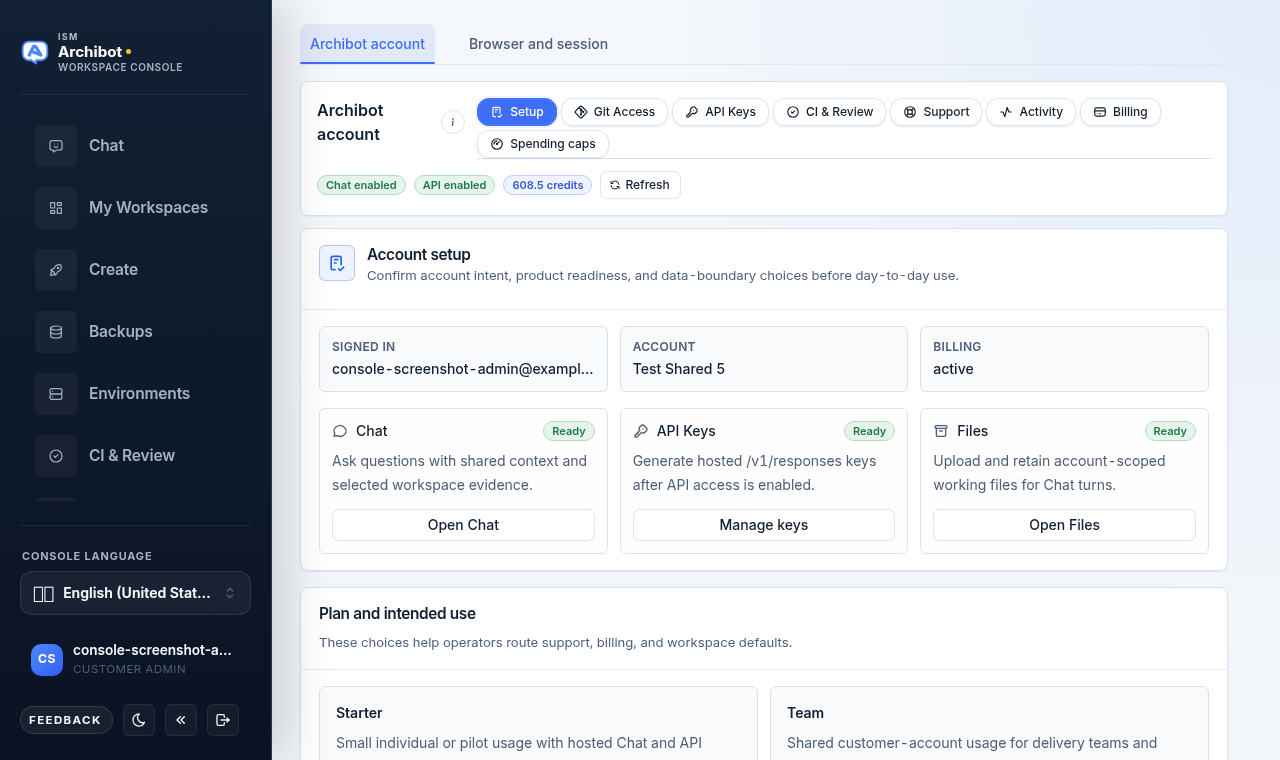
Settings opens on the ArchiBot account tab. A row of pills selects which surface you are looking at, and status badges plus a Refresh action sit just below them.
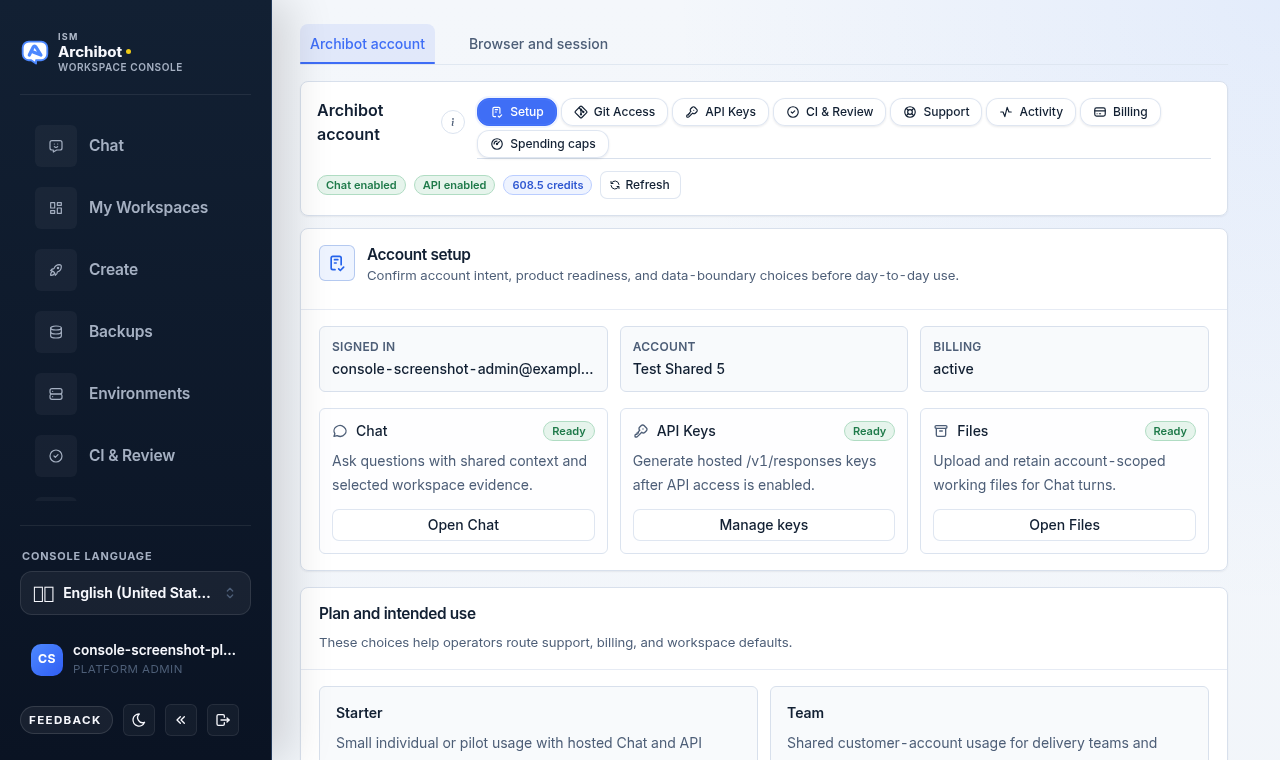
The pills, left to right, are:
| Pill | What it does | Related guide |
|---|---|---|
| Setup | Confirms account intent, product readiness, and data-boundary choices. | ArchiBot Chat setup |
| Git Access | Connects and reviews Git provider access for workspaces. | ArchiBot Chat access and SSO |
| API Keys | Manages keys for external sessions outside managed workspaces. | ArchiBot Chat API keys |
| CI & Review | Hands off to the CI and Review console. | Persistent environments and CI Review |
| Support | Opens a support case from Console. | ArchiBot Chat support cases |
| Activity | Shows account activity and lets you export it. | ArchiBot Chat activity and audit |
| Billing | Manages the plan and credits. | ArchiBot Chat billing and credits |
| Spending caps | Sets monthly limits per billable feature. | See Spending caps below. |
The Billing and Spending caps pills only appear if you have customer admin or platform access. Everyone else sees the first six pills.
The status badges show whether Chat and API access are enabled and how many credits remain. Use Refresh if you have just changed plan or access and want the latest state without reloading the page.
Setup
Setup is where you confirm what the account is for before day-to-day use. It summarizes whether you are signed in, the account name, and billing status, then offers quick links to open Chat, manage keys, and open files. Lower on the panel you confirm your plan and intended use. The Plan and intended use card only shows before billing is set up; once you have an active subscription or verified billing, the card disappears since the choice no longer needs surfacing. For the full walkthrough, see ArchiBot Chat setup.
Git Access
The Git Access pill manages how Console connects to your Git provider for workspaces. Use it to confirm or refresh provider access without leaving Settings. For provider connection and SSO details, see ArchiBot Chat access and SSO.
API Keys
API keys are for external sessions outside managed workspaces. Managed ArchiBot workspaces provision their key automatically, so you only need a key here when you are calling the API from your own tooling. See ArchiBot Chat API keys for creating, rotating, and revoking keys.
Support and Activity
The Support pill opens a form to submit a support case from Console; the Activity pill shows recent account activity and an export action. See ArchiBot Chat support cases and ArchiBot Chat activity and audit.
Browser and session tab
Select Browser and session to manage your Console identity, language, appearance, and accessibility for this browser. These choices apply to the browser you are using and do not change anyone else’s view.
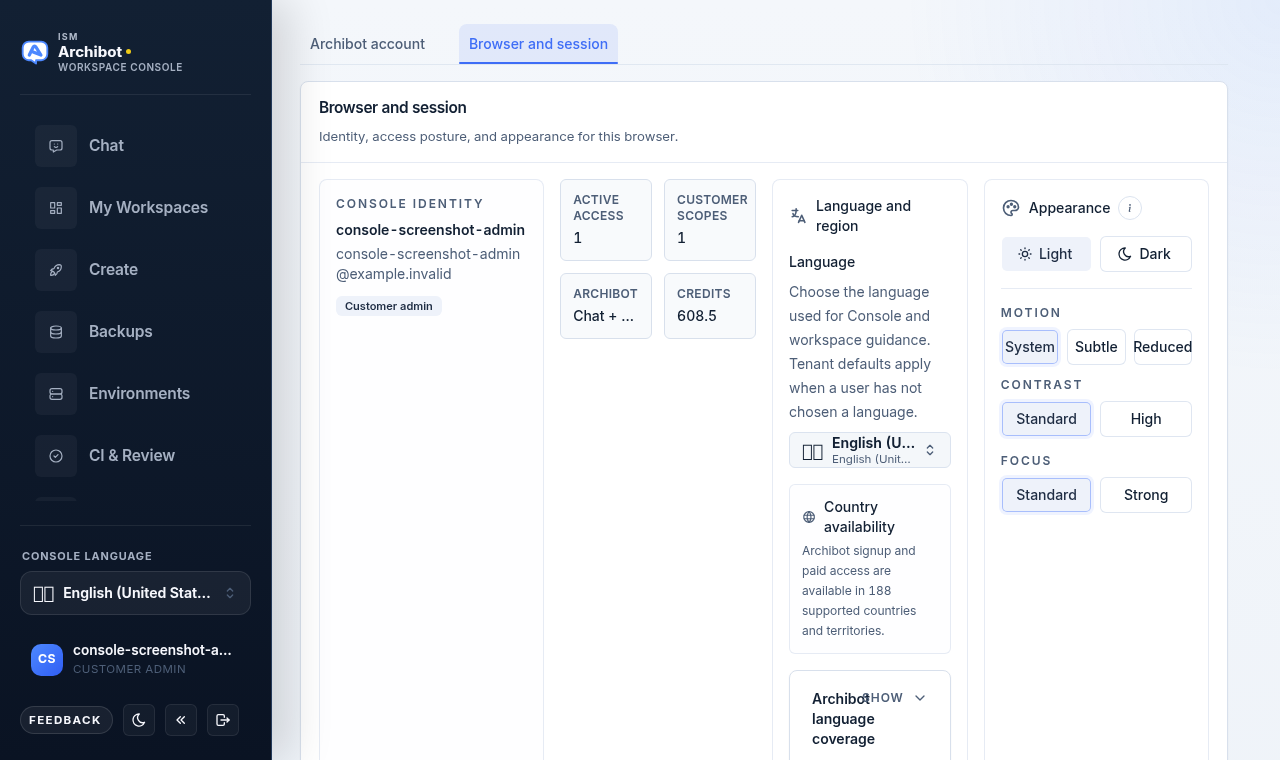
The tab is laid out as four areas:
- Console identity — your username, email, and role badges. Use it to confirm you are signed in as the expected account before account-scoped work.
- Access metrics — compact tiles for active access, customer scopes, ArchiBot readiness, and remaining credits.
- Language and region — choose the language used for Console and in-workspace guidance, with a note on supported countries and an expandable ArchiBot language coverage panel.
- Appearance — theme, motion, contrast, and focus.
Language and region
Choose the language used for Console and in-workspace guidance. When you have not chosen a language, the tenant default applies, so a new member sees a sensible language before making their own choice. Operators set the tenant default separately.
The Console language picker also appears in the left sidebar for a quick change. Below the picker, a note describes the supported countries and territories, and a Show language coverage disclosure lists per-locale status for browser chat, workspace chat, and the editor extension.
Appearance and accessibility
Appearance settings are the stable home for display preferences. The header theme toggle stays available for quick changes.
| Setting | Options | Use it when |
|---|---|---|
| Theme | Light, Dark | You prefer a lighter or darker Console surface. |
| Motion | System, Subtle, Reduced | Animations should follow the OS, be calmer, or be minimized. |
| Contrast | Standard, High | You need stronger separation between text and background. |
| Focus | Standard, Strong | You want more visible keyboard focus indicators. |
Motion, contrast, and focus are accessibility controls. Set Motion to Reduced and Focus to Strong if you rely on the keyboard or are sensitive to animation. A small help button next to Appearance explains the options inline.
Spending caps
The Spending caps pill on the ArchiBot account tab sets monthly limits for each billable Console feature. It only appears, and is only editable, for users with customer admin or platform access. Others see an access-required notice.
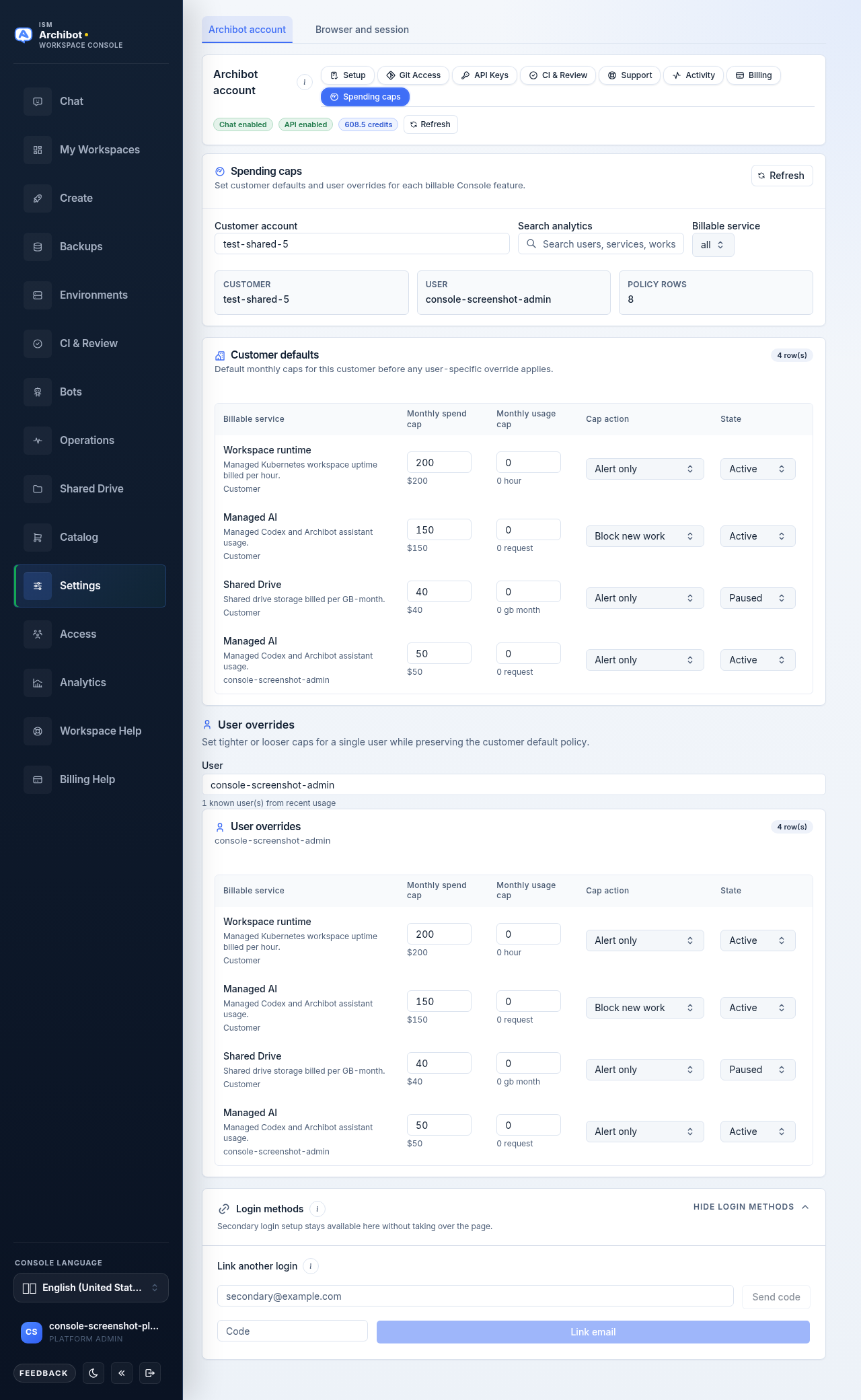
Caps are organized in two scopes:
- Customer defaults apply to everyone in the customer account before any override.
- User overrides set tighter or looser caps for a single user while preserving the customer default policy.
To edit caps:
- Select Spending caps from the ArchiBot account pills.
- In Customer account, choose or type the customer you are editing. Known customers appear as suggestions.
- Optionally narrow the tables with Search analytics and the Billable service filter.
- Edit a row in Customer defaults: set the monthly spend cap, monthly usage cap, cap action (Alert only, Block new work, or Disabled), and state (Active or Paused).
- For a single user, type or pick a name under User, then edit the matching row in User overrides.
Each row saves on its own once you change a value. Use Refresh to reload the latest caps and recent usage.
Caps are accounting limits, not credentials. Never put payment data or secrets in a cap note. For how caps relate to credits and invoices, see Usage and billing and ArchiBot Chat billing and credits.
Login methods
Below both tabs, the Login methods panel links another email-based login to the same account without leaving Settings. While signed in:
- Open Login methods if it is collapsed.
- Enter the secondary email and choose Send code.
- Enter the one-time code and choose Link email.
A confirmation message names the email and the customer it is linked to. Secondary logins reach the same account scopes. They are not a way to share one account between people.
What stays out of Settings
Settings is for preferences and your own account. It does not expose service tokens, Kubernetes access, internal service addresses, or other customers’ data. Keep secrets out of any note, support text, or export request you start here. If you hit an error you cannot resolve, see Troubleshooting or open a case from the Support handoff guide.
Done When
- Settings opens on the ArchiBot account tab and the pill you expect is selected.
- The Browser and session tab shows the right identity, language, appearance, and accessibility for this browser.
- Any secondary login email is linked with a one-time code while signed in.
- Spending caps are only edited by users with customer admin or platform access.