


Operations
Workspace Help for operators
Use the operator Workspace Help chat to triage workspaces across the fleet, read sanitized runtime evidence, and draft user-safe handoffs.
Last updated
What Workspace Help is for
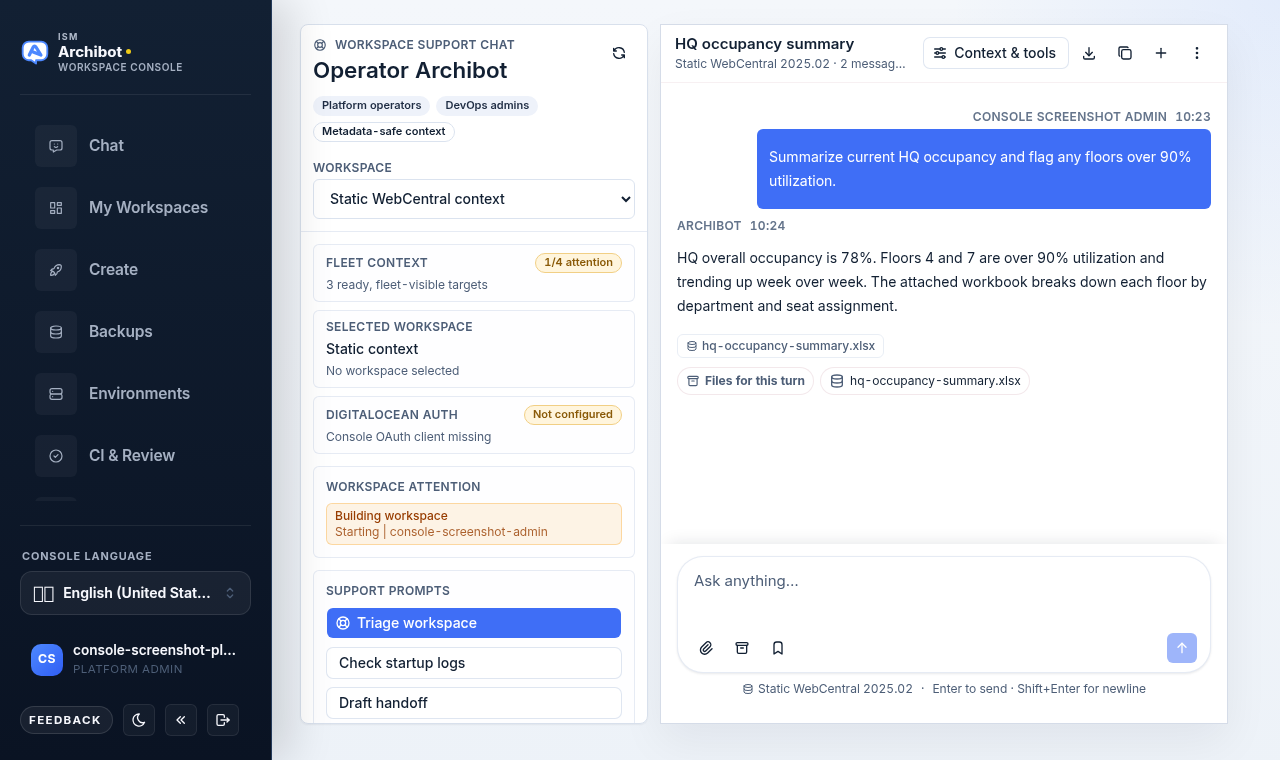
Workspace Help is the operator support chat. It is scoped to the workspaces you can see across the fleet, so you can triage a stuck or failed workspace, read sanitized startup and runtime evidence, and draft a user-safe handoff without leaving Console.
It is different from the end-user chat at /chat. End users ask ArchiBot about their own single workspace and authoring context. Workspace Help gives operators a fleet-wide picker, an attention list, and operator-only support prompts. Use Workspace Help when you are helping someone else’s workspace; use the standard chat for your own work.
The Console nav item is labeled Workspace Help and opens at /workspace-help. The page itself is titled Operator ArchiBot.
Who can open it
Workspace Help is role-gated. The nav item and the page only appear for platform operators and customer admins. If you do not see Workspace Help in the left nav, you do not have operator or customer-admin access in this session, and there is nothing to enable on your side — confirm your role first.
For broader operator launch-control work — account boundary, members, billing gates, and onboarding evidence — use Tenant Admin for operators alongside this chat.
Read the support rail first
The left rail is the Workspace support chat panel. It carries the context every reply is grounded in, so check it before you ask anything.
- Workspace — a dropdown that defaults to Static WebCentral context. Pick a workspace here to attach that workspace as the chat context.
- Fleet context — a badge showing how many fleet-visible workspaces need attention (for example
0/3 attention) and how many are ready. - Selected workspace — the current target with its status, owner, and agent name.
- DigitalOcean auth — whether your signed-in OAuth grant is connected, required, optional, or not configured. Workspace-scoped operator actions lean on this grant.
- Workspace attention — a short list of workspaces that are failed, still building, stuck, missing a ready agent, or otherwise need a look. Click any entry to select it as the chat target.
- Support prompts — three ready-made operator prompts: Triage workspace, Check startup logs, and Draft handoff.
Triage a workspace
- Open Workspace Help from the left nav (or go to
/workspace-help). - In the rail, choose the workspace from the Workspace dropdown, or click an entry under Workspace attention to select it. The Selected workspace card should now show that workspace with its status, owner, and agent.
- Confirm DigitalOcean auth shows the access you expect. If it says required or not configured, workspace-scoped evidence may be limited until that grant is in place.
- Click the Triage workspace support prompt. This drops a triage request into the composer covering failed builds, stuck startup, missing runtime metadata, and user-safe next steps, using only Console-scoped evidence.
- Review the reply. Use Check startup logs to dig into build and runtime state, and refine with your own questions in the composer.
The chat only reasons over sanitized, metadata-safe context. It does not expose raw secrets, tokens, or full runtime internals, and you should keep your own messages and handoffs the same way.
Ask your own questions
You do not have to use the canned prompts. Type any question into the composer and send it. The selected workspace, sanitized files, and trace output stay attached to the support thread, so follow-up questions keep the same context until you change the workspace selection.
To compare against the baseline rather than a live workspace, leave the dropdown on Static WebCentral context.
Draft a handoff
When you need to pass an issue to another owner, click Draft handoff. It produces a concise operator handoff with a user-visible summary, the internal evidence to check, and a follow-up owner. Review it before sharing — keep customer-facing language in the user-visible part and avoid pasting raw logs or credentials anywhere.
Keep replies user-safe
- Do not paste tokens, credentials, private keys, or invite links into the thread.
- Share status, owner, and sanitized evidence; do not copy raw runtime internals into customer-facing notes.
- Use placeholder ids (for example
example.comor a redacted workspace name) when you record an issue outside Console.
Related guides
- Tenant Admin for operators — the operator customer operations desk for boundary, members, and billing gates.
- Operations center — fleet-wide operational view alongside this support chat.
- Manage workspaces — what users see and control for their own workspaces.
- Persistent environments and CI Review — related review and automation surfaces.
- Using ArchiBot Chat — how the end-user chat works for comparison.
Done When
- You are signed in as an operator or customer admin; the Workspace Help item only appears with that access.
- The right workspace is selected in the rail before you ask about a specific issue.
- Replies and handoffs stay user-safe; no tokens, credentials, or raw runtime internals are pasted into the thread.
- DigitalOcean auth shows the access you expect before relying on workspace-scoped evidence.